
 0
 0
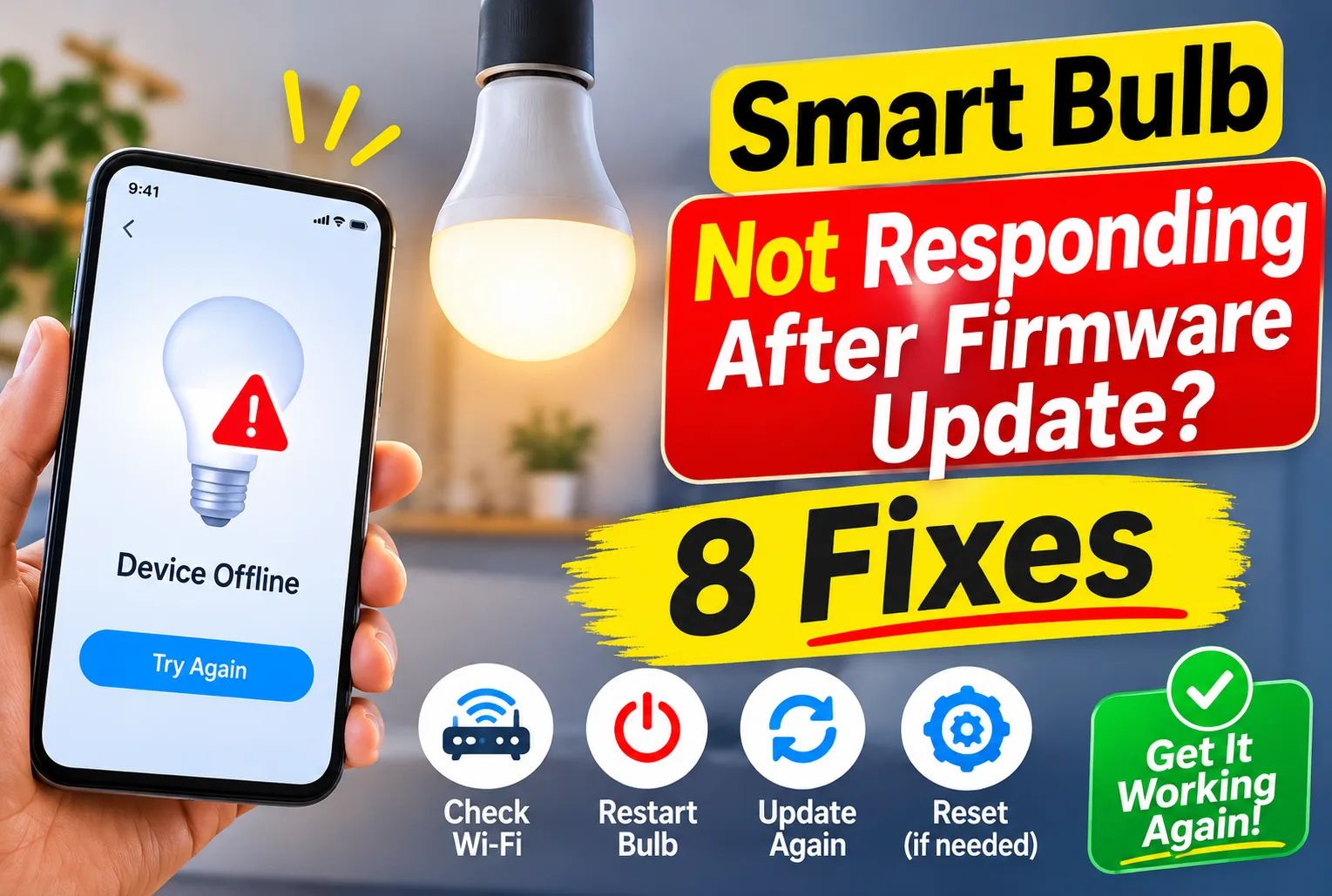
Your smart bulb worked properly before the firmware update, but now it does not respond to the app. If your smart bulb is not responding after a firmware update, it may appear offline, refuse to turn on, or stop following app commands.
A failed update, lost Wi-Fi connection or temporary software problem could be responsible. The good news is that you may be able to fix it without replacing the bulb.
Before buying a new bulb or performing a factory reset, try the checks below. Start with the simple steps and move to the reset options only if needed.
Why is your Smart Bulb Not Responding After Firmware Update?
A firmware update changes the software that runs inside your smart bulb. It may add features, fix known problems or improve how the bulb works.
Sometimes, the bulb may not reconnect properly after the update. Other times, the update may not have finished, or the app may still show an old device status.
Here are some common reasons:
- The firmware update was interrupted.
- The bulb lost its Wi-Fi connection.
- The smart home app is showing an old device status.
- The bulb needs a restart.
- The router or phone is having a connection problem.
- The bulb needs to be added to the app again.
The right fix depends on what the bulb is doing now.
8 ways to fix a smart bulb that stopped responding after an update
1. Give the bulb a few minutes to finish the update
Do not rush to switch off the bulb if the update has just started.
Some smart bulbs need time to install new software and reconnect to the network. If you turn off the power too soon, the update may not finish correctly.
Try this:
- Keep the bulb switched on.
- Wait for around 5–10 minutes.
- Keep the phone connected to the internet.
- Open the smart bulb app again.
- Check whether the bulb appears online.
If the app still shows an update in progress, follow the instructions from the bulb maker. Do not keep switching the power on and off while an update is running.
2. Restart the smart bulb using its wall switch
A simple power restart can fix a temporary problem after an update.
Follow these steps:
- Turn the bulb off using the wall switch.
- Wait for about 30 seconds.
- Turn the wall switch back on.
- Give the bulb a minute to start.
- Open the app and try to control it.
Make sure the wall switch stays on when you want to control the bulb through the app.
If the bulb does not light up at all, try another working lamp holder if it is safe and suitable for that bulb. This can help you check whether the problem is with the bulb or its power supply.
3. Check whether the bulb is still connected to Wi-Fi
A firmware update may be followed by a connection problem. The bulb may still have power, but the app cannot reach it.
Check these things:
- Is your home Wi-Fi working?
- Can your phone connect to the same Wi-Fi network?
- Has the router been restarted or its settings changed?
- Is the bulb too far from the router?
- Does the app show the bulb as offline?
If your bulb uses 2.4 GHz Wi-Fi, make sure that network is still available. Some smart bulbs do not support 5 GHz Wi-Fi.
If other smart devices are also offline, check your router before changing the bulb settings.
4. Close and reopen the smart bulb app
Sometimes the bulb is working, but the app is not showing its latest status.
Try this:
- Close the smart bulb app completely.
- Open it again.
- Wait for the device list to load.
- Tap the bulb and try turning it on or off.
- Check whether the app shows a new device status.
You can also check whether an app update is available in the Play Store or App Store.
Do not remove the bulb from the app yet. First check whether reopening the app brings it back online.
5. Restart your Wi-Fi router
If the bulb still does not respond, restart your router.
- Switch off the router.
- Wait for around 30 seconds.
- Turn it back on.
- Wait until the Wi-Fi connection is working again.
- Open the bulb app and check the device.
Keep the bulb close to the router during this test if possible.
If the bulb connects after the router restart, the issue may have been with the network rather than the firmware itself.
6. Check for another firmware update
If the bulb appears in the app but still behaves strangely, check whether the manufacturer has released another update.
Open the bulb’s settings in the app and look for a section called Firmware Update, Device Update or Software Update.
If another update is available:
- Check that the bulb is online.
- Keep the wall switch on.
- Keep your phone connected to a stable network.
- Follow the app’s instructions.
- Do not close the app or cut power during the update.
If the update fails again, note the error message. It will help the manufacturer’s support team identify the problem.
7. Reset the smart bulb and add it again
If none of the earlier steps work, you may need to reset the bulb.
Before doing this, remember that a factory reset can remove saved Wi-Fi details, device names, room settings and other custom settings.
Do not use a random reset sequence. The steps can differ between brands and even between models from the same brand.
For example, TP-Link lists different reset methods for different Kasa and Tapo bulb models. Some models support a soft reset, while others use a factory reset to clear their settings.
Check the official reset guide for your exact bulb model before continuing.
After resetting:
- Open the manufacturer’s app.
- Remove the old device entry if the app still shows it.
- Put the bulb into pairing mode using the correct instructions.
- Add it as a new device.
- Follow the app’s setup steps.
If the bulb cannot enter pairing mode or does not appear in the app, do not keep repeating the reset. Contact the manufacturer for model-specific help.
8. Contact the manufacturer if the bulb still does not work
If the bulb remains unresponsive after these checks, it may have a deeper software or hardware problem.
Contact the manufacturer’s support team if:
- The bulb does not light up at all.
- The app cannot find the bulb after a correct reset.
- The update repeatedly fails.
- The bulb keeps restarting or flashing abnormally.
- The bulb does not work in another suitable lamp holder.
Share the bulb’s model number, app name, firmware version and any error message. Also mention that the problem started after a firmware update.
If the bulb is still under warranty, ask the manufacturer about repair or replacement before opening or trying to repair it yourself.
Read Also: How to connect smart bulb to 5ghz wifi: Easy Guide to Solve It
What if the bulb works manually but not through the app?
This is an important clue.
If the bulb turns on using the wall switch but does not respond to the app, it is receiving power. The problem may be with its Wi-Fi connection, app setup or device settings.
Try these checks:
- Confirm that the bulb is still listed in the app.
- Check whether it shows as online or offline.
- Restart the router and app.
- Check whether your phone and bulb are using the correct network.
- Add the bulb again only if the earlier steps fail.
If the bulb does not turn on even with the wall switch, check the lamp holder and power supply before assuming the firmware update caused permanent damage.
FAQ
Can a firmware update damage a smart bulb?
A normal firmware update should not damage a working bulb. However, an interrupted or failed update can leave the bulb unable to connect or work as expected. Try the manufacturer’s recovery steps before replacing it.
Should I reset my smart bulb after a firmware update?
No. A reset is not needed after every update. Try restarting the bulb, checking Wi-Fi and reopening the app first. Reset it only when the normal checks fail and the manufacturer recommends it.
Why is my smart bulb offline after a firmware update?
The bulb may have lost its Wi-Fi connection or failed to reconnect after installing the update. Restart the bulb and router, then check its status in the app.
Can I turn off the power while a smart bulb is updating?
It is better not to. Cutting power during an update may interrupt the process. Keep the bulb switched on and follow the instructions shown in the app.
Will a factory reset remove my smart bulb settings?
Yes. A factory reset usually clears saved settings, such as Wi-Fi details and device setup. You may need to add the bulb again and set up its routines or room settings.
Read Also: How to reset Kasa smart bulb in 5 Minutes!
Final thoughts
If your smart bulb stopped responding after a firmware update, do not replace it straight away. Start by waiting for the update to finish, restarting the bulb and checking the Wi-Fi connection.
If the bulb still does not work, check for another update or follow the correct reset steps for your model. A factory reset should be one of the later steps, not the first thing you try.
If the problem continues, contact the manufacturer with the model number and update details. This is safer than trying reset methods that may not match your bulb.


