
 0
0
 0
0
Your phone is essentially lying to you. It shows full signal bars, and your laptop says it is “Connected.” But the moment you try to load a webpage, you get that dreaded “No Internet” message.
We have all felt that surge of frustration. You need a mobile hotspot connected but no internet fix that actually works, and you need it right now. You shouldn’t have to be a computer expert just to get your own data to work on your own devices.
This guide is built to help you bridge that gap. We have researched the most common reasons this happens and found the easiest ways to get your data moving again. Let’s stop the spinning icons and get you back to what matters.
The “Quick Fix” Checklist
Before we dive into the deep stuff, let’s try these rapid-fire solutions. Sometimes the simplest move is the winner.
- Toggle Airplane Mode: Switch it on for 10 seconds on your phone, then turn it off. This forces your cellular data to reconnect to the tower.
- Restart Both Devices: Turn off your phone and the device trying to connect. This clears out temporary “brain fog” in the software.
- Check Your Bars: If your phone only has one bar of LTE or 5G, the connection might be too weak to actually move data.
- Check Data Limits: Did you hit your monthly tethering cap? Many “unlimited” plans actually limit hotspot data specifically.
Why Does This Happen?
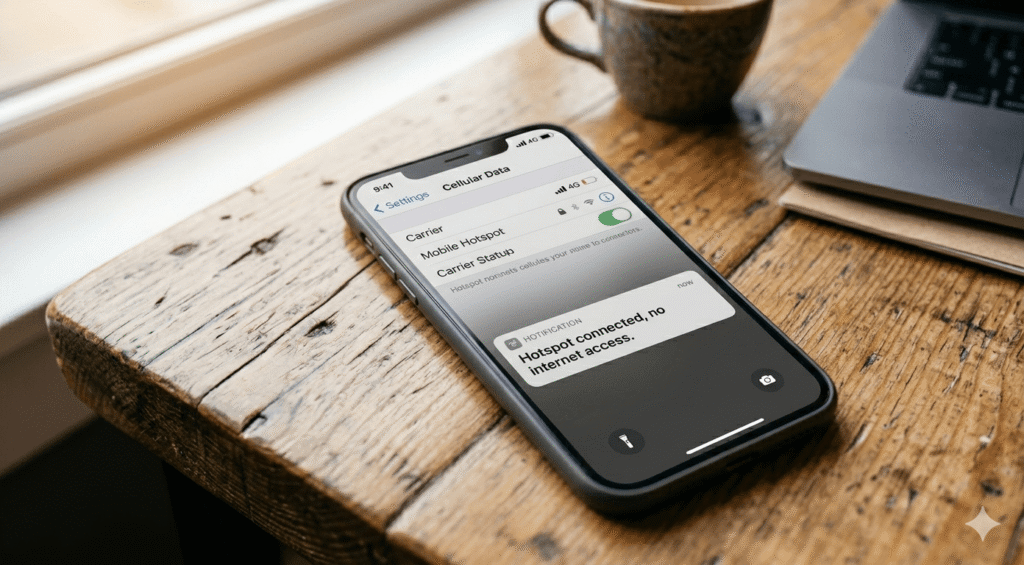
Your mobile hotspot works like a bridge. Your phone grabs data from the cell tower (the internet) and then broadcasts its own little Wi-Fi network for your laptop or tablet to join.
The “Connected, No Internet” error happens when the bridge is built, but the data cannot cross it. This could be because the cell tower isn’t talking to your phone, or your phone isn’t passing that data along to your laptop.
1. Check Your Data Plan and Limits
This is the most common “hidden” culprit. Mobile carriers are sneaky. You might have an unlimited data plan for your phone, but they often put a strict limit on “tethering” or hotspot usage.
Once you hit 5GB or 10GB of hotspot data, the carrier might cut you off completely or throttle your speed so low that it feels like you have no internet.
What to do:
Open your carrier’s app or log into your account online. Look specifically for “Hotspot Data Usage.” If you have used it all up, that is your answer. You might need to buy a top-up or wait until your next billing cycle.
2. Disable Battery Saver and Low Data Modes
Phones are designed to save power. If your phone is below 20%, it might automatically enter “Battery Saver” mode. To save juice, the phone might keep the hotspot broadcast active but stop the actual data transfer to save energy.
On Android:
- Go to Settings.
- Tap Battery.
- Ensure Battery Saver is turned off.
On iPhone:
- Go to Settings.
- Tap Battery.
- Toggle off Low Power Mode.
Also, check for Low Data Mode in your cellular settings. This setting tells your phone to stop using data for “unnecessary” tasks, and sometimes it gets over-enthusiastic and kills your hotspot’s internet flow.
3. Clear the “DNS” Caches
Think of DNS (Domain Name System) as the phonebook of the internet. It turns a name like “google.com” into a string of numbers your computer understands. Sometimes, this phonebook gets corrupted.
If your laptop is connected to the hotspot but cannot find the “phonebook,” it won’t load anything.
The Fix for Windows Users:
- Press the Windows Key and type cmd.
- Right-click it and choose Run as Administrator.
- Type
ipconfig /flushdnsand hit Enter. - Restart your browser.
The Fix for Mac Users:
- Open Terminal (Command + Space, then type Terminal).
- Type
sudo dscacheutil -flushcache; sudo killall -HUP mDNSResponderand hit Enter. - Enter your password when prompted.
Comparison: Android vs. iPhone Hotspot Settings
| Feature | Android Fix | iPhone Fix |
| Bandwidth | Switch from 5.0 GHz to 2.4 GHz | Toggle “Maximize Compatibility” |
| Reset | Reset Wi-Fi, Mobile & Bluetooth | Reset Network Settings |
| Security | Try “WPA2” instead of WPA3 | Ensure “Allow Others to Join” is ON |
4. Change the APN Protocol (Android Only)
APN stands for Access Point Name. It is basically the set of instructions your phone uses to connect to your carrier’s network. If these instructions are outdated, your hotspot might struggle.
This sounds technical, but it is just a few taps:
- Go to Settings > Network & Internet > Mobile Network.
- Look for Access Point Names (APN).
- Select your current APN and look for APN Protocol.
- Change it to IPv4/IPv6. If it is already on that, try changing it to just IPv4.
- Save the settings and restart your hotspot.
5. Switch the Wi-Fi Band
Most modern phones allow you to broadcast your hotspot on two different frequencies: 2.4 GHz and 5.0 GHz.
- 5.0 GHz is faster but has a shorter range.
- 2.4 GHz is slower but more compatible with older devices and can travel through walls better.
Sometimes, a laptop or older tablet simply cannot handle the 5.0 GHz signal properly, leading to a “connected but dead” situation.
How to change it:
Go into your Hotspot settings. Look for “AP Band” or “Bandwidth.” Change it to 2.4 GHz. This often solves the problem instantly for older laptops.
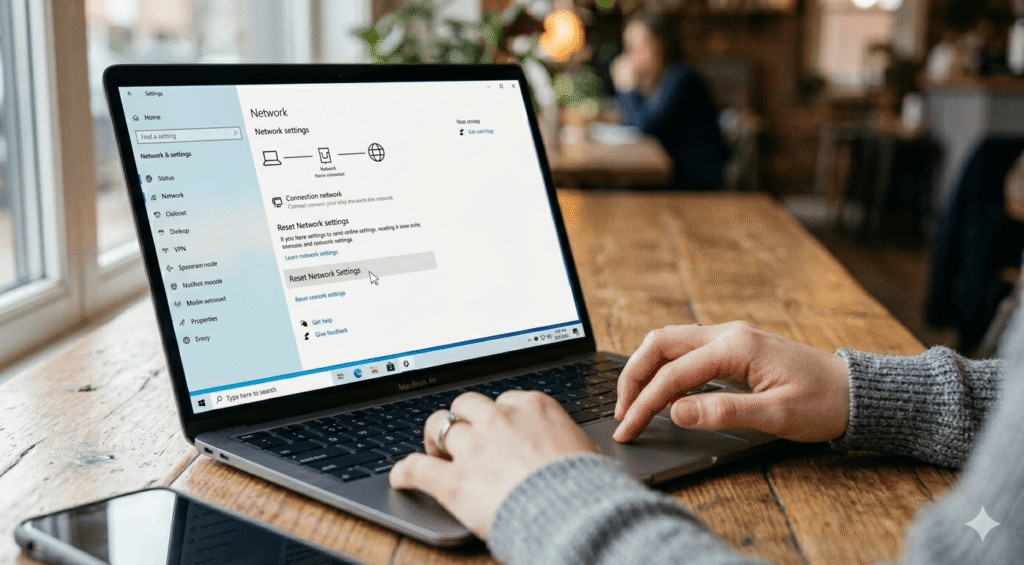
6. Reset Your Network Settings
If you have tried everything else and you are still stuck, it is time for a “soft reset” of your network system. This won’t delete your photos or apps, but it will erase your saved Wi-Fi passwords and Bluetooth pairings. It is a bit of a hassle to reconnect your headphones later, but it fixes deep-rooted software glitches.
For iPhone:
- Settings > General > Transfer or Reset iPhone > Reset > Reset Network Settings.
For Android:
- Settings > System > Reset options > Reset Wi-Fi, mobile & Bluetooth.
Your phone will reboot. Once it comes back on, set up your hotspot name and password again. This usually clears out any conflicting IP addresses that were blocking your data.
7. Check for Windows Update or Driver Issues

If your phone’s internet works fine, but only your laptop is struggling, the problem is likely the laptop.
Windows sometimes “breaks” network drivers during an update. You can try to fix this by telling Windows to “forget” the network.
- Click the Wi-Fi icon on your taskbar.
- Right-click your Hotspot name.
- Select Forget.
- Turn Wi-Fi off and back on, then reconnect with your password.
If that fails, you can go to the Device Manager, find your Network Adapters, and right-click your Wi-Fi card to “Update Driver.”
Pro-Tips for a Stable Hotspot
- Keep the Phone Plugged In: Hotspots drain batteries faster than almost anything else. A low battery leads to a weak signal.
- Watch the Heat: Hotspots make phones get very warm. If your phone overheats, it will throttle the data speed to cool down. Keep it out of direct sunlight.
- Limit Devices: Do not connect four different things to one phone. Every extra device divides the available bandwidth.
FAQ: Hotspot Connected But No Internet?
Can I fix this without restarting?
Sometimes toggling the Hotspot button off and on repeatedly works, but a full restart is always more reliable. It clears the system cache in a way a toggle can’t.
Why does it work on my tablet but not my laptop?
This usually points to a DNS or IP conflict on the laptop itself. Try the “DNS Flush” method mentioned earlier. It could also be that your laptop’s firewall is blocking the connection because it sees the hotspot as a “Public” or “Unsecured” network.
Does my VPN affect the hotspot?
Yes! If you have a VPN running on your phone, it can sometimes interfere with how the phone shares data. Try turning off the VPN on your phone before starting the hotspot.
Read Also: Jio Phone Hotspot Speed Slow? 7 Working Fixes (2026 Guide)
Final Thoughts
Technology is amazing until it isn’t. Seeing “Connected, No Internet” is a special kind of annoyance, but it is almost always solvable with a bit of patience.
Start with the basics: check your data plan and restart your devices. Move on to changing the Wi-Fi band or flushing your DNS if the basics don’t work. One of these steps will almost certainly get you back online and productive.