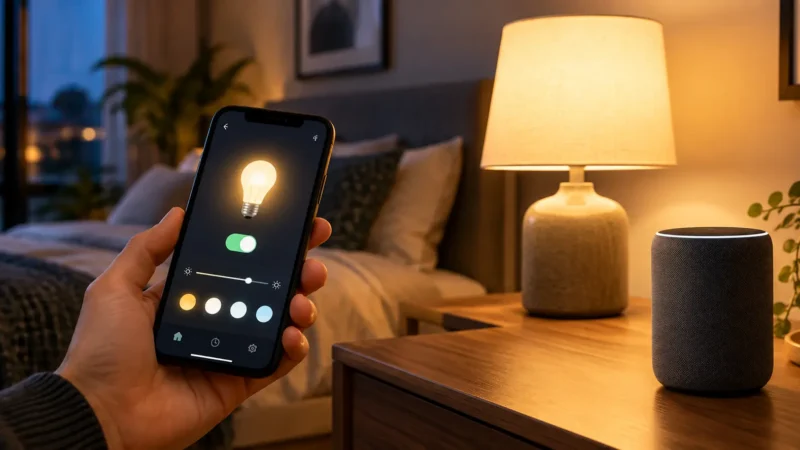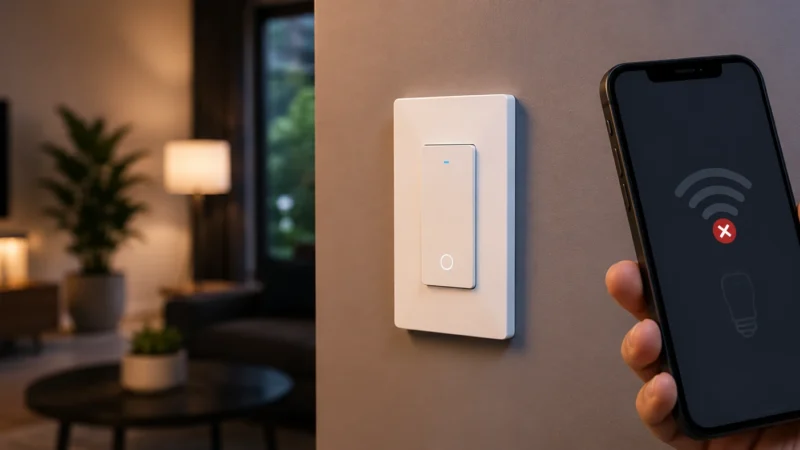
You put the smart bulb into pairing mode, open the app, select your home WiFi, and then setup fails. The bulb keeps blinking, the app says it cannot connect, or your 2.4GHz network does not appear at all.
If your smart bulb won’t connect to 2.4GHz WiFi, the bulb is not necessarily defective. The problem is often caused by the router configuration, the phone being on the wrong network during setup, an incorrect WiFi password, unsupported security settings, or the bulb not actually being in pairing mode.
The good news is that most of these problems can be fixed without replacing the bulb or changing your entire home network.
Quick Answer
If your smart bulb will not connect to 2.4GHz WiFi, try these steps in order:
- Confirm the bulb actually supports 2.4GHz WiFi.
- Make sure the bulb is correctly in pairing mode.
- Move the bulb and your phone closer to the router.
- Confirm the WiFi password by reconnecting your phone.
- Check whether your router’s 2.4GHz band is enabled.
- Temporarily simplify WiFi security and advanced router settings.
- Try a separate 2.4GHz network only if normal pairing fails.
- Factory-reset the bulb and pair it again as a final step.
Do not immediately disable 5GHz or rebuild your WiFi network. Many modern dual-band routers can use one network name for both 2.4GHz and 5GHz while smart bulbs connect normally.
Why Do Smart Bulbs Use 2.4GHz WiFi?
Smart bulbs do not need the high speeds offered by 5GHz or 6GHz WiFi. They send very small amounts of data, such as ON, OFF, brightness, color, and automation commands.
2.4GHz is commonly used because it offers good range and usually travels through walls better than higher-frequency WiFi bands.
Many popular WiFi smart lights therefore connect only to 2.4GHz.
For example, WiZ currently states that its WiFi lights use 2.4GHz, while Sengled documentation for its WiFi smart LED bulbs also specifies 2.4GHz rather than 5GHz.
But there is an important distinction:
Your bulb may need 2.4GHz, while your phone does not always need to remain permanently on 2.4GHz after setup.
Some apps require the phone to be on the same 2.4GHz network during commissioning, while newer bulbs can also use Bluetooth to help with initial setup.
1. Confirm the Bulb Really Uses 2.4GHz WiFi
Before changing router settings, check the specifications for your exact bulb model.
Look for something similar to:
- WiFi: 2.4GHz
- 802.11 b/g/n
- 2.4GHz WiFi required
- Does not support 5GHz
Do not assume every smart bulb works the same way.
Some newer smart lights use Matter over Thread rather than WiFi. Others may use Zigbee, Bluetooth, or Matter over WiFi.
If it is a Thread bulb, trying to connect it directly to your router’s 2.4GHz WiFi is the wrong troubleshooting path.
If you’re dealing with a Matter-over-Thread product instead, check whether your Thread Border Router is being detected rather than changing normal WiFi settings.
2. Make Sure the Bulb Is Actually in Pairing Mode
A bulb can be powered on without being ready to join a new network.
Most smart bulbs indicate pairing mode by blinking or pulsing, but the exact pattern varies by manufacturer.
TP-Link’s current Tapo setup instructions, for example, tell users to power the bulb and wait for its required blinking pattern before beginning configuration. Some newer Tapo bulbs can also use Bluetooth during initial setup.
If the bulb is glowing normally instead of blinking as expected, pairing may never begin.
Do Not Guess the Reset Sequence
You will often see advice online telling you to switch the bulb on and off three, five, or ten times.
That is not universal.
Different brands use different reset sequences. Check the manual for your exact bulb rather than repeatedly power-cycling it using a random pattern.
Once the bulb enters pairing mode, keep it powered continuously until setup finishes.
3. Move the Bulb Closer to the Router
If your smart bulb won’t connect to 2.4GHz WiFi, signal strength can still be the problem even if your phone shows several WiFi bars in the same room.
Phones generally have better antennas and more powerful WiFi hardware than inexpensive smart bulbs.
During initial setup, temporarily test the bulb in a lamp or socket closer to the router if possible.
TP-Link also recommends moving smart devices closer to the router when the home network cannot be found or pairing fails.
If the bulb connects near the router but fails again after moving it back to its original room, you have probably found a coverage problem rather than a setup problem.
Common Sources of 2.4GHz Interference
- Thick concrete or brick walls
- Metal light fixtures
- Microwave ovens
- Bluetooth devices
- Neighboring WiFi networks
- Poorly positioned routers
Do not place the router inside a cabinet or behind large metal objects if you can avoid it.
4. Double-Check the WiFi Password
This sounds basic, but an incorrect password creates one of the most frustrating pairing problems because the bulb may still appear to progress through part of the setup process.
Instead of typing the password repeatedly into the smart-bulb app, test it first.
On your phone:
- Forget the home WiFi network.
- Reconnect to it.
- Enter the password manually.
- Confirm the phone successfully gets internet access.
Then use exactly that password when setting up the bulb.
TP-Link recommends this same check when a Tapo device can find the network but fails to connect.
Also watch for:
- Uppercase and lowercase letters
- Numbers that look like letters
- Spaces at the beginning or end
- Recently changed router passwords
5. Make Sure 2.4GHz Is Enabled on the Router
Modern routers can support several WiFi bands:
- 2.4GHz
- 5GHz
- 6GHz
Your phone may prefer the faster 5GHz or 6GHz connection, while the bulb still needs the router’s 2.4GHz radio.
Open your router settings and confirm that the 2.4GHz network is enabled.
If your router uses one WiFi name for both 2.4GHz and 5GHz, do not assume that is automatically the problem.
WiZ specifically says modern WiFi 6E and mesh networks that also provide 2.4GHz should generally work without needing network changes.
Should You Separate 2.4GHz and 5GHz?
Only if normal pairing keeps failing.
Some routers use features called:
- Smart Connect
- Band Steering
- WiFi Optimization
- Auto Band Selection
Usually these features work normally. But some older or inexpensive IoT devices struggle during setup when both bands share one network name.
If that happens, temporarily creating a dedicated 2.4GHz SSID can help determine whether band steering is the issue.
For example:
HomeWiFi-2G
Connect your phone to that network, pair the bulb, and test it.
Do not automatically redesign the entire home network if the bulb already pairs normally with combined bands.
6. Check WiFi Security Settings
Security compatibility is another reason a smart bulb won’t connect to 2.4GHz WiFi.
Older devices may expect WPA2-Personal while newer devices may support WPA2 and WPA3.
WiZ’s current documentation, for example, says its current platform supports WPA2-Personal or WPA3-Personal, while compatibility differs across products and generations.
If your router is configured for a newer security mode and an older bulb refuses to connect, check what your bulb actually supports.
You may need to temporarily test:
- WPA2-Personal
- WPA2/WPA3 mixed mode
Avoid leaving your network on weaker or outdated security simply to support one old device.
If the bulb only works with settings you are uncomfortable using, replacing the bulb may be the better long-term option.
7. Try Safer 2.4GHz Router Settings
If the network is visible but pairing repeatedly fails, a few 2.4GHz settings are worth testing.
TP-Link currently recommends the following as troubleshooting settings for some Tapo devices:
- 2.4GHz channel: 1, 6, or 11
- Channel width: 20MHz
- Compatible WPA2 security while troubleshooting
These settings can reduce compatibility and interference problems on some networks.
Do not change ten router settings at once.
Change one thing, try pairing again, and note the result. Otherwise you will not know which setting actually fixed the problem.
8. Check Guest WiFi and Network Isolation
Guest networks are useful for visitors, but they often isolate connected devices from the rest of your home network.
If your phone is on the main WiFi while the bulb joins a guest network—or vice versa—the app may fail to discover or communicate with the bulb correctly.
During setup, use your normal home network rather than:
- Guest WiFi
- Public WiFi
- Hotel WiFi
- Enterprise networks requiring usernames
- Networks with device isolation enabled
WiZ also notes that enterprise-style WiFi authentication and open password-free networks are not supported by its current WiFi lighting platform.
Smart Bulb Can See 2.4GHz WiFi but Won’t Connect
This symptom helps narrow things down.
If the network appears in the smart-bulb app but setup fails after entering your password, concentrate on:
- Incorrect WiFi password
- WPA/WPA3 compatibility
- Router device limits
- Weak signal
- Router firewall/security settings
- Bulb firmware or setup state
If the network does not appear at all, concentrate on:
- Whether 2.4GHz is enabled
- WiFi signal strength
- Hidden SSID
- Unsupported router settings
- Whether the bulb is actually in pairing mode
What If the Phone Is Connected to 5GHz?
This causes a lot of confusion.
Your phone being on 5GHz does not automatically mean pairing will fail.
Some modern smart-home apps can handle the setup while your router uses a combined network, and newer bulbs may use Bluetooth for discovery before receiving WiFi credentials.
However, some older bulbs and apps do require the phone to be connected specifically to the same 2.4GHz network during setup.
If pairing repeatedly fails, temporarily connect your phone to a dedicated 2.4GHz SSID and try again.
Think of this as a diagnostic step, not a rule that every smart home must permanently separate its WiFi bands.
Try a 2.4GHz Hotspot as a Test
A hotspot can help determine whether the bulb or your router is causing the problem.
If you have access to another phone or router that can create a compatible 2.4GHz hotspot, try pairing the bulb there.
TP-Link recommends testing troublesome smart devices against another router or compatible hotspot when trying to determine whether the original router is responsible.
If the bulb connects immediately to the test network, the bulb’s WiFi radio probably works.
Focus on your home router settings instead.
If the bulb fails on multiple compatible 2.4GHz networks, the bulb itself or its setup state becomes more suspicious.
Factory-Reset the Smart Bulb Last
If your smart bulb won’t connect to 2.4GHz WiFi after checking the network, signal, security settings, and pairing mode, a factory reset is reasonable.
But do it last.
A reset can remove:
- Old WiFi credentials
- Previous account association
- Old setup information
- Failed pairing state
Follow the manufacturer’s exact reset procedure for your bulb model.
After resetting:
- Put the bulb into pairing mode.
- Keep the bulb close to the router.
- Turn on Bluetooth if the app requests it.
- Use your main 2.4GHz-capable home network.
- Enter the verified WiFi password.
- Leave the bulb powered until setup finishes.
Fast Troubleshooting Table
| Problem | Likely Cause | Try First |
|---|---|---|
| 2.4GHz network not visible | Band disabled or poor signal | Check router |
| Network visible but pairing fails | Password/security | Verify password |
| Bulb stops blinking | Not in pairing mode | Restart setup |
| Works near router only | Weak WiFi signal | Improve coverage |
| Fails on combined WiFi | Possible band steering issue | Test separate 2.4GHz |
| Connects to hotspot, not home WiFi | Router configuration | Check router settings |
| Fails on every network | Bulb/setup problem | Factory reset |
Related Smart-Light Problems
If the bulb successfully connects to WiFi but Alexa cannot control it afterward, continue with our Smart Bulb Works in App but Not Alexa troubleshooting guide.
If the problem is repeated WiFi disconnections rather than first-time setup, our Jio WiFi Keeps Disconnecting Smart Lights guide covers router stability, interference, channel selection, and larger smart-home networks in more detail.
And if you are troubleshooting a wall switch instead of a bulb, see our Smart Switch Won’t Connect guide because switch pairing can involve additional wiring and neutral-wire requirements.
Frequently Asked Questions
Why won’t my smart bulb connect to 2.4GHz WiFi?
If your smart bulb won’t connect to 2.4GHz WiFi, check that the 2.4GHz band is enabled, the bulb is in pairing mode, the password is correct, the signal is strong, and the router’s security mode is supported by the bulb.
Why can’t my smart bulb find my 2.4GHz network?
The 2.4GHz radio may be disabled, the signal may be too weak, or the router may be using settings the bulb cannot detect correctly. Move the bulb closer to the router and confirm that 2.4GHz is enabled.
Does my phone need to be connected to 2.4GHz?
It depends on the bulb and setup method. Some older apps require your phone to join the 2.4GHz network during pairing, while newer bulbs may use Bluetooth or work with combined dual-band WiFi. If setup fails, connecting your phone specifically to 2.4GHz is a useful troubleshooting test.
Should I disable 5GHz to connect a smart bulb?
Usually no. Start with your normal router configuration. If your bulb repeatedly fails on a combined dual-band network, temporarily disabling 5GHz or creating a separate 2.4GHz network can help determine whether band steering is causing the problem.
Why does my smart bulb work on a hotspot but not my router?
If the bulb connects to another compatible 2.4GHz network, the bulb’s WiFi hardware is probably working. Check your home router’s security mode, WiFi password, channel settings, device limit, firewall, and advanced optimization features.
Should smart bulbs use WPA2 or WPA3?
Compatibility varies by model. Many older bulbs support WPA2-Personal, while some newer products also support WPA3-Personal. Check the specifications for your exact bulb rather than assuming all smart lights support the same security modes.
Is 2.4GHz better than 5GHz for smart bulbs?
For low-bandwidth smart devices, 2.4GHz is often preferred because of its range and broad compatibility. Smart bulbs need reliable connectivity far more than high data speeds.
Final Check
If your smart bulb won’t connect to 2.4GHz WiFi, do not immediately blame the bulb or permanently disable half of your router.
Start with the basics:
Pairing mode → signal strength → WiFi password → 2.4GHz enabled → security settings → router compatibility → factory reset.
And remember that a dual-band router is not automatically incompatible with a 2.4GHz-only smart bulb. Modern routers can often handle both bands under one network name without any problem.
Only separate the networks when normal pairing fails and you need to determine whether band steering is interfering with setup.
For more smart bulb, smart switch, WiFi, Matter, and Thread fixes, browse the smart-lighting troubleshooting guides on LightCheckUp.
Still have questions?
Ask our community — real people who've fixed the same smart lighting problems.