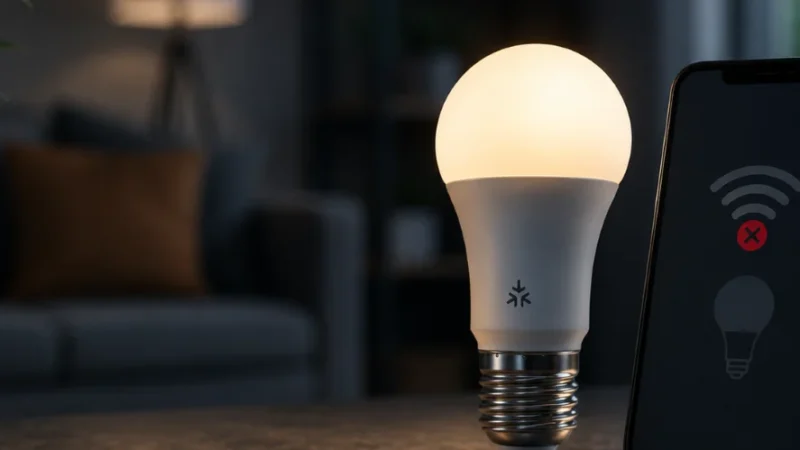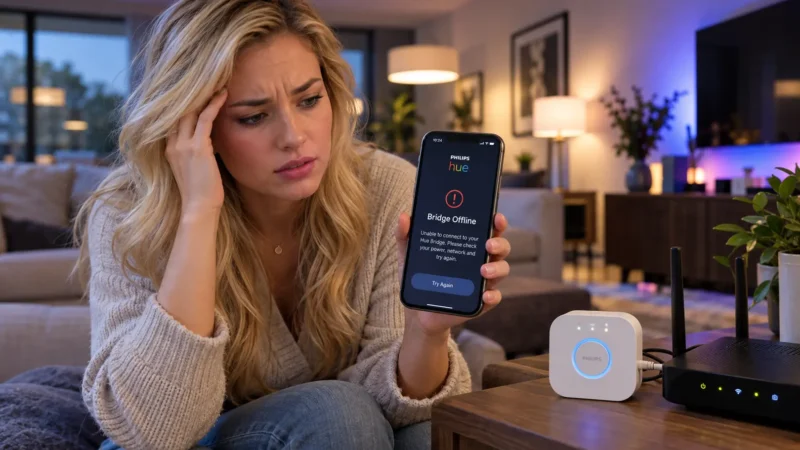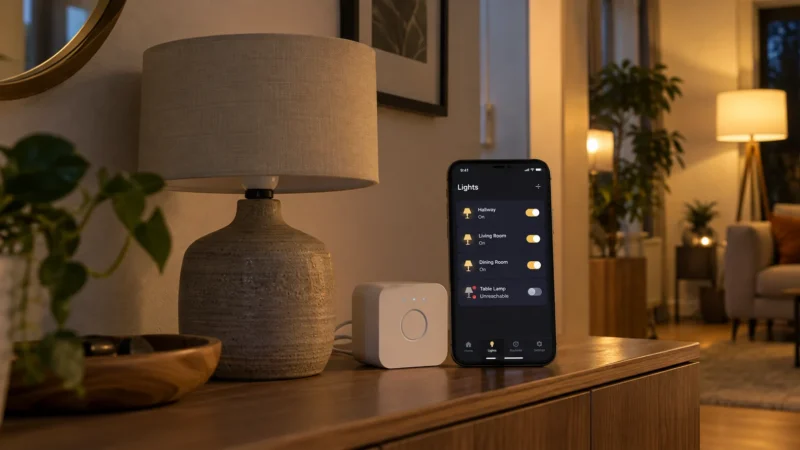
Your smart bulb turns on perfectly from its own app, but Alexa says it is unresponsive, offline, or simply ignores your command. If your smart bulb works in app but not Alexa, the bulb itself is probably still working. The problem is more likely somewhere between Alexa and the smart bulb account.
This can happen after an Alexa update, router restart, account change, skill problem, or when Alexa keeps an old copy of the bulb in its device list. The good news is that you usually do not need to factory-reset the bulb.
Start with the first fix below and work your way down. The order matters because it helps you find the actual problem without rebuilding your entire smart-home setup.
Quick Answer
If the bulb still works normally from its manufacturer’s app, try these steps in this order:
- Confirm the bulb works properly in its original app.
- Restart the bulb and your Echo device.
- Ask Alexa to discover devices again.
- Disable and reconnect the bulb manufacturer’s Alexa skill.
- Check for duplicate or confusing device names.
- Check Wi-Fi and recent router changes.
- Remove the bulb from Alexa and add it again.
Don’t factory-reset the bulb first. If its own app can still control it, the bulb is already powered, connected, and responding. Resetting it too early can create more work without fixing the actual Alexa connection.
Why a Smart Bulb Works in App but Not Alexa
It helps to understand how Alexa reaches your smart light.
Many Wi-Fi smart bulbs first connect to an app from the bulb manufacturer. Alexa then connects to that manufacturer’s account through an Alexa skill or account-linking service.
The connection can look something like this:
Smart Bulb → Manufacturer App → Manufacturer Account → Alexa
So the bulb can continue working perfectly in its own app even when Alexa loses access to it.
Amazon’s own Alexa smart-home troubleshooting guidance recommends testing the device through its manufacturer’s app. If the manufacturer’s app works but Alexa doesn’t, reconnecting the Alexa skill is one of the recommended steps.
Before changing anything, find out which side of the connection is actually failing.
| What You See | Likely Problem | Start Here |
|---|---|---|
| Works in manufacturer app, not Alexa | Alexa integration or device record | Reconnect skill |
| Offline in both apps | Bulb, Wi-Fi, hub, or power | Check network |
| Works in Alexa app but not by voice | Name, room, or group conflict | Check device names |
| All bulbs from one brand fail | Brand skill or account connection | Reconnect account |
| Only one bulb fails | Old Alexa device record | Remove and rediscover |
1. Check the Bulb in Its Original App
Open the app you originally used when setting up the light. This might be Smart Life, Tapo, WiZ, Govee, Sengled, Philips Hue, or another manufacturer’s app.
Don’t just look for an “Online” label. Actually control the bulb.
- Turn it on.
- Turn it off.
- Change the brightness.
- Change the color or color temperature if your bulb supports it.
Try the controls several times.
If everything responds quickly, that’s a strong clue that the bulb and its main network connection are working.
If the manufacturer’s app also says the bulb is offline, stop troubleshooting Alexa for now. Alexa cannot reliably control a bulb that the original platform can’t reach either.
In that case, check whether the bulb has power, whether the wall switch is on, and whether the bulb is still connected to your network or hub.
This is also why using a smart bulb in a fixture controlled by a normal wall switch can sometimes cause problems. Someone can switch the power off without realizing the bulb needs continuous power to remain connected. Our smart bulb vs smart switch guide explains when each setup makes more sense.
2. Restart the Smart Bulb and Alexa
Before changing accounts or deleting devices, perform a simple restart.
Turn the smart bulb off using its physical lamp or wall switch. Wait around 10 to 15 seconds, then turn it back on.
Give the bulb enough time to reconnect.
Next, restart your Echo device by unplugging its power cable. Wait around 15 seconds, reconnect it, and give Alexa a minute or two to fully come back online.
Then try a simple command:
“Alexa, turn on the bedroom light.”
If the Alexa light was not responding because of a temporary communication problem, this may be all you need.
If nothing changes, continue rather than repeatedly restarting the devices.
3. Make Alexa Discover the Smart Bulb Again
Alexa may know that the bulb exists but still have outdated information about it.
Try saying:
“Alexa, discover devices.”
You can also use the Alexa app to add or discover smart-home devices. Amazon’s current smart-home connection guide also recommends reconnecting devices that previously worked but stopped responding.
After discovery finishes, open the Alexa app and look under your light devices.
Check for Duplicate Smart Bulbs
This is easy to overlook.
You might find:
- Bedroom Light
- Bedroom Light 2
- Bedroom Bulb
- First Light
One may be the current smart bulb while another is an old Alexa device record.
This often happens after removing and re-adding a bulb, changing accounts, switching smart-home apps, or migrating between hubs.
Test the devices before deleting them. Once you identify an old duplicate that no longer controls anything, remove it from Alexa.
4. Disable and Re-Enable the Alexa Skill
If your smart bulb works in app but not Alexa, this is one of the most important fixes on the list.
Many third-party bulbs rely on an Alexa skill that connects Alexa to the manufacturer’s cloud account. That connection can stop syncing even though both apps appear to be working normally.
Open the Alexa app and find the skill associated with your smart bulb manufacturer.
Disable the skill, then enable it again.
When Alexa asks you to sign in, make sure you use the same account that contains the smart bulb.
This detail matters more than it sounds.
For example, you may have originally created the bulb account with an email address but later accidentally sign in with Google, Apple, another email address, or a different phone number.
Alexa may successfully link the second account but find no bulb inside it.
After linking the correct account, let Alexa discover devices again and test the bulb.
If Your Smart Bulb Works in App but Not Alexa After Re-Linking
Look at how many devices are affected.
If every smart bulb from the same manufacturer stopped responding at roughly the same time, don’t factory-reset each bulb individually. The problem is more likely related to the shared skill, manufacturer account, or service connection.
If only one bulb has failed while the others from the same brand still work, continue to the next steps.
5. Fix Duplicate or Confusing Device Names
Sometimes Alexa can reach the bulb but doesn’t understand which device you’re asking it to control.
For example, imagine your Alexa setup contains:
- A bulb called “Bedroom”
- A room called “Bedroom”
- An Echo called “Bedroom”
- A group called “Bedroom Lights”
The more similar the names become, the easier it is to create confusing voice commands.
Give important lights short, specific names instead.
For example:
- Bed Lamp
- Desk Light
- Hall Light
- Kitchen Ceiling
- Porch Light
Avoid giving a bulb and an Alexa group exactly the same name.
After renaming the bulb, try controlling it directly from the Alexa app.
If the Alexa app button controls the bulb but your voice command fails, the connection itself is probably okay. Focus on device names, room assignments, groups, or the Echo interpreting your command.
6. Check Wi-Fi and Recent Router Changes
A bulb that works normally from its own app is less likely to have a basic Wi-Fi problem, but network issues can still cause intermittent Alexa failures.
Pay more attention to your network if the bulb:
- Responds very slowly.
- Frequently goes offline.
- Works only sometimes.
- Stopped working after replacing your router.
- Started failing after changing your Wi-Fi password.
- Is located far from your router or mesh node.
Many Wi-Fi smart-home devices use 2.4 GHz, and Amazon also lists 2.4 GHz network requirements for certain Alexa-connected smart-home setups.
If you’ve recently changed your router, network name, password, or Wi-Fi security settings, check the bulb manufacturer’s app carefully.
If you’re also having connection problems with wall switches, see our smart switch won’t connect troubleshooting guide. It covers common Wi-Fi and pairing problems in more detail.
Don’t start changing every router setting just because Alexa says one bulb is unavailable. If ten other smart devices work normally and only one Alexa device record is failing, the router probably isn’t your first suspect.
7. Remove the Bulb From Alexa and Add It Again
If Alexa still shows the light as unavailable or unresponsive, remove the Alexa copy of the bulb and reconnect it.
Open the Alexa app, locate the problem bulb under Devices, open its settings, and look for the option to remove or delete the device.
The exact wording and menu position can change as Amazon updates the Alexa app.
Once the old device is removed, reconnect it through the manufacturer’s Alexa skill or run device discovery again.
This gives Alexa a fresh device record instead of continuing to use potentially outdated information.
Should You Factory-Reset the Smart Bulb?
Only after the easier fixes have failed.
A factory reset normally removes the bulb’s existing setup and means you’ll need to configure it again from the beginning.
Consider resetting the bulb when:
- The manufacturer’s app also keeps losing it.
- Alexa cannot rediscover it after reconnecting the skill.
- You changed Wi-Fi credentials and the bulb cannot reconnect.
- The bulb appears to have corrupted pairing information.
- The bulb manufacturer specifically recommends a reset.
Reset procedures vary between brands and models. Some bulbs use repeated power cycles while others can be reset through their app.
Use the instructions for your exact bulb instead of trying a random on-off sequence.
Alexa Says “Device Is Unresponsive” but the Bulb Still Works
An Alexa smart bulb unresponsive message doesn’t automatically mean the bulb is broken.
Test where the command fails.
| Test | Result | What to Check |
|---|---|---|
| Manufacturer app | Works | Alexa integration |
| Alexa app button | Works | Voice command or naming |
| Other Alexa lights | Work | This bulb’s Alexa record |
| All bulbs from same brand | Fail | Brand skill or account |
| Several unrelated devices | Fail | Alexa or network connection |
| Bulb fails everywhere | Offline | Power, Wi-Fi, hub, or bulb |
This small test can save a lot of time because you stop treating every problem as a Wi-Fi issue.
Smart Bulb Offline in Alexa but Online in Its App
If the smart bulb is offline in Alexa but remains online in the manufacturer’s app, refresh the Alexa side first.
A useful troubleshooting order is:
Manufacturer App → Restart → Alexa Discovery → Alexa Skill → Device Names → Network → Remove Alexa Device → Factory Reset
This order changes the least amount of your setup first.
If the bulb is offline in both Alexa and the manufacturer’s app, troubleshoot the bulb’s power and network connection instead.
What About Matter Smart Bulbs?
Matter bulbs can behave differently from traditional Wi-Fi bulbs that connect to Alexa through a manufacturer skill.
Depending on the device, your Matter setup may involve Wi-Fi, Thread, a compatible Matter controller, and potentially more than one smart-home ecosystem.
If the bulb is disappearing from Alexa and other platforms as well, you may be dealing with a broader Matter or Thread problem rather than just an Alexa skill issue.
Read our guide on why a Matter smart bulb keeps disconnecting if the device repeatedly becomes unreachable across your smart-home setup.
Don’t Forget Alexa Routines and Groups
Sometimes Alexa can control the bulb individually, but a routine or room stops working.
Check your routines if you’ve recently:
- Renamed the bulb.
- Removed and re-added it.
- Replaced the bulb.
- Changed smart-home apps.
- Moved the bulb to another room.
A routine may still point to an old version of the device.
Also check your Alexa groups. Remove old device entries and make sure the current bulb is included in the correct room or group.
How to Prevent the Problem From Coming Back
Once Alexa controls the light again, a few simple habits can make the setup easier to maintain.
Keep device names short and unique. Avoid switching manufacturer accounts unless necessary, and don’t cut power to smart bulbs that need to remain connected.
Keep your Alexa app, Echo software, bulb firmware, and manufacturer app updated.
If you replace your router, using the same Wi-Fi network name and password can sometimes make migration easier for existing smart-home devices, although compatibility will depend on the device and new router settings.
Most importantly, don’t automatically factory-reset a smart bulb every time Alexa loses it.
When a smart bulb works in app but not Alexa, first determine whether the broken link is Alexa, the manufacturer’s account, device discovery, or the bulb itself.
For more smart-lighting fixes, visit our smart lighting troubleshooting guides.
Frequently Asked Questions
Why does my smart bulb work in the app but Alexa says it is unresponsive?
If your smart bulb works in app but not Alexa, the bulb is usually still connected to its manufacturer platform. Alexa may have an outdated device record, account-linking problem, disconnected skill, duplicate device, or discovery issue. Reconnecting the manufacturer’s Alexa skill and rediscovering the bulb are good places to start.
Why does Alexa say my smart light is offline?
If the light is online in its manufacturer’s app but offline in Alexa, refresh Alexa’s connection before changing the bulb’s Wi-Fi setup. Restart the devices, reconnect the Alexa skill, check for duplicate entries, and rediscover the bulb.
Why isn’t Alexa discovering my smart bulb?
Make sure the bulb is online and working in its original app first. Then verify that the correct manufacturer account or Alexa skill is linked, restart your Echo, and run device discovery again.
Should I reset my smart bulb if Alexa cannot control it?
Usually not as the first step. If the original app still controls the bulb, try restarting Alexa, reconnecting the smart-home skill, rediscovering the bulb, and replacing the old Alexa device entry before factory-resetting the light.
Can I reconnect Alexa without deleting the bulb from its original app?
Yes. In many setups, you can disable and reconnect the manufacturer’s Alexa skill or account without removing the bulb from its original app.
Why does Alexa control my other smart bulbs but not one light?
If other Alexa lights work normally, focus on the problem bulb’s Alexa device entry, name, room assignment, and manufacturer account. A whole-network failure is less likely when every other smart device responds correctly.
Final Check
If your smart bulb works in app but not Alexa, don’t assume the light has failed. A bulb that still responds normally in its own app is giving you an important clue.
Start with Alexa rather than wiping the bulb.
Confirm the native app works, restart the bulb and Echo, rediscover the device, reconnect the Alexa skill, check names and duplicates, and only then move toward removing or resetting the bulb.
That troubleshooting order takes a little more thought than immediately pressing reset, but it can save you from rebuilding a smart-light setup that was never actually broken.
Still have questions?
Ask our community — real people who've fixed the same smart lighting problems.