
 0
 0
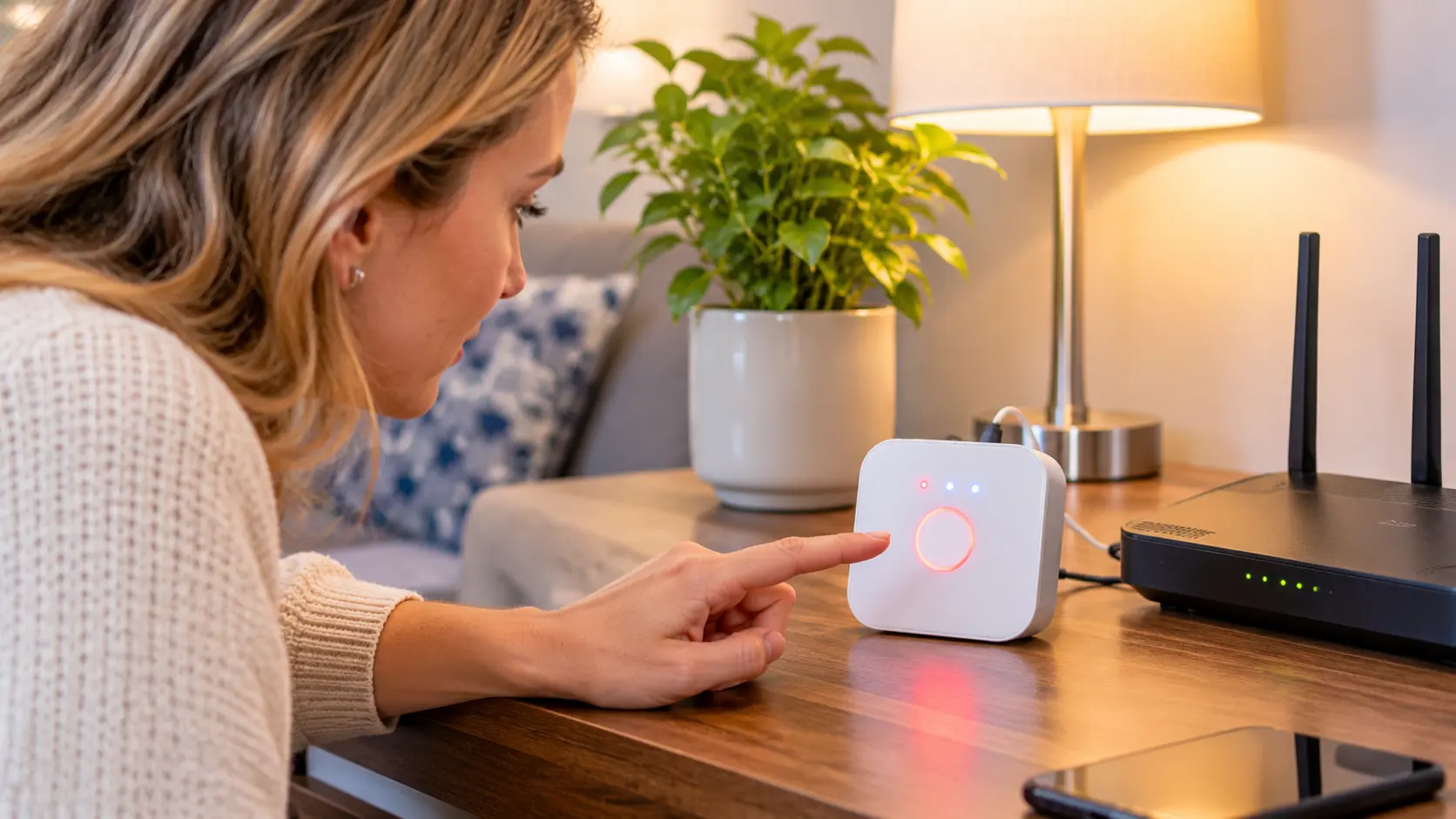
You check your Philips Hue system and notice a red light on the Bridge Pro. Your smart lights may stop responding, the Hue app may fail to connect, or your lighting routines may stop working.
If you see a Philips Hue Bridge red light, the first thing to check is which Bridge model you own. The standard Hue Bridge and the newer Hue Bridge Pro use different indicator lights, so the meaning of the warning is not the same.
A red connection light on the Hue Bridge Pro can mean that the device cannot connect to Wi-Fi. Other connection problems may be related to your router, network settings, or the initial setup.
In this guide, you will learn what the different lights mean and how to troubleshoot the problem without deleting your saved rooms, lights, and scenes.
Why Is My Philips Hue Bridge Showing a Red Light?
The cause depends on your Hue Bridge model.
Philips Hue Bridge V2: The standard Bridge has three small status lights on the front and a light ring around its round button. These lights use blue indicators to show power, network, and internet status. It does not use the same red connection-light system as the Bridge Pro.
Philips Hue Bridge Pro: The newer Bridge Pro has separate power and connection indicators. A pulsing red connection light means it cannot connect to Wi-Fi. A pulsing amber connection light can indicate an IP address problem.
If you have a Bridge Pro and see a red power light during a new setup or after a reset, that can be a normal preparation state. Do not confuse it with a red connection warning.
First, Identify Your Hue Bridge Model
Before trying any fix, check the device on your desk.
| Feature | Hue Bridge V2 | Hue Bridge Pro |
|---|---|---|
| Status indicators | Three front lights | Power and connection lights |
| Network connection | Ethernet | Wi-Fi or Ethernet |
| Red connection warning | Not the same indicator system | Pulsing red |
| Amber connection warning | Not applicable in the same way | Pulsing amber |
This difference matters because a fix for one model may not apply to the other.
7 Fixes for Philips Hue Bridge Red Light Problems
1. Restart Your Hue Bridge
A temporary connection problem can sometimes stop the Bridge from communicating with your network.
Restarting it is a good first step because it does not erase your saved lights or settings.
Follow these steps:
- Unplug the power cable from your Hue Bridge.
- Wait about 30 seconds.
- Connect the power cable again.
- Wait for the Bridge to start.
- Open the Philips Hue app.
- Check whether your lights are responding.
If you have a Bridge Pro connected through Wi-Fi, give it enough time to reconnect to your router.
Do not press the factory reset button during this process. Restarting and resetting are two different actions.
2. Check Your Ethernet Cable (Hue Bridge V2)
The standard Hue Bridge V2 connects to your router using an Ethernet cable.
If the cable is loose, damaged, or connected to the wrong port, the Bridge may not establish a network connection.
What to check:
- Make sure the Ethernet cable is firmly connected to the Bridge.
- Check the other end of the cable at your router.
- Try another working LAN port on the router.
- Inspect the cable for visible damage.
- If possible, test with another Ethernet cable.
After reconnecting the cable, wait for the status lights to settle.
For the standard Bridge, the three front indicators provide useful information:
- First light: Power connection.
- Second light: Network connection to the router.
- Third light: Connection to Philips Hue internet services.
- Ring around the button: Zigbee signal for your lights.
If the first two lights are on but the third stays off, the Bridge may need a software update or may be unable to reach Hue’s online service.
3. Check Your Wi-Fi Connection (Hue Bridge Pro)
Unlike the standard Bridge V2, the Hue Bridge Pro supports a Wi-Fi connection.
If its connection indicator pulses red, check whether your home Wi-Fi is working.
Try these steps:
- Check that your router has an active internet connection.
- Restart your router.
- Open the Hue app.
- Go to your Bridge settings.
- Check the connection type and Wi-Fi details.
- Reconnect the Bridge if the app offers that option.
If you recently changed your Wi-Fi password, router, or internet provider, the Bridge may still be trying to use the old network details.
You can also try connecting the Bridge Pro through Ethernet if your setup supports it.
Do not change multiple router settings at once. Make one change, then check whether the connection light returns to normal.
4. Check Your Router’s LAN and Network Settings
Sometimes the router works normally for phones and computers, but the Hue Bridge cannot communicate with it properly.
This may happen after replacing a router, changing network settings, or enabling network security features.
Check the following:
- The Bridge is connected to the correct home network.
- Your router has an available LAN connection.
- The Bridge has received a valid IP address.
- Your phone and Bridge are on a network that allows local device communication.
- Guest network isolation is not blocking the connection.
If you recently installed a mesh Wi-Fi system, check whether the Bridge and phone are connected to separate or isolated networks.
For a standard Hue Bridge V2, keep in mind that it uses Ethernet rather than connecting directly to Wi-Fi.
If you are unsure about DHCP, IP addresses, or network isolation, ask your router provider or network technician before changing advanced settings.
5. Check Whether the Hue Bridge Needs a Software Update
Outdated Bridge software can cause connection and setup problems.
One example is the third light on the standard Hue Bridge V2. Philips Hue explains that this light may remain off when the Bridge is not running the latest software.
How to check:
- Open the Philips Hue app.
- Go to Settings.
- Select Software update.
- Check whether an update is available.
- Follow the instructions to install it.
- Allow the Bridge to restart if required.
You may need to repeat the update process if the app shows more than one update.
If the app cannot find your Bridge, check the power and network connections first.
Do not disconnect the Bridge while a software update is in progress.
6. Check Whether the Hue App Can Find Your Bridge
A red or warning indicator is not the only sign of a connection problem.
You may also see a message saying that the Hue Bridge cannot be found.
Try this:
- Connect your phone to your normal home network.
- Open the Philips Hue app.
- Go to Settings and check the Bridge section.
- See whether your Bridge appears.
- If it does not, check its power and network connections.
- Restart the app and search again.
If you recently changed routers, your Bridge may have received a different IP address.
You can check the router’s connected-device list to see whether the Bridge appears there.
If the Bridge is visible in the router but not in the Hue app, the issue may involve local network communication or app setup rather than a complete loss of power.
7. Factory Reset the Hue Bridge Only as a Last Option
If the Bridge still does not connect after all the previous checks, a factory reset may be necessary.
However, this is not a step you should try immediately.
A factory reset removes saved configuration, including connected lights, rooms, scenes, and routines. You will need to set up the system again.
How to reset the Hue Bridge V2 or Bridge Pro:
- Turn the Bridge over.
- Find the small recessed reset button on the back.
- Disconnect the Ethernet cable if required by the manufacturer’s instructions.
- Use a paperclip or suitable tool to press the reset button.
- Hold it for approximately 5–10 seconds, following the model-specific instructions.
- Wait for the indicator lights to confirm that the reset has started.
- Allow the Bridge to complete the reset.
- Open the Hue app and follow the setup instructions.
Before doing this, make sure you have enough time to reconnect your lights and rebuild your settings.
If your Bridge is still under warranty and the connection light remains red after a correct setup, contact Philips Hue support before resetting it.
Read Also: Alexa Can’t Discover Smart Bulb? 8 Fixes That Work
What Do the Philips Hue Bridge Lights Mean?
Understanding the indicator lights can help you find the problem faster.
Philips Hue Bridge V2
| Indicator | Meaning |
|---|---|
| First light on | Bridge has power |
| Second light on | Connected to your router or network |
| Third light on | Connected to Hue internet services |
| Ring around button | Zigbee signal is active |
| Third light off | Check software update and internet connection |
Philips Hue Bridge Pro
| Indicator | Meaning |
|---|---|
| Connection light pulsing blue | Bridge is connecting during setup |
| Connection light solid blue | Connected during setup |
| Connection light solid white | Online and connected |
| Connection light pulsing red | Cannot connect to Wi-Fi |
| Connection light pulsing amber | IP address issue |
| Power light red during setup | Preparing for setup |
| Power light solid white | Powered and working |
These descriptions follow the model-specific information available from Philips Hue and its troubleshooting documentation.
Why Did My Hue Bridge Stop Working After Changing Routers?
This is a common situation when upgrading your home network.
Your old router may have been using different network settings, and the new router may not recognize the Bridge in the same way.
For a standard Hue Bridge V2, check the Ethernet connection and make sure the router assigns it an IP address.
For a Bridge Pro connected through Wi-Fi, check whether the saved wireless network details are still correct.
Try reconnecting the Bridge before considering a factory reset.
Read Also: Philips Hue Dimmer Switch Not Working? Try These 8 Fixes
FAQ: Philips Hue Bridge red light
Why is my Philips Hue Bridge Pro flashing red?
A pulsing red connection light on the Hue Bridge Pro means it cannot connect to Wi-Fi. Check your router, saved Wi-Fi details, and the connection settings in the Hue app. You can also try Ethernet if your setup supports it.
Does the standard Philips Hue Bridge have a red light?
The standard Hue Bridge V2 uses three blue front indicators and a light ring around its button. It does not use the same red connection indicator as the Bridge Pro.
Why is the third light on my Philips Hue Bridge off?
The third light represents the connection to Philips Hue internet services. Philips Hue says this light may remain off if the Bridge software is outdated. Check for updates in the Hue app.
Will resetting my Hue Bridge delete all my lights?
A factory reset removes the saved Bridge configuration, including connected lights, rooms, scenes, and routines. You will need to set up your system again.
Can I use my Hue Bridge Pro with Ethernet instead of Wi-Fi?
Yes. The Hue Bridge Pro supports both Wi-Fi and Ethernet connections. You can use Ethernet as an alternative if you are having trouble connecting over Wi-Fi.
Should I replace my Hue Bridge if the red light stays on?
Not immediately. First check the power, router, network connection, and software. If the Bridge Pro still cannot connect after following the manufacturer’s troubleshooting steps, contact Philips Hue support to check whether the device needs repair or replacement.
Final Thoughts
A Philips Hue Bridge red light does not always mean that your device is damaged. It may be a Wi-Fi connection problem, a router issue, or an incomplete setup.
Start by identifying your Bridge model. Then check its power, network connection, and software before trying more advanced steps.
Avoid a factory reset unless you have tried the simpler fixes first. This can help you restore your Hue system without losing the rooms, scenes, and lighting settings you have already created.