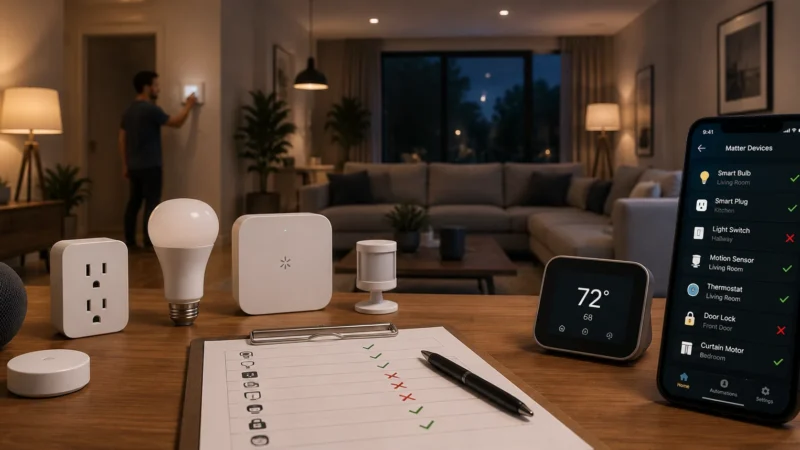
The power comes back, your regular lights start working again, but one smart switch stays offline. You can sometimes still press it manually, yet the app says unavailable or disconnected. If your smart switch is offline after a power outage, do not factory-reset it immediately.
A power outage does more than temporarily turn off the switch. Your router, modem, mesh nodes, hubs, bridges, and smart switch all have to restart and reconnect in the right order. Sometimes the switch comes back before the network is ready and fails to reconnect properly.
Start with the checks below. In many cases, you can get the switch back online without deleting it from the app or rebuilding your automations.
Quick Answer
If your smart switch won’t reconnect after a power outage, try these steps in order:
- Make sure your internet and Wi-Fi are actually back.
- Give the switch several minutes to reconnect automatically.
- Restart the smart switch without factory-resetting it.
- Restart the router, mesh node, hub, or bridge.
- Check whether the switch received a valid network connection.
- Check 2.4 GHz Wi-Fi and signal strength.
- Update the switch and router firmware.
- Factory-reset and re-add the switch only if everything else fails.
The most important point is this: power returning does not mean your smart-home network is ready immediately. Your modem and router may take longer to recover than the switch.
Why Does a Smart Switch Stay Offline After a Power Outage?
A Wi-Fi smart switch needs more than electricity.
The normal connection may look like this:
Smart Switch → Wi-Fi Router → Internet → Manufacturer Cloud → Phone App
For Zigbee, Matter, HomeKit, or other systems, there may also be a hub, bridge, or smart-home controller between the switch and your app.
After an outage, all of those devices start rebooting at different speeds.
Your smart switch might be ready in 20 seconds while the router needs several minutes. The switch tries to reconnect, cannot reach the network yet, and may take additional time before trying again.
Leviton explains this in its power-outage troubleshooting guidance: stable power must return first, then internet and router connectivity, and finally the Wi-Fi device reconnects.
| What You See | Likely Cause | Start Here |
|---|---|---|
| All smart switches are offline | Router, internet, hub, or bridge | Check network first |
| Only one switch is offline | Switch failed to reconnect | Restart that switch |
| Manual control works | Network/cloud issue | Check app connection |
| Switch has no lights or manual control | Power or electrical issue | Check breaker |
| Stopped after router was reset too | Wi-Fi settings changed | Check SSID/password |
| Hub-based switches all fail | Hub or bridge offline | Restart controller |
1. Make Sure Your Internet Is Really Back
This sounds obvious, but it is the first thing to check.
After a power cut, your Wi-Fi network name may appear on your phone before your router actually has an internet connection.
Connect your phone to home Wi-Fi and open a website you have not recently visited.
Make sure mobile data is not doing the work in the background.
If websites will not load properly, fix the internet connection before troubleshooting the switch.
A smart switch that depends on a manufacturer’s cloud service can appear offline even though the Wi-Fi radio itself is working.
Check Other Smart Devices
Look at other Wi-Fi lights, plugs, cameras, or switches.
If everything is offline, it is unlikely that five devices failed at the same moment.
Focus on the shared network instead.
If every other device is online and only one smart switch remains unavailable, continue with the next step.
2. Give the Smart Switch Time to Reconnect
Do not start resetting devices immediately after electricity returns.
Give your network a few minutes to stabilize.
The recovery order may be:
Power → modem → router → mesh nodes → hubs → smart switch → cloud connection
Some switches repeatedly try to reconnect rather than connecting instantly after power returns.
Leviton’s current guidance says its Wi-Fi devices are designed to reconnect automatically after an outage, but the process can take some time while the internet and router connections recover.
Wait several minutes, then refresh the manufacturer’s app.
If the switch reconnects by itself, no further action is needed.
3. Restart the Smart Switch Without Factory Resetting It
If the smart switch won’t reconnect after the network is stable, restart the switch.
A restart is different from a factory reset.
A normal reboot keeps your:
- Wi-Fi settings
- Device name
- Room assignment
- Schedules
- Automations
- Account connection
A factory reset may erase those settings completely.
Many manufacturers provide a physical restart method using the switch rocker, reset button, air-gap tab, or another control.
Use the instructions for your exact model because button sequences vary.
For example, Leviton recommends rebooting affected switches after they remain disconnected rather than immediately removing and setting them up again.
Once restarted, wait at least a minute and refresh the app.
If the Switch Still Works Manually
This is actually a useful clue.
If pressing the physical switch still turns the light on and off, the switch is receiving power and its internal relay is working.
The problem is more likely with Wi-Fi, a hub, an IP address, or cloud connectivity.
If you regularly run into situations where the switch works physically but disappears from the app, our Smart Switch Won’t Connect troubleshooting guide covers deeper pairing and network fixes.
4. Restart the Router, Mesh Node, Hub, or Bridge
The switch is only one part of the system.
If it still shows offline, restart the network equipment it depends on.
This may include:
- Modem
- Wi-Fi router
- Mesh Wi-Fi node
- Zigbee hub
- SmartThings hub
- Manufacturer bridge
- Matter controller
- Thread border router
Do not repeatedly restart everything at once.
Allow the modem and primary router to become fully operational before bringing additional hubs and mesh nodes back online.
Hub and Bridge Users Should Check This First
If multiple switches connected to the same hub all went offline together, investigate the hub before touching the individual switches.
For example, Leviton notes that some bridge-connected switches can continue operating manually even if their bridge is unavailable, while app and cloud control stop working.
That means a perfectly functional wall switch may appear offline simply because its bridge did not reconnect after the power cut.
5. Check Whether the Switch Has a Valid Network Connection
One less obvious problem after an outage is that a switch may reconnect to Wi-Fi but fail to get a usable IP address or cloud connection.
This can create confusing symptoms:
- The switch looks connected locally but offline in the app.
- The Wi-Fi indicator looks normal but remote commands fail.
- The device appears briefly and disappears again.
Some smart switches provide diagnostic LED patterns that show whether they have:
- No Wi-Fi connection
- Wi-Fi but no cloud connection
- No IP address
- A normal network connection
Check the manual for your exact model.
For example, Leviton’s diagnostic system distinguishes between no Wi-Fi, no cloud connection, and no IP address rather than treating every failure as the same “offline” problem.
If your router has a device list, you can also check whether the switch appears there.
6. Check 2.4 GHz Wi-Fi and Signal Strength
Many Wi-Fi smart switches still rely on the 2.4 GHz band.
The fact that the switch worked before the outage does not automatically mean signal strength is perfect after everything restarts.
Mesh systems can occasionally reconnect devices to a different node or behave differently after a full reboot.
Check whether:
- The switch is far from the router.
- A nearby mesh node failed to restart.
- The router changed channels automatically.
- Band steering is behaving differently.
- The switch is repeatedly connecting and disconnecting.
Do not immediately rebuild your Wi-Fi network or separate your bands if everything worked before.
Start with a simple restart and signal check.
If you eventually have to pair the switch again, check its specifications to confirm whether it requires 2.4 GHz Wi-Fi.
7. Check Whether the Router Settings Changed
A normal power outage should not change your Wi-Fi name or password.
But if the router was factory-reset, replaced after the outage, or lost its configuration, your switch may still be looking for the old network.
TP-Link’s current support documentation explains that Kasa and Tapo smart-home devices can remain offline after a router change or reset because they continue trying to connect to their previous Wi-Fi network.
Check whether any of these changed:
- Wi-Fi network name
- Wi-Fi password
- Encryption/security type
- Router
- Internet provider equipment
If you installed a replacement router, using the same Wi-Fi name, password, and compatible security settings as the old network can sometimes allow existing smart devices to reconnect automatically.
If you cannot reproduce the old network settings, your switch may need to be configured for the new Wi-Fi network.
8. Update the Firmware Before Factory Resetting
If the switch reconnects briefly, check for firmware updates before doing anything else.
Firmware updates can improve:
- Wi-Fi stability
- Reconnect behavior
- Router compatibility
- Cloud communication
- Bug fixes
Also check whether your router or mesh system has an available update.
Leviton specifically recommends checking device firmware when smart switches experience repeated offline problems.
Do not interrupt power while the switch is installing firmware.
When Should You Factory-Reset the Switch?
A factory reset should be the final step.
Consider it when:
- The switch never reconnects after multiple normal restarts.
- The network is confirmed to be working.
- Other smart devices are online.
- The hub or bridge is working.
- The switch cannot get back online after router troubleshooting.
- The manufacturer’s instructions specifically recommend resetting it.
After a factory reset, you may need to rebuild:
- Wi-Fi configuration
- Device name
- Room assignment
- Scenes
- Schedules
- Alexa or Google integrations
- Home automation routines
This is why resetting first is usually unnecessary.
Smart Switch Not Working After Power Cut at All?
There is an important difference between a switch being offline and a switch being completely dead.
If your smart switch is not working after a power cut and the physical button also does nothing, check whether it is actually receiving power.
Look for:
- A tripped circuit breaker
- A tripped GFCI/AFCI device
- No status LED
- Other dead fixtures on the same circuit
If the breaker immediately trips again, stop resetting it.
Also stop troubleshooting and call a qualified electrician if you notice:
- Burning smell
- Crackling
- Heat from the switch
- Visible discoloration
- Sparking
- Repeated breaker trips
Those are electrical symptoms, not app problems.
What About Alexa or Google Saying the Switch Is Offline?
First check the manufacturer’s own app.
If the switch works from the manufacturer app but Alexa or Google Home says it is offline, the outage may have broken or delayed the third-party integration rather than the switch’s network connection.
Try:
- Confirming the switch works in its original app.
- Refreshing device discovery.
- Restarting the Echo, Nest, or other controller.
- Re-linking the manufacturer’s account if necessary.
Do not factory-reset the wall switch if the manufacturer app can already control it.
What About Matter or Thread Smart Switches?
If your smart switch uses Matter-over-Thread rather than direct Wi-Fi, the router may not be the only device involved.
Your setup may depend on a Thread border router such as a compatible smart speaker, hub, or controller.
If other Matter devices also disappeared after the outage, restart and check the controller or Thread network before resetting individual devices.
Our guide on why a Matter smart bulb keeps disconnecting explains how Thread border routers and controllers fit into the connection path.
Fast Troubleshooting Table
| Symptom | Likely Cause | Best First Step |
|---|---|---|
| All switches offline after outage | Router/internet | Check network |
| Only one switch offline | Failed reconnect | Restart switch |
| Works manually but app says offline | Network/cloud issue | Check connectivity |
| Hub-based devices all offline | Hub or bridge | Restart hub |
| No status LED or manual operation | Power/electrical issue | Check breaker |
| Offline after router replacement | Old Wi-Fi credentials | Reconnect network |
| Keeps going offline after recovery | Signal or firmware | Update/check Wi-Fi |
How to Reduce Problems After the Next Power Outage
You cannot prevent every outage, but you can make recovery easier.
Keep your switch and router firmware updated. Avoid changing your Wi-Fi network name and password unless necessary.
If you use hubs, bridges, or mesh Wi-Fi, make sure they automatically restart after power returns.
A small UPS battery backup for your modem, router, and important smart-home hub can also prevent short power interruptions from taking the entire network offline.
The wall switch itself may still lose power, but keeping your network equipment running through brief interruptions can reduce the number of devices that have to reconnect at the same time.
If you are deciding whether smart switches or smart bulbs make more sense for different rooms, our Smart Bulb vs Smart Switch guide covers the practical differences.
Frequently Asked Questions
Why is my smart switch offline after a power outage?
A smart switch offline after power outage recovery is usually waiting for Wi-Fi, a hub, or the internet to become available again. Your switch may boot faster than your router. Give the network several minutes to recover, then restart the switch if it remains offline.
Why won’t my smart switch reconnect to Wi-Fi?
If your smart switch won’t reconnect, check that your Wi-Fi network name and password have not changed, make sure the router is fully online, restart the switch, and confirm its hub or bridge is working before performing a factory reset.
Why does the smart switch work manually but show offline?
The physical switch can often operate its relay without Wi-Fi or internet access. Manual control working while the app shows Offline usually points to a network, cloud, hub, or account connection issue rather than a failed relay.
How long should a smart switch take to reconnect after a power outage?
There is no single recovery time for every brand. The switch may need to wait for the modem, router, mesh system, internet connection, and manufacturer cloud to recover first. Give the network several minutes before starting deeper troubleshooting.
Should I reset my smart switch after every power outage?
No. A normal smart switch should usually reconnect automatically. Restart the switch and network equipment first. Factory resetting should be reserved for persistent problems because it may erase your device configuration and automations.
Why is my smart switch not working after a power cut?
If the switch is completely dead and manual control does not work, check the circuit breaker and whether the switch is receiving power. If you notice heat, sparking, burning smells, or repeated breaker trips, stop troubleshooting and have the circuit checked by a qualified electrician.
Final Check
When a smart switch is offline after a power outage, resist the urge to reset everything.
Start with the recovery chain:
Power → internet → router → mesh/hub → smart switch → app/cloud
Make sure each part is working before moving to the next one.
If the switch still works manually, that is a good clue that the basic power and relay side are okay. Focus on the network and smart-home connection.
Restart first, reset last.
For more step-by-step solutions, visit the smart lighting troubleshooting guides on LightCheckUp.
Still have questions?
Ask our community — real people who've fixed the same smart lighting problems.