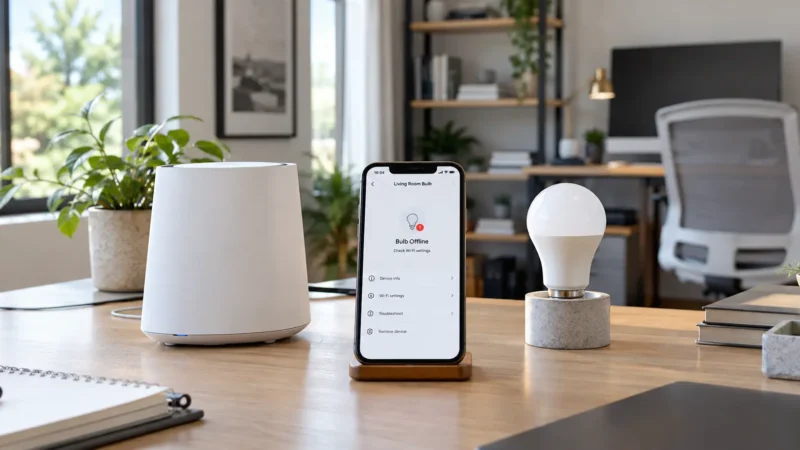
You screw in your Kasa bulb, open the Kasa Smart app, follow the setup steps, and then it gets stuck while connecting to WiFi. Sometimes the bulb keeps blinking. Sometimes the app says it cannot connect to your network. In other cases, setup appears to fail even though the bulb has actually joined WiFi.
If your Kasa smart bulb is not connecting to WiFi, don’t immediately reset the bulb or start changing every setting on your router. Kasa bulbs have a few specific setup requirements, and knowing where the process stopped usually tells you what to fix.
Start with the checks below in order. Most Kasa connection problems come down to 2.4GHz WiFi, pairing mode, the phone connection, an incorrect password, weak signal, VPN interference, or router settings.
Quick Answer
If your Kasa bulb won’t connect, try these steps first:
- Make sure the bulb has continuous power.
- Confirm the bulb is actually in Kasa setup mode.
- Connect your phone to your home’s 2.4GHz WiFi.
- Temporarily disable any VPN on your phone.
- Update and restart the Kasa Smart app.
- Double-check your WiFi password.
- Move the bulb closer to the router while pairing.
- Check band steering, WiFi security, and other router settings.
- Reset the bulb correctly for your exact Kasa model only if the other fixes fail.
One Kasa-specific tip is especially important: if the app seems stuck at the final connection stage, don’t immediately restart setup. TP-Link recommends waiting briefly, exiting setup, and checking whether the bulb has already appeared on the Kasa Devices page.
Why Is My Kasa Smart Bulb Not Connecting to WiFi?
Kasa WiFi bulbs communicate directly with your wireless network rather than requiring a separate lighting hub.
A typical setup looks like this:
Kasa Bulb → 2.4GHz WiFi → Router → TP-Link/Kasa service → Kasa Smart app
A problem anywhere along that path can stop setup.
TP-Link’s current Kasa documentation states that Kasa smart-home products use 2.4GHz WiFi. Its setup guide also recommends connecting your phone to the 2.4GHz home network before adding the bulb. TP-Link’s official Kasa bulb setup guide covers the current process.
| What Happens | Likely Cause | Check First |
|---|---|---|
| Bulb does not blink during setup | Not in pairing mode | Setup/reset state |
| Kasa cannot find home WiFi | 2.4GHz or signal issue | Router |
| WiFi appears but connection fails | Password/security | WiFi password |
| Setup gets stuck near the end | App may not have refreshed | Check Devices page |
| Works near router only | Weak signal | WiFi coverage |
| Stopped after changing routers | Old WiFi credentials | Network settings |
| Kasa app works but Alexa doesn’t | Alexa integration | Alexa connection |
1. Make Sure the Kasa Bulb Has Constant Power
A Kasa smart bulb needs electrical power even when you turn the light off through the app.
Check the physical wall or lamp switch first.
Make sure it is ON and stays ON during setup.
TP-Link specifically notes that its smart bulbs require an always-on power supply to operate correctly.
If somebody switches off the wall switch, the Kasa bulb loses WiFi along with its power and will appear offline.
This can also become an ongoing problem in rooms where people naturally use the physical switch. If that keeps happening in your home, our Smart Bulb vs Smart Switch guide explains why a smart switch may make more sense for some ceiling fixtures.
2. Check Whether the Kasa Bulb Is Really in Setup Mode
Don’t assume that a powered bulb is automatically ready to pair.
During Kasa setup, the bulb should give you the expected flashing indication.
TP-Link’s setup documentation says a Kasa smart bulb normally flashes three times when it is ready for configuration.
If it does not, follow the instructions shown inside the Kasa app for your model.
Your Kasa Bulb Doesn’t Flash Three Times?
This often means the bulb is still holding its previous WiFi configuration or has not properly entered setup mode.
Do not immediately follow a random reset sequence from YouTube or another bulb brand.
Kasa reset procedures differ between models and hardware generations. I cover the correct reset approach later in this guide.
3. Connect Your Phone to 2.4GHz WiFi
This is one of the most common reasons for a Kasa smart bulb not connecting to WiFi.
TP-Link currently instructs users to connect their phone to a home 2.4GHz WiFi network during Kasa bulb setup.
If your router has separate networks such as:
MyHome-2.4G
MyHome-5G
connect your phone to the 2.4GHz one before starting setup.
If your router combines 2.4GHz and 5GHz under one network name, don’t immediately redesign the network. Try the normal Kasa setup first.
Only start separating bands or temporarily disabling 5GHz if normal pairing repeatedly fails.
For a deeper explanation of dual-band routers, WPA settings, signal strength, and band steering, see our Smart Bulb Won’t Connect to 2.4GHz WiFi guide.
4. Temporarily Turn Off Your Phone’s VPN
This small setting is easy to miss.
If your phone uses a VPN, temporarily turn it off while adding the bulb.
TP-Link specifically recommends disabling VPN services during Kasa bulb setup because they can interfere with communication between the phone, bulb, router, or Kasa service.
Once the bulb is connected and working, you can turn your VPN back on and test whether normal control still works.
If you are using additional security, firewall, or privacy apps that filter local-network traffic, keep those in mind too if pairing continues to fail.
5. If Kasa Says Setup Failed, Check the Devices Page Anyway
This is one of the most useful Kasa-specific fixes.
Sometimes the setup screen appears stuck or reports a connection problem even though the bulb has actually joined your WiFi.
TP-Link’s current troubleshooting guidance recommends waiting around 15 seconds when a smart bulb appears stuck during the WiFi connection stage, exiting setup, and then checking the Kasa Devices page.
So before pressing “Restart Setup” again:
- Wait around 15 seconds.
- Exit the setup flow.
- Return to the main Devices screen.
- Look for the bulb.
- Try turning it on or off.
If it works, setup was successful even though the final screen did not update correctly.
That can save you from unnecessarily resetting a bulb that was already connected.
6. Double-Check the WiFi Password
If Kasa finds your home network but fails after you enter the password, test the password separately.
Use your phone to forget your home WiFi network, then reconnect manually using the password you think is correct.
If the phone reconnects successfully, use that same password in the Kasa app.
Watch for:
- Uppercase and lowercase letters
- Spaces
- Similar-looking characters such as O and 0
- Recently changed router passwords
TP-Link also notes some limitations on WiFi password formatting during Kasa setup, so if you use an unusually long or complex password and pairing repeatedly fails, check the latest requirements for your device.
7. Move the Kasa Bulb Closer to the Router
Your phone having good WiFi does not guarantee that the bulb has the same signal quality.
Phones generally have larger antennas and better wireless hardware than small smart bulbs.
For testing, move the Kasa bulb temporarily into a lamp or socket close to the router.
Then try pairing again.
If it connects immediately near the router but becomes unreliable in its normal room, you are probably dealing with WiFi coverage rather than a defective bulb.
TP-Link recommends improving signal strength for Kasa devices and identifies weak WiFi as a common reason for devices dropping offline.
For Kasa devices that are already connected, TP-Link considers signal strength below roughly -70 dBm a possible problem area.
Watch for Metal Fixtures
A metal lamp or enclosed ceiling fixture can reduce wireless performance even when the room itself has good WiFi.
If the bulb works perfectly in an open table lamp but struggles inside an enclosed metal fixture, placement may be contributing to the problem.
8. Check Router Settings That Can Interfere With Kasa
If the bulb still won’t connect, look at the router.
TP-Link’s current Kasa troubleshooting documentation specifically mentions advanced router features such as:
- Band Steering
- Smart Connect
- Whole-Home WiFi
- WiFi optimization
- Channel optimization
These features are useful and should not automatically be disabled forever. But temporarily turning them off can help determine whether one of them is interfering with Kasa setup.
Try Simple 2.4GHz Settings
If ordinary setup keeps failing, TP-Link recommends testing settings such as:
- 2.4GHz channel 1, 6, or 11
- 20MHz channel width
- Compatible WPA2/AES security
TP-Link also suggests temporarily disabling the router’s 5GHz band as a later troubleshooting step if the Kasa device still refuses to connect.
I would not start there.
First try normal 2.4GHz setup, verify the password, move the bulb closer, and check the app. Only simplify router settings when the basic steps fail.
9. Did You Recently Change Your Router?
If your Kasa bulb worked perfectly until you replaced the router, the bulb may simply be trying to reconnect to its old WiFi network.
Changing any of these can break the saved connection:
- WiFi name
- WiFi password
- Security mode
- Router
- ISP gateway
If you have several smart-home devices, one of the easiest migration methods is often configuring the new router with the same network name and password as the old router, provided the security settings remain compatible.
Our Smart Bulb Not Connecting After Router Change guide explains that process in detail.
10. Reset the Kasa Bulb — But Use the Correct Method
If your Kasa smart bulb is not connecting to WiFi after all the checks above, resetting it may be necessary.
But this is where many troubleshooting guides get Kasa bulbs wrong.
There is not one reset sequence for every Kasa bulb.
TP-Link’s current Kasa bulb reset guide divides bulbs into different model groups.
For some older models, a soft reset uses three power cycles and a factory reset uses five.
For many newer models, a soft reset uses five cycles while a full factory reset requires ten.
So check your exact model number before resetting it.
Soft Reset or Factory Reset?
A soft reset is preferable when you mainly need to clear the WiFi configuration while keeping other settings where supported.
A factory reset removes the bulb’s configuration and means setting it up again from the beginning.
If TP-Link provides a soft reset for your model, I would try that before a full factory reset.
Kasa Bulb Connects but Keeps Going Offline
This is slightly different from a bulb that cannot complete initial setup.
If the Kasa bulb connects successfully and then repeatedly disappears from the app, check:
- WiFi signal strength
- Router stability
- Kasa firmware updates
- Band steering or Smart Connect
- Mesh-node placement
- Whether the wall switch is being turned off
TP-Link recommends rebooting both the router and Kasa device, updating firmware, and checking signal strength when Kasa devices repeatedly go offline.
If the bulb works reliably on another 2.4GHz router or hotspot, that is also a strong clue that your main router configuration is contributing to the problem.
Kasa Works in the App but Not Alexa
If the Kasa Smart app can turn the bulb on and off normally, stop troubleshooting WiFi.
The bulb is connected.
If Alexa still says the light is unavailable, you have a different problem involving the Alexa/Kasa integration.
Use our Smart Bulb Works in App but Not Alexa guide instead of resetting the Kasa bulb again.
Fast Kasa Troubleshooting Table
| Kasa Problem | Likely Cause | Try First |
|---|---|---|
| Bulb doesn’t blink | Not in setup mode | Check model instructions |
| Home WiFi not found | 2.4GHz/signal | Check router |
| WiFi found but won’t connect | Password/security | Verify password |
| Setup seems stuck | Kasa app not refreshed | Check Devices page |
| Connects near router only | Weak WiFi | Improve coverage |
| Stopped after new router | Old network settings | Reconnect WiFi |
| Repeatedly goes offline | Signal/router settings | Check WiFi strength |
| Kasa works but Alexa doesn’t | Alexa integration | Reconnect Alexa |
Frequently Asked Questions
Why is my Kasa smart bulb not connecting to WiFi?
If your Kasa smart bulb is not connecting to WiFi, first check that it has constant power, is in setup mode, and that your phone is connected to a working 2.4GHz network. Then check the WiFi password, signal strength, VPN, and router settings before resetting the bulb.
Does a Kasa smart bulb need 2.4GHz WiFi?
Yes. TP-Link’s current Kasa documentation states that Kasa smart-home products use 2.4GHz WiFi. During bulb setup, TP-Link recommends connecting your phone to your home’s 2.4GHz network.
Why won’t my Kasa bulb enter pairing mode?
The bulb may still contain its previous configuration. Check your exact model number and follow TP-Link’s reset instructions. Kasa bulbs use different reset sequences depending on the model and hardware generation.
Why does Kasa say setup failed even though my bulb stopped blinking?
The bulb may already have connected. TP-Link recommends waiting briefly, exiting the setup process, and checking the Kasa Devices page before restarting setup from the beginning.
Should I disable 5GHz for a Kasa bulb?
Not as your first step. Start by connecting your phone to 2.4GHz and trying the normal setup process. If pairing repeatedly fails, TP-Link lists temporarily disabling 5GHz as one of the later router troubleshooting options.
Why is my Kasa smart bulb offline?
A Kasa smart bulb can go offline because the physical switch removed power, WiFi signal is weak, the router restarted or changed, advanced router settings are interfering, or the bulb lost its network connection.
Can a VPN stop a Kasa bulb from connecting?
Yes. TP-Link recommends temporarily disabling VPN services on the phone during Kasa smart bulb setup.
How do I reset a Kasa smart bulb?
Check the exact model before resetting it. Some older Kasa bulbs use three power cycles for a soft reset and five for a factory reset, while many newer Kasa bulbs use five and ten respectively. Use TP-Link’s model-specific instructions rather than assuming one sequence works for every Kasa bulb.
Final Check
When a Kasa smart bulb is not connecting to WiFi, avoid jumping straight to a factory reset.
Use this order:
Power → setup mode → 2.4GHz → VPN → Kasa app → WiFi password → signal strength → router settings → model-specific reset.
And if the Kasa app appears to fail during the last stage of setup, check the Devices page before starting over. The bulb may already be connected.
Once Kasa can control the bulb normally, your WiFi problem is solved. Any remaining Alexa or Google Home issue should be troubleshooted separately rather than resetting a working bulb.
For more practical bulb, switch, WiFi, Matter, and smart-light fixes, browse the smart lighting troubleshooting guides on LightCheckUp.
Still have questions?
Ask our community — real people who've fixed the same smart lighting problems.