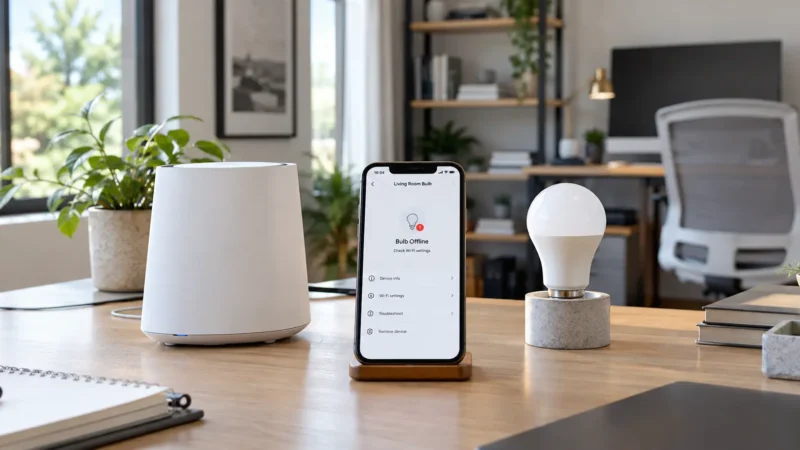
You open the Philips Hue app and one light has suddenly gone grey or shows Unreachable. The other Hue lights may still work perfectly, but this one bulb ignores app commands, automations, and sometimes Alexa or Google Home too.
If your Philips Hue light is unreachable, don’t immediately reset the Hue Bridge or delete the bulb. “Unreachable” usually means the Bridge cannot currently communicate with that particular light over the Hue Zigbee network.
The cause can be surprisingly simple: somebody turned off the wall switch, the bulb lost power, it was moved farther away, another powered Hue light that helped extend the mesh was removed, or the light simply needs to reconnect.
Start with the checks below in order. The first few solve many Hue unreachable problems without rebuilding your setup.
Quick Answer
If a Philips Hue light shows Unreachable, check these first:
- Make sure the bulb has continuous power.
- Check whether only one light or your entire Hue system is offline.
- Power-cycle the unreachable bulb once.
- Check the Hue Bridge and its connection.
- Consider whether the bulb was moved or your Zigbee mesh changed.
- Use the Hue app’s reconnect guidance.
- Update the Hue app, Bridge, and light firmware.
- Remove and add the bulb again only if the easier fixes fail.
Do not factory-reset the Hue Bridge because one bulb is unreachable. A Bridge reset can remove your lights, rooms, scenes, and automations. Treat it as a last-resort system-level fix, not the first response to one missing light.
What Does “Unreachable” Mean in Philips Hue?
With a Hue Bridge setup, your Hue bulbs are not normal WiFi bulbs connecting individually to your router.
The basic communication path is:
Hue Light → Zigbee Mesh → Hue Bridge → Home Network → Hue App
The Hue Bridge creates the Zigbee network that your Hue lights use to communicate. Powered Hue lights can also help repeat that Zigbee signal, creating a mesh across your home.
This means a Hue light can become unreachable even when:
- Your phone’s WiFi works.
- Your internet connection works.
- The Hue Bridge is online.
- Other Hue lights still respond.
If only one bulb is unreachable, changing your router’s WiFi password or moving your phone to 2.4GHz is usually not where I would start.
| What You See | Most Likely Area | Check First |
|---|---|---|
| One Hue light unreachable | Power or Zigbee connection | Bulb power |
| Several nearby Hue lights unreachable | Zigbee mesh/range | Nearby powered lights |
| Every Hue light unavailable | Bridge/network problem | Hue Bridge |
| Hue app works but Alexa does not | Alexa integration | Alexa connection |
| Light became unreachable after moving it | Range/mesh | Location |
| Light works after wall switch is toggled | Power interruption | Wall switch |
1. Check Whether the Hue Bulb Actually Has Power
This is the first thing to check because it is incredibly easy to overlook.
Hue smart bulbs need power even when you have turned them “off” in the app.
If somebody uses the normal wall switch and physically cuts electricity to the bulb, the Hue Bridge cannot communicate with it.
The app may then show the light as Unreachable.
Check:
- The wall switch is ON.
- The lamp switch is ON.
- The fixture has power.
- The bulb is securely seated in its socket.
- The circuit breaker has not tripped.
If the bulb immediately becomes reachable after restoring power, you have found the problem.
Why This Keeps Happening in Some Homes
Smart bulbs and traditional wall switches can be an awkward combination.
One person turns the Hue bulb off using the app. Another person sees the wall switch is still on and flips it off.
Now the bulb has no power and disappears from smart control.
Philips Hue offers wall-switch solutions specifically designed to let people use physical switches while keeping smart lights continuously powered.
2. Power-Cycle the Unreachable Hue Light Once
If the switch is already on but the Philips Hue light is unreachable, try a simple power cycle.
Turn the physical power to that light off.
Wait around 10 seconds.
Turn it back on.
Then give the Hue Bridge a little time to see the bulb again.
Open the Hue app and test:
- On/off control
- Brightness
- Color or white temperature
If the light reconnects and stays connected, you probably had a temporary communication problem.
Do not repeatedly flip the switch on and off. Depending on the device, repeated power cycling can trigger setup or reset behavior, and it makes diagnosis harder.
3. Check Whether One Light or the Whole Hue System Is Unreachable
This simple test tells you where to focus.
Open the Hue app and control several lights in different rooms.
If Only One Light Is Unreachable
The Bridge itself is probably working.
Focus on:
- The bulb’s power
- Its distance from other Hue lights
- Its physical location
- Whether it needs reconnecting
If Every Hue Light Is Unreachable
Now check the Bridge rather than individual bulbs.
The Hue Bridge normally connects to your router and acts as the gateway between your home network and the Hue Zigbee system.
Check its power and network connection before removing any lights.
4. Check the Hue Bridge
If several or all Hue lights are unavailable, look at the Bridge.
Make sure:
- The Bridge has power.
- The network cable is properly connected.
- The router is online.
- The Hue app can find the Bridge.
Philips Hue’s official Hue Bridge setup guide covers adding and detecting the Bridge through the Hue app.
If the Bridge itself seems offline, restart the router and Bridge before resetting anything.
Disconnect the Bridge from power briefly, reconnect it, and allow it time to restart.
Do Not Confuse Bridge Problems With Bulb Problems
If 14 Hue bulbs work and one says Unreachable, your router is unlikely to be the first thing I would rebuild.
The Bridge is clearly communicating with the other lights.
Focus on the one missing light instead.
5. Think About What Changed Around the Unreachable Light
This is one of the best ways to diagnose a Hue problem.
Ask yourself:
What changed just before the light became unreachable?
Maybe you:
- Moved the bulb into another room.
- Moved the Hue Bridge.
- Removed another Hue bulb.
- Turned several nearby Hue bulbs off at their wall switches.
- Moved the bulb outdoors or into a garage.
- Changed the layout of your Hue system.
These changes matter because Hue Bridge systems use a Zigbee mesh.
Each powered Hue light can help repeat the Zigbee signal for other devices.
Example
Imagine this setup:
Hue Bridge → Hallway Hue Bulb → Bedroom Hue Bulb → Garage Hue Bulb
The actual routing is dynamic, but the example shows the idea.
If the hallway and bedroom bulbs were helping provide Zigbee coverage and somebody cuts power to them, a distant garage light may suddenly have a much weaker path back to the Bridge.
This is why a bulb can work perfectly for months and become unreliable after apparently unrelated changes elsewhere in the house.
6. Move the Hue Light Closer as a Test
If practical, move the unreachable bulb temporarily into a fixture closer to the Hue Bridge or other powered Hue bulbs.
This is a test, not necessarily the final solution.
If the bulb suddenly becomes reachable when it is closer, you have strong evidence of a Zigbee coverage problem.
You can then look at improving the mesh rather than deleting the bulb.
Philips Hue confirms that its Bridge-based system uses Zigbee mesh networking and that powered Hue lights can repeat the signal.
Watch for Large Dead Zones
Range problems become more likely in:
- Large houses
- Detached garages
- Garden buildings
- Basements
- Thick concrete construction
- Locations separated by several walls or floors
Philips Hue notes that larger homes or separate buildings can sometimes require additional network planning or another Bridge when persistent dead zones remain.
7. Use the Hue App’s Reconnect Guidance
This is an important newer Hue feature.
Philips Hue added reconnect instructions directly to the app for unreachable lights.
If the light shows Unreachable, open that light’s settings screen in the Hue app and look for the reconnect or troubleshooting guidance offered there.
The exact wording can change between app versions.
Follow that reconnect flow before deleting the light entirely.
Philips Hue also uses a reconnect approach for other unreachable Hue-compatible devices before recommending that users remove and add them again.
8. Check for Hue Software and Firmware Updates
If the bulb repeatedly becomes unreachable, make sure the system is current.
In the Hue app, check for software updates for:
- Hue Bridge
- Hue lights
- Hue accessories
- The Hue app itself
Philips Hue recommends updating device firmware when lights misbehave or lose their expected connection.
You can normally find software updates inside the Hue app settings.
Leave devices powered while updates are being installed.
A bulb that is physically switched off cannot receive an update from the Bridge.
Philips Hue Light Unreachable but Other Lights Work
This is one of the most useful diagnostic situations.
If only one Hue bulb is unreachable while every other Hue light responds normally, I would check things in this order:
- Does the bulb have power?
- Was it moved?
- Did nearby Hue lights lose power?
- Does moving it closer restore communication?
- Does the Hue app offer a reconnect option?
- Is its firmware current?
Only after those checks would I consider removing and re-adding the bulb.
Philips Hue Light Unreachable After a Power Outage
If the problem began immediately after a power outage, give the system time to recover first.
The Bridge, router, and Hue lights may all restart at slightly different times.
Check whether the Bridge is back online, then power-cycle only the affected light if necessary.
If every Hue device disappeared after the outage, troubleshoot the Bridge first.
If only one light stayed unreachable after everything else recovered, treat it as an individual bulb or Zigbee-mesh problem.
Philips Hue Light Unreachable After Moving the Bulb
If you moved the bulb and it became unreachable almost immediately, that timing is a strong clue.
Put it back in its previous location temporarily.
If it reconnects there, the new location is probably outside a reliable part of your Hue mesh.
You can improve coverage by ensuring powered Hue lights exist between the Bridge and the distant location.
Do not assume that moving your WiFi router closer will necessarily solve this one-bulb problem. Bridge-connected Hue bulbs primarily communicate with the Hue Bridge through Zigbee, not directly through WiFi.
Philips Hue Works in the App but Alexa Says Unresponsive
This is not the same as a Hue light being unreachable inside the Hue app.
If the Hue app controls the light perfectly but Alexa says the device is unavailable or unresponsive, the Hue Zigbee connection is already working.
Focus on the Alexa-to-Hue integration rather than resetting the bulb.
Continue with our Smart Bulb Works in App but Not Alexa troubleshooting guide for that situation.
Hue Light Turns On or Off by Itself
A light that remains reachable but turns on unexpectedly has a different problem too.
Check Hue automations, Alexa or Google routines, sensors, sunrise/sunset schedules, and other triggers.
Our Smart Light Turns On by Itself guide covers those automation problems separately.
When Should You Remove and Re-Add the Hue Light?
Removing the bulb should come near the end of your troubleshooting.
Consider it when:
- The bulb definitely has power.
- The Bridge works normally.
- The bulb is within good Zigbee range.
- Restarting it does not help.
- The Hue reconnect process fails.
- The bulb remains permanently unreachable.
Before deleting it, remember that removing and adding the light again may affect:
- Room assignments
- Zones
- Scenes
- Automations
- Hue accessories
- Alexa or Google Home routines
Make a note of how the light is currently used before removing it.
Adding the Hue Light Again
Open the Hue app and go to the device setup area.
Follow the app’s current instructions to add a new light.
Philips Hue’s current setup process supports scanning the product’s QR code where available, and devices without a QR code can also be added using the alternative search flow.
Official setup instructions are available in the Philips Hue support guide.
Should You Factory-Reset the Hue Bridge?
Not because one bulb is unreachable.
A Hue Bridge factory reset is a much bigger action than restarting a bulb.
Philips Hue warns that resetting the Bridge deletes saved configuration such as connected lights, rooms, scenes, and routines.
Only consider a Bridge factory reset for persistent Bridge-level problems after ordinary restart and reconnection troubleshooting has failed.
If your Bridge is functioning normally and controlling the rest of your lights, leave it alone.
Fast Troubleshooting Table
| Hue Problem | Likely Cause | Try First |
|---|---|---|
| One light unreachable | Power/Zigbee | Check wall switch |
| Several nearby lights unreachable | Mesh/range | Check powered repeaters |
| All Hue lights unavailable | Bridge/network | Check Bridge |
| Unreachable after moving bulb | Zigbee range | Move it closer |
| Works after physical switch | Power interruption | Keep switch powered |
| Hue app works, Alexa fails | Alexa integration | Reconnect Alexa |
| Repeatedly becomes unreachable | Range/firmware | Check mesh and updates |
Frequently Asked Questions
Why does my Philips Hue light say Unreachable?
A Philips Hue light unreachable message usually means the Hue Bridge cannot currently communicate with that light. Check that the bulb has power, then look at Zigbee range, nearby powered Hue lights, and the Hue app’s reconnect options.
Why is only one Philips Hue bulb unreachable?
If all other Hue lights work, your Bridge is probably functioning. Check power to that bulb, its location, whether it was recently moved, and whether changes to nearby Hue lights weakened the Zigbee mesh.
Does Philips Hue use WiFi or Zigbee?
When you use a Hue Bridge, Hue lights primarily communicate through Zigbee. The Bridge connects the lighting system to your home network. Many newer Hue bulbs can also support Bluetooth for direct local control without a Bridge.
Can turning off the wall switch make Hue unreachable?
Yes. A Hue smart bulb needs electrical power to communicate. If somebody switches off the physical wall switch, the Bridge cannot reach the bulb until power is restored.
Why did my Hue light become unreachable after moving it?
The new location may have weaker Zigbee coverage. Test the bulb closer to the Bridge or other powered Hue lights. If it reconnects, the problem is probably range or mesh coverage.
Should I reset my Hue Bridge when one bulb is unreachable?
No. Restart or reconnect the affected light first. Resetting the Hue Bridge is a major step that can erase your lighting configuration and should not be the first fix for one unreachable bulb.
Why does my Hue bulb work in the Hue app but not Alexa?
If the Hue app controls it normally, the bulb is reachable through Hue. The remaining problem is more likely the connection between Philips Hue and Alexa, not the bulb’s Zigbee connection.
Can more Hue bulbs improve range?
In a Bridge-based system, powered Hue lights participate in the Zigbee mesh and can help extend communication across the home. Lights that have their physical power switched off cannot help relay the mesh signal.
Final Check
If your Philips Hue light is unreachable, diagnose the problem before deleting anything.
Use this order:
Power → individual bulb restart → Bridge status → Zigbee range → Hue reconnect → software updates → remove and re-add.
If only one light is affected, concentrate on that light and its path back to the Bridge.
If every Hue light is unavailable, investigate the Bridge and home network instead.
And remember: Bridge-connected Hue bulbs use Zigbee. A single unreachable Hue bulb is not automatically a 2.4GHz WiFi problem.
For more practical smart-light fixes, browse the smart lighting troubleshooting guides on LightCheckUp.
Still have questions?
Ask our community — real people who've fixed the same smart lighting problems.