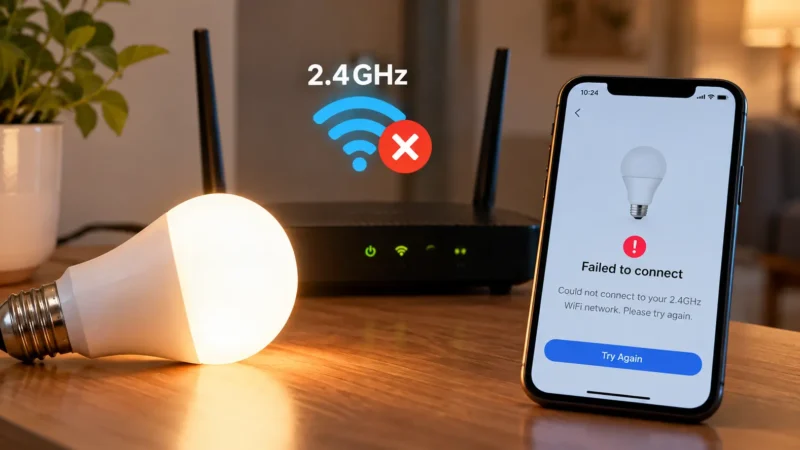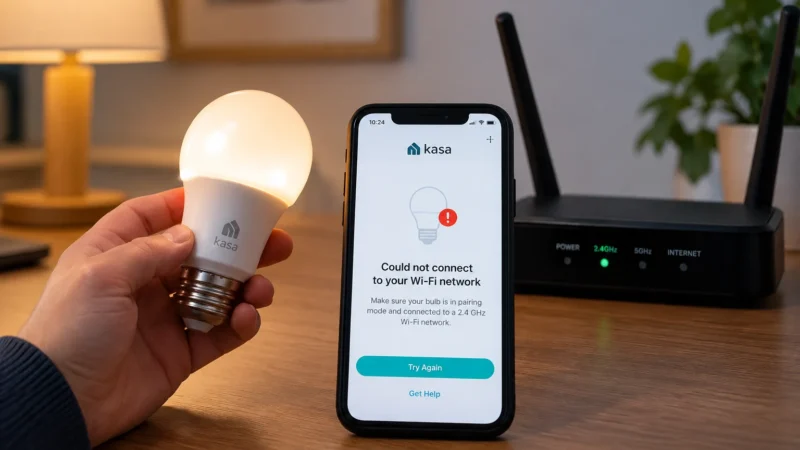
Your old router dies, you upgrade to a faster mesh system, or your internet company installs new equipment. Phones and laptops reconnect quickly, but your smart bulbs suddenly show Offline.
If your smart bulb is not connecting after router change, the bulb is usually still trying to find the WiFi network it remembers from the old router. Changing the router often changes the network name, password, security mode, or 2.4GHz settings that the bulb was originally given.
Before factory-resetting every light in your house, try the fixes below in order. In many cases, using the same WiFi settings as the old router can bring multiple smart bulbs back online automatically.
Quick Answer
If your smart bulb went offline immediately after changing routers, start here:
- Check whether the new router uses the same WiFi name and password as the old one.
- If possible, give the new router the old network name, password, and compatible security type.
- Make sure 2.4GHz WiFi is enabled.
- Restart the router, then power-cycle the bulb.
- Check whether the new router is using WPA3-only security.
- Move the bulb closer to the router while reconnecting it.
- If you changed the WiFi credentials, re-pair the bulb using the manufacturer app.
- Factory-reset the bulb only if the manufacturer requires it for changing networks.
The fastest fix is often making the new router look like the old router. If the SSID, password, and compatible security settings match what the bulb already remembers, many smart devices can reconnect without being individually reconfigured.
Why Does a Smart Bulb Go Offline After Changing the Router?
A WiFi smart bulb stores the network information you gave it during setup.
That typically includes:
- WiFi network name (SSID)
- WiFi password
- Supported security information
The bulb does not automatically know that the black box in your living room has been replaced.
It simply searches for the network it remembers.
For example, your old network might have been:
SSID: MyHomeWiFi
Password: LightHome2025
Then the new router arrives using:
SSID: MyHomeWiFi_5G
Password: NewRouter459
As far as the bulb is concerned, its old network disappeared.
TP-Link’s current guidance for Tapo and Kasa devices explains that after replacing or resetting a router, smart devices can remain offline because they are still trying to connect to the previous WiFi network.
WiZ gives similar guidance: if the replacement router uses the same SSID and password, its lights can reconnect automatically. If the credentials change, the lights need to receive the new network details.
1. Try Using the Same WiFi Name and Password as Your Old Router
This should be your first move if you have several smart bulbs, switches, plugs, cameras, or other WiFi devices.
Instead of reconfiguring 20 smart-home devices individually, configure the new router to use the old network credentials.
Ideally, match:
- The old WiFi network name
- The old WiFi password
- A security mode compatible with your smart devices
TP-Link officially recommends this approach for Tapo and Kasa smart-home devices after replacing a router. WiZ also states that lights already familiar with the old SSID and password should automatically reconnect when those settings are recreated.
After changing the router settings, restart the router and wait for WiFi to become fully available.
Then turn the smart bulb off at the physical switch for around 10 seconds and turn it back on.
Give it a minute or two to reconnect.
Don’t Change the Device Name in Its App
The name you gave the bulb inside Alexa, Google Home, Smart Life, Tapo, WiZ, or another app is not the same as your WiFi SSID.
Changing “Bedroom Lamp” to “Bed Light” will not help the bulb find the router.
The important setting is the actual wireless network name broadcast by the router.
2. Make Sure 2.4GHz WiFi Is Enabled
If matching the old network does not work, check the 2.4GHz band.
Many WiFi smart bulbs still use 2.4GHz rather than 5GHz or 6GHz.
A new WiFi 6, WiFi 6E, or WiFi 7 router can still support these bulbs, but its 2.4GHz radio needs to be enabled.
Look in your router settings for:
- 2.4GHz WiFi
- Wireless bands
- Smart Connect
- Band Steering
- Dual-band WiFi
If the router broadcasts one network name for both 2.4GHz and 5GHz, that is not automatically a problem.
Modern routers often combine bands under one SSID successfully.
Only consider temporarily separating the bands if the bulb refuses to pair and its manufacturer specifically recommends a 2.4GHz-only setup process.
3. Check the New Router’s WiFi Security Mode
This is easy to miss when your SSID and password are already identical.
Your old router may have used:
WPA2-Personal
while your new router may default to:
WPA3-only
Older smart bulbs may not support every modern security mode.
So you can have the same network name and the same password while the bulb still refuses to reconnect.
Check the specifications for your bulb.
If it supports WPA2 but not WPA3-only, your router may need a compatible WPA2 or WPA2/WPA3 mixed mode.
Do not permanently downgrade your network security without understanding the implications. The goal is to use the strongest security mode that all of your devices properly support.
4. Restart the Router Before Resetting the Bulb
New routers and mesh systems can take time to finish booting, syncing nodes, applying updates, and creating their wireless networks.
Give the router a clean restart before changing the bulb itself.
A useful sequence is:
Restart router → wait until internet works → restart mesh nodes → power-cycle bulb → check manufacturer app
Do not keep turning the bulb on and off repeatedly unless you know the exact reset sequence.
Some bulbs enter factory-reset or pairing mode after a certain number of power cycles.
For a normal restart, one power-off period is enough.
5. Check Whether the Bulb Is Actually Offline Everywhere
Before reconnecting the bulb, open its original manufacturer app.
Try controlling it there.
The result tells you what kind of problem you have.
| What Happens | Most Likely Problem | Start Here |
|---|---|---|
| Offline in manufacturer app | WiFi connection | Reconnect network |
| Works in manufacturer app, not Alexa | Alexa integration | Refresh Alexa |
| Works in manufacturer app, not Google Home | Google integration | Reconnect account |
| All WiFi bulbs offline | Router configuration | Check SSID/security |
| Only one bulb offline | Individual bulb setup | Restart/re-pair bulb |
If the bulb works normally in its own app but Alexa cannot find it, don’t reset the bulb. Read our Smart Bulb Works in App but Not Alexa guide instead.
6. Move the Bulb Closer to the New Router
Your new router may technically be faster than the old one while providing different coverage in the room where the bulb is installed.
Router position matters.
For testing, move the bulb temporarily to a lamp closer to the router if possible.
If it connects there but goes offline again in the original room, you probably have a coverage problem.
Pay particular attention if you changed from:
- A traditional router to mesh WiFi
- A centrally located router to ISP equipment in another room
- Multiple access points to a single router
- An older router with external antennas to a compact gateway
A phone showing strong WiFi in the room does not guarantee that a small bulb radio receives the same signal quality.
7. Check Your Mesh WiFi Nodes
If your new router is part of a mesh system, make sure every node is online before troubleshooting individual bulbs.
A smart bulb may previously have connected to an access point close to its room.
If the new mesh node is:
- Offline
- Too far away
- Still configuring
- Poorly positioned
the bulb may struggle to stay connected.
Restart the nearest mesh node and check its status inside the router’s app.
Again, don’t automatically disable band steering or split your network. First make sure the mesh itself is healthy.
8. If You Changed the WiFi Name or Password, Re-Pair the Bulb
If you cannot or do not want to reuse your old WiFi credentials, the bulb needs to learn the new ones.
This is where manufacturer behavior differs.
Some smart-home platforms let you update network details more easily than others. Some require the bulb to be reset and added again.
For example, TP-Link’s current Tapo/Kasa guidance says its app does not directly switch an existing device to another WiFi network. If the previous network cannot be recreated, the device must be reset and configured again.
WiZ similarly states that if the network name or password changes, the lights need to be paired again so the new credentials can be passed to them.
Follow the instructions for your exact bulb model rather than using a generic reset sequence from another brand.
Before You Reset the Bulb
Take note of:
- Its current name
- Room assignment
- Scenes
- Schedules
- Alexa groups
- Google Home rooms
- Automations
Re-adding a device can sometimes create a new device record, which may break routines that pointed to the old one.
9. Check DHCP and Device Limits Only If Several Devices Fail
This is a more advanced check and should not be your first step.
Your router normally assigns a local IP address to each smart device using DHCP.
If you have a very large smart home and many devices suddenly fail to obtain network access, check:
- Whether the router sees the bulb
- Whether DHCP is enabled
- Whether the router has enough available addresses
- Whether MAC filtering is enabled
- Whether parental controls or IoT isolation are blocking the device
WiZ’s pairing troubleshooting documentation notes that a pairing failure can occur when the bulb cannot receive an IP address from the router.
For a normal home with only a handful of devices, though, an exhausted DHCP pool is much less likely than an SSID, password, or security mismatch.
10. Avoid Guest WiFi for Smart Bulb Setup
If the new router automatically created a Guest or IoT network, check which network you selected during pairing.
Guest networks often isolate devices from each other.
That can create a strange situation where:
- The bulb has internet access
- Your phone has internet access
- But the phone cannot communicate locally with the bulb
Use the manufacturer’s recommended network configuration.
If you’re unsure, start with the main home WiFi rather than the guest network.
What If You Kept the Same WiFi Name and Password but the Bulb Is Still Offline?
If your smart bulb is not connecting after router change even though you copied the old SSID and password exactly, look at the things that changed behind the scenes.
Check:
- 2.4GHz is enabled.
- WiFi security is compatible.
- The bulb is within range.
- The router is not blocking IoT devices.
- Mesh nodes are online.
- The bulb has been power-cycled once.
If all of those look correct, re-pairing the bulb may be faster than continuing to troubleshoot the old connection.
What If Alexa Still Says the Bulb Is Offline?
After restoring the bulb’s WiFi connection, Alexa may not update immediately.
First confirm that you can control the light from the manufacturer’s own app.
If that works, your router problem is basically solved.
Then troubleshoot Alexa separately by refreshing device discovery or reconnecting the manufacturer’s Alexa integration.
Our Alexa smart bulb troubleshooting guide covers that situation step by step.
What If It’s a Matter-over-Thread Bulb?
This is important.
A Matter-over-Thread bulb does not join your normal 2.4GHz WiFi network directly.
It joins a Thread mesh and reaches the rest of your home network through a Thread border router.
So if your Matter-over-Thread bulb stopped working after replacing the router, investigate:
- Your Thread border router
- Matter controller connectivity
- HomePod, Echo, Nest, or other hub status
- Local network connectivity
Do not repeatedly attempt to connect a Thread bulb directly to WiFi.
Our Thread Border Router Not Found guide explains that setup separately.
Should You Factory-Reset the Smart Bulb?
Sometimes yes, but not first.
Factory-reset the bulb when:
- The old WiFi network cannot be recreated.
- The manufacturer requires a reset to change networks.
- The bulb refuses to enter normal pairing mode.
- Repeated attempts to provide the new credentials fail.
Do not use a random reset sequence.
Different bulbs use different patterns. A Tapo, WiZ, Sengled, Govee, Philips, or Smart Life-compatible bulb may not reset the same way.
Check the manufacturer’s instructions for your exact model.
Fast Troubleshooting Table
| After Router Change | Likely Cause | Best Fix |
|---|---|---|
| All bulbs offline | New WiFi credentials | Reuse old SSID/password |
| Same password but still offline | SSID/security mismatch | Check router settings |
| Only old IoT devices fail | 2.4GHz/security compatibility | Check 2.4GHz/WPA |
| Bulb works near router | Coverage problem | Improve WiFi placement |
| Manufacturer app works, Alexa fails | Alexa integration | Refresh Alexa |
| New SSID and password | Bulb has old credentials | Re-pair bulb |
| Matter-over-Thread bulb fails | Thread/controller issue | Check border router |
How to Make Your Next Router Upgrade Easier
If you have a lot of smart-home devices, write down your WiFi network name, password, and security configuration before replacing the router.
When practical, configure the replacement router with the same compatible network identity.
This can save you from manually reconnecting:
- Smart bulbs
- Smart switches
- Smart plugs
- Security cameras
- Thermostats
- Appliances
If you’re planning a smart-light setup and wondering whether bulbs or permanently wired switches will be easier to manage, our Smart Bulb vs Smart Switch guide compares the two approaches.
Frequently Asked Questions
Why is my smart bulb not connecting after router change?
If your smart bulb is not connecting after router change, it is probably still trying to use the old router’s WiFi name, password, or security settings. Recreate the old network settings if possible, or re-pair the bulb with the new WiFi credentials.
Do I have to reset every smart bulb after replacing my router?
Not necessarily. If the new router uses the same WiFi network name, password, and compatible security settings as the previous router, many WiFi smart devices can reconnect automatically.
Why is my smart bulb offline even though I used the same WiFi password?
The network name or security type may also have changed. Check the SSID, 2.4GHz availability, WPA settings, and signal strength rather than focusing only on the password.
Can I change the WiFi on my smart bulb without resetting it?
That depends on the manufacturer. Some ecosystems provide easier network-migration options, while others require the bulb to be reset and set up again. Check the instructions for your exact model.
Should I use the same WiFi name on my new router?
Using the same SSID and password can make migration much easier because existing smart devices may recognise the replacement router as the network they already know. Make sure the security configuration is also compatible.
Why does my smart bulb work in its app but Alexa says it is offline?
If the manufacturer’s app controls the bulb normally, the WiFi connection is working. The remaining problem is more likely Alexa’s device record or linked account rather than the new router.
Does a Matter Thread bulb need to reconnect to my new WiFi?
Not directly. Matter-over-Thread devices use a Thread mesh instead of joining standard WiFi themselves. Check the Thread border router and Matter controller if those devices fail after replacing your home router.
Final Check
When a smart bulb is not connecting after router change, start with what changed rather than assuming the bulb suddenly failed.
The most useful troubleshooting order is:
Old SSID/password → 2.4GHz → security mode → router restart → signal strength → re-pair → factory reset.
If you still know your old WiFi credentials, recreating them on the replacement router is often the cleanest solution, especially when several smart-home devices went offline at once.
If you intentionally changed the network name or password, the bulb needs to receive those new credentials. In that situation, follow the manufacturer’s re-pairing procedure rather than repeatedly rebooting the router.
For more smart bulb, switch, Matter, and home-lighting fixes, browse the smart lighting troubleshooting guides on LightCheckUp.
Still have questions?
Ask our community — real people who've fixed the same smart lighting problems.