Your smart bulb should produce smooth, steady light. So when it starts flashing, pulsing, dimming by itself, or flickering every few seconds, something is wrong.
A smart bulb flickering does not automatically mean the bulb has failed. The cause can be as simple as a loose socket or an incompatible dimmer switch. But smart bulbs add another layer of possible problems, including firmware, pairing mode, WiFi or hub connectivity, automations, and overheating.
The fastest way to fix the problem is to determine when the flickering happens. A bulb that flickers only when dimmed has a very different problem from one that randomly flashes while sitting at 100% brightness.
Quick Answer
If your smart bulb keeps flickering, check these eight causes in this order:
- Make sure the bulb is firmly seated in the socket.
- Remove any traditional dimmer switch from the equation.
- Test the bulb in another simple lamp or fixture.
- Check for unstable power or voltage fluctuations.
- Check whether the bulb is in pairing or reset mode.
- Update the bulb’s firmware and smart-home app.
- Check WiFi, Zigbee, hub, or Bridge connectivity.
- Replace the bulb if it flickers in every fixture after troubleshooting.
Important: if you hear crackling, smell burning, see discoloration, or notice that the wall switch or socket feels unusually hot, stop using the light and have the electrical connection inspected.
Why Is My Smart Bulb Flickering?
Smart bulbs contain far more electronics than traditional incandescent bulbs.
Inside the bulb are components responsible for:
- LED power regulation
- Brightness control
- Color control
- WiFi, Bluetooth, Zigbee, or Thread communication
- Firmware and smart-home commands
That means flickering can come from either the electrical side or the smart-control side.
| When It Flickers | Most Likely Cause | Check First |
|---|---|---|
| Only when dimmed | Incompatible dimmer | Wall switch |
| Randomly at full brightness | Power, firmware, or bulb issue | Different fixture |
| After turning wall switch on | Power/reset behavior | Switch and bulb setup |
| During setup | Pairing mode | Manufacturer app |
| Along with app disconnects | Network or hub issue | Connectivity |
| Only in one socket | Fixture/wiring problem | Socket |
| In every socket | Bulb hardware problem | Replace/test bulb |
1. Tighten the Smart Bulb in the Socket
Start with the simplest fix.
Turn the light off and allow the bulb to cool before touching it.
Make sure the bulb is properly seated in the socket. A loose electrical connection can repeatedly interrupt power for a fraction of a second, creating visible flickering.
Philips Hue lists a loose physical connection as one of the common causes of LED bulb flickering.
Check:
- The bulb is screwed in firmly.
- The socket is clean and undamaged.
- The lamp plug is fully inserted.
- The wall switch feels normal.
Do not overtighten the bulb. It should be secure, not forced.
Test the Socket Too
If possible, install a normal LED bulb in the same fixture.
If that bulb flickers too, your smart bulb probably is not the real problem.
Focus on the fixture, switch, wiring, or electrical supply instead.
2. Check for an Incompatible Dimmer Switch
This is one of the biggest causes of smart bulb flickering.
Many smart bulbs have their own electronic dimming system built into the bulb.
You change brightness through:
- The manufacturer’s app
- Alexa
- Google Home
- Apple Home
- A compatible smart-home controller
A traditional wall dimmer reduces or modifies the electrical power reaching the bulb.
That can conflict with the electronics inside the smart bulb.
GE Cync explicitly states that its smart bulbs are not designed to operate from ordinary mechanical dimmer switches and should instead be dimmed through the app or compatible Cync controls.
TP-Link also warns that its Kasa and Tapo smart bulbs should not be combined with smart dimmers because the bulb already contains its own dimming electronics.
Easy Test
Set the wall dimmer to full brightness.
If the flickering stops, the dimmer is probably involved.
Even better, test the bulb in a lamp controlled by a simple ON/OFF switch.
If it works perfectly there, the bulb itself is probably fine.
3. Try the Bulb in a Different Fixture
This is one of the most useful diagnostic tests you can perform.
Move the flickering bulb into another lamp with:
- A standard socket
- A simple ON/OFF switch
- No dimmer
- No motion sensor
- No dusk-to-dawn control
Then test it for several minutes.
If the Flickering Stops
The original fixture, wall switch, dimmer, or circuit is probably responsible.
If the Bulb Still Flickers
The problem is more likely inside the smart bulb itself or with its power supply, firmware, or connection.
TP-Link also recommends testing a troublesome smart bulb in another lamp base when trying to determine whether the hardware is faulty.
4. Check for Dusk-to-Dawn, Motion, or Special Fixtures
Some fixtures contain electronics of their own.
Examples include:
- Dusk-to-dawn outdoor lights
- Motion-sensing fixtures
- Three-way lamps
- Touch lamps
- Electronic dimming fixtures
These can interfere with the stable electrical supply expected by a smart bulb.
GE Cync specifically warns that dusk-to-dawn fixtures can override smart-bulb functionality and may cause flickering.
If your smart bulb flickers outdoors or inside a motion-controlled fixture, test it in a standard lamp before assuming the bulb is defective.
5. Check for Voltage Fluctuations or Electrical Problems
If multiple lights flicker at the same time, this is no longer primarily a smart-home problem.
Watch other lights in the room or home.
If several fixtures dim or flicker together when:
- An air conditioner starts
- A refrigerator compressor turns on
- A microwave runs
- A large appliance starts
you may be seeing a power or voltage issue.
Philips Hue also lists voltage fluctuations as a potential cause of LED flickering.
Do not attempt electrical repairs unless you are qualified.
Stop and Get the Circuit Checked If You Notice:
- Crackling
- Sparking
- Burning smell
- Discolored socket or switch
- Unusually hot switch plates
- Flickering throughout several rooms
Those symptoms deserve attention from a qualified electrician.
6. Check Whether the Smart Bulb Is in Pairing or Reset Mode
Not every flashing smart bulb is malfunctioning.
Many smart bulbs deliberately blink during:
- Initial setup
- Pairing mode
- Factory reset
- Network reconfiguration
This is particularly likely if the bulb started flashing immediately after someone repeatedly switched the wall power on and off.
Repeated power cycling is a common reset method for smart bulbs, although the exact sequence varies by manufacturer.
Do not use a generic “switch it five times” reset method unless your bulb manufacturer specifically instructs you to.
If the bulb is flashing in a regular pattern, open the manufacturer app and check whether it is waiting to be paired.
7. Update the Bulb Firmware
If the physical fixture and power supply look fine, check software next.
Open the bulb’s manufacturer app and look for:
- Firmware update
- Device update
- Software update
Philips Hue specifically recommends checking firmware when Hue lights flicker or behave unexpectedly.
Smart-bulb firmware controls more than connectivity. It can also affect brightness transitions, color control, startup behavior, and other internal functions.
Keep the bulb powered while firmware is installing.
Do not cut the wall power during an update.
8. Check WiFi, Zigbee, or Hub Connectivity
Flickering is usually more likely to be electrical than network-related, but smart-light connectivity can sometimes create flashing or strange transitions.
This becomes more likely if the flickering happens together with:
- The bulb appearing Offline
- Delayed app commands
- Repeated disconnects
- Alexa saying the light is unavailable
- A Hue bulb becoming Unreachable
WiFi Smart Bulbs
If your WiFi bulb repeatedly drops offline, first confirm that the network connection is stable.
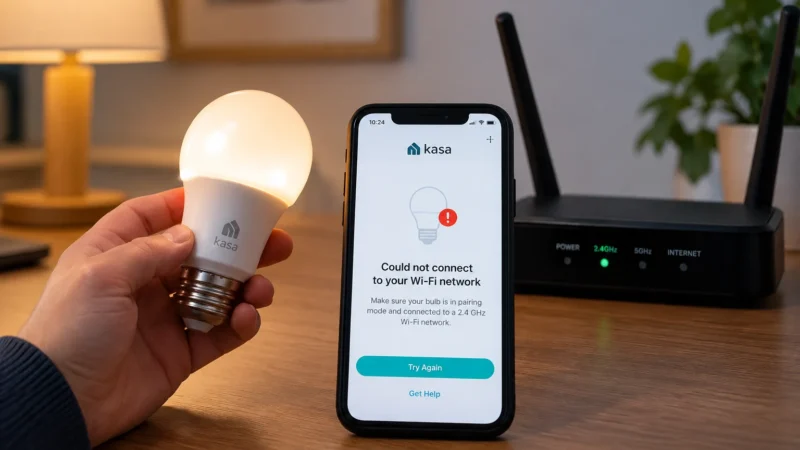
If the bulb is also having trouble connecting to your router, see our Smart Bulb Won’t Connect to 2.4GHz WiFi guide for router, signal, WPA, and band-steering troubleshooting.
Kasa Smart Bulbs
If this is a Kasa bulb and it also keeps losing the network, use our Kasa Smart Bulb Not Connecting to WiFi guide rather than treating every flash as an electrical fault.
Philips Hue
Hue Bridge-based bulbs communicate through Zigbee.
If the Hue app shows the bulb as Unreachable while it also behaves strangely, check power and Zigbee communication using our Philips Hue Light Unreachable troubleshooting guide.
Smart Bulb Flickers Only at Low Brightness
This is a particularly strong clue.
If the bulb is perfectly stable at 100% brightness but starts flickering at 10% or 20%, suspect dimming compatibility first.
This is especially likely if the bulb is installed behind a wall dimmer.
Some LED/dimmer combinations cannot provide stable current at very low output levels.
GE Lighting notes that incompatible dimmers can cause LEDs to flicker, strobe, drop out, or behave unpredictably at low brightness.
If the smart bulb is designed to dim electronically through its own app, leave the physical switch at full power and adjust brightness using the smart controls instead.
Smart Bulb Flickering When Off
If the bulb glows or flashes occasionally even though it is supposed to be off, the problem may involve a small amount of current still passing through the circuit.
This can happen with:
- Certain dimmer switches
- No-neutral smart switches
- Illuminated wall switches
- Electronic switches
- Leakage current
A tiny amount of current can slowly charge the electronics inside an LED bulb until it releases that energy as a brief flash.
If the behavior only occurs when the wall control is off, investigate the switch and circuit rather than your WiFi network.
Smart Bulb Flickering After a Power Outage
If flickering starts immediately after a power outage, give the bulb and smart-home system time to recover.
Restart the bulb once by cutting power for around 10 seconds and turning it back on.
Then check:
- The bulb’s app
- WiFi or hub connectivity
- Firmware status
- Power-restoration settings
If the bulb continues to flicker in a completely different fixture, it may have been damaged by the power event.
Smart Bulb Flickers When Alexa Controls It
If the light is perfectly stable when controlled through its own app but behaves strangely only with Alexa, test the bulb outside Alexa before resetting anything.
If manual app control works normally, the underlying bulb connection is probably okay.
Our Smart Bulb Works in App but Not Alexa guide covers Alexa discovery, linked accounts, duplicate devices, and integration problems separately.
What If the Smart Light Is Actually Turning On and Off?
There is an important difference between electrical flickering and an automation repeatedly issuing commands.
If the bulb switches fully ON and OFF rather than producing rapid visible flicker, check:
- Alexa routines
- Google Home automations
- Motion sensors
- Schedules
- Home/Away modes
- Sunset routines
Use our Smart Light Turns On by Itself guide if the behavior looks more like automated control than electrical flickering.
When Is the Smart Bulb Probably Failing?
After ruling out the socket, fixture, dimmer, wiring, network, and firmware, the bulb itself becomes the main suspect.
A failing smart bulb may:
- Flicker in several different fixtures
- Flash at full brightness
- Change brightness unpredictably
- Overheat
- Disconnect repeatedly
- Fail to maintain color
- Make unusual buzzing noises
Try another smart bulb in the same fixture.
If the replacement works perfectly while the original continues flickering elsewhere, replacing the original bulb is reasonable.
Fast Troubleshooting Table
| Flickering Problem | Most Likely Cause | Try First |
|---|---|---|
| Flickers only when dimmed | Dimmer incompatibility | Test simple switch |
| Flickers in one fixture only | Socket/fixture problem | Move bulb |
| Flickers in every fixture | Bulb problem | Firmware/replace |
| Several lights flicker together | Power fluctuation | Check electrical supply |
| Flashes in regular pattern | Pairing/reset mode | Check app |
| Flickers and goes offline | Connection/firmware | Check network |
| Flashes while switched off | Leakage/dimmer circuit | Check switch |
| Only after automation runs | Smart-home routine | Check automations |
Frequently Asked Questions
Why is my smart bulb flickering?
A smart bulb flickering can be caused by a loose socket, incompatible dimmer, unstable voltage, special fixture, pairing mode, outdated firmware, connection problems, or a failing bulb. Start by testing it in a simple lamp without a dimmer.
Why does my smart bulb flicker when dimmed?
An incompatible wall dimmer is one of the most likely causes. Many smart bulbs contain their own dimming electronics and should receive full power while brightness is controlled through the app or smart-home platform.
Can WiFi make a smart bulb flicker?
WiFi problems are more likely to make a bulb appear offline or respond slowly than cause traditional electrical flickering. However, connection loss, firmware problems, or repeated commands can sometimes create strange light behavior.
Why does my smart bulb flash when I turn it on?
If it flashes in a repeated pattern, it may have entered pairing or reset mode. Check the manufacturer’s setup instructions before replacing the bulb.
Why does my smart bulb flicker when it is off?
A small leakage current through a dimmer, smart switch, illuminated switch, or no-neutral circuit can sometimes charge the bulb’s electronics enough to create brief flashes even while the light is supposed to be off.
Can a dimmer damage a smart bulb?
Some smart-bulb manufacturers specifically advise against using their bulbs with traditional or incompatible dimmers. The combination can cause flickering and unstable operation. Follow the compatibility guidance for your exact bulb.
Should I reset a flickering smart bulb?
Not first. Check the fixture, socket, dimmer, power, and firmware before resetting it. Resetting will not fix a loose electrical connection or incompatible dimmer.
How do I know if my smart bulb is failing?
Test it in a second standard fixture. If it continues flickering there while another bulb works normally in both fixtures, the smart bulb itself is probably failing.
Final Check
If your smart bulb is flickering, troubleshoot the physical lighting setup before blaming WiFi.
Use this order:
Socket → dimmer → different fixture → power supply → pairing mode → firmware → network → bulb hardware.
A bulb that flickers only behind a dimmer probably has a compatibility problem. A bulb that flickers in every fixture is much more likely to have a hardware or firmware issue.
And if several lights flicker together, move beyond smart-home troubleshooting and investigate the electrical supply.
For more smart bulb, WiFi, Philips Hue, Alexa, Matter, and smart-switch fixes, browse the troubleshooting guides on LightCheckUp.
Still have questions?
Ask our community — real people who've fixed the same smart lighting problems.