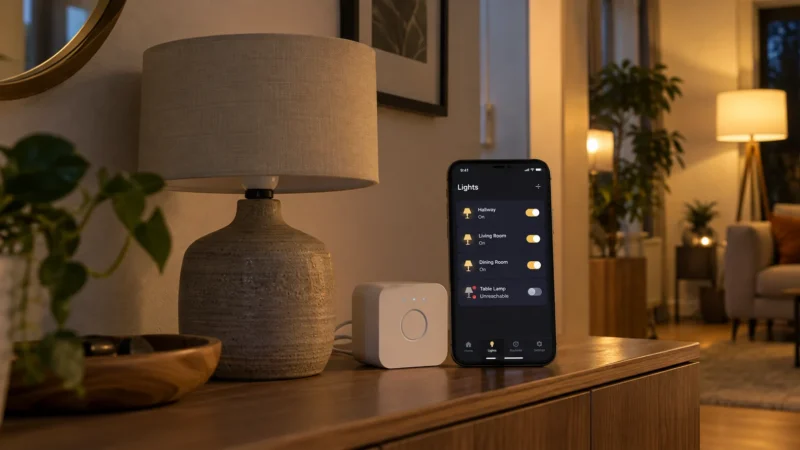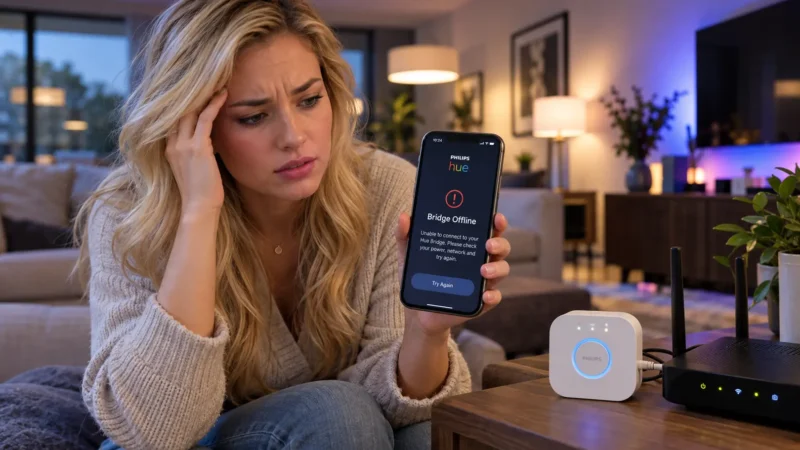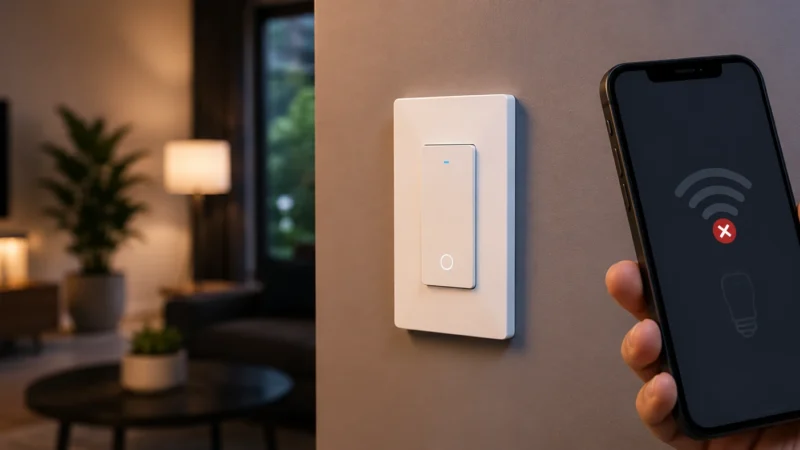
Your smart bulb connects successfully, works for a while, and then suddenly shows Offline again. You restart it, everything comes back — only for the same problem to return later that evening or the next day.
If your smart bulb keeps disconnecting from WiFi, repeatedly resetting it is usually not the answer. A bulb that can connect but cannot stay connected often has a different problem from a bulb that fails during initial setup.
Weak WiFi, a crowded 2.4GHz network, mesh or band-steering behavior, router overload, firmware, power interruptions, or changing network settings can all cause repeated dropouts.
The key is to find the pattern before changing anything.
Quick Answer
If your smart bulb keeps going offline, check these in order:
- Make sure the bulb never loses physical power.
- Check WiFi signal strength where the bulb is installed.
- Confirm it is using the correct 2.4GHz network if required.
- Restart the router and bulb once.
- Check mesh WiFi, Smart Connect, or band steering.
- Look for an overloaded router or too many connected devices.
- Update the bulb and router firmware.
- Check whether the WiFi name, password, or security settings changed.
- Test the bulb on another 2.4GHz network before replacing it.
Don’t factory-reset the bulb every time it drops offline. A reset can temporarily hide the real problem without fixing weak signal, router congestion, or unstable power.
Why Does My Smart Bulb Keep Disconnecting From WiFi?
A WiFi smart bulb normally stays connected to your router around the clock.
The connection looks roughly like this:
Smart Bulb → WiFi Router → Internet/Manufacturer Service → Smart-Home App
If any part of that chain becomes unstable, the bulb may appear Offline even though it reconnects later.
Current TP-Link guidance identifies several common causes of recurring smart-device disconnections, including weak signal, network credential changes, overloaded routers, outdated firmware, and WiFi-band problems.
WiZ also warns that lights can go offline when WiFi becomes unstable, credentials change, or the router is serving more devices than it can reliably handle.
| When It Disconnects | Likely Cause | Check First |
|---|---|---|
| Only in one room | Weak WiFi | Signal strength |
| Several smart devices drop together | Router/network | Router stability |
| After wall switch is used | Power loss | Physical switch |
| After changing router/password | Old credentials | WiFi settings |
| Works after every router restart | Router congestion/configuration | Network settings |
| Disconnects at edge of house | Weak coverage | Router/mesh placement |
| Only one bulb keeps failing | Bulb, signal, or firmware | Test another location |
1. Make Sure the Smart Bulb Never Loses Power
Before troubleshooting WiFi, make sure this is actually a WiFi problem.
A smart bulb needs continuous electrical power to remain connected.
If somebody turns off the normal wall switch, the bulb loses:
- Power
- WiFi
- App control
- Alexa or Google Home access
The bulb may reconnect when the switch is turned back on, making it look like an intermittent network problem.
WiZ specifically lists physical power being switched off as one of the most common reasons a smart light appears Offline.
Check whether the issue happens after somebody uses the wall switch.
If this happens regularly, leaving the physical switch permanently on and controlling the bulb through its app or compatible smart control is usually more reliable.
2. Check WiFi Signal Where the Bulb Actually Lives
A phone showing good WiFi does not prove your smart bulb has a strong connection.
Phones generally have better antennas and radios than inexpensive IoT devices.
A smart bulb installed:
- Upstairs
- In a garage
- Outside
- Behind thick walls
- Inside a metal fixture
- At the far end of the house
may be sitting right at the edge of reliable WiFi coverage.
TP-Link’s current Kasa troubleshooting guidance considers weak signal one of the main causes of recurring disconnections and flags signal levels below roughly -70 dBm as problematic for Kasa devices.
Simple Test
Move the bulb temporarily into a lamp closer to the router.
Use it there for a while.
If it stays online near the router but constantly disconnects in its normal location, the bulb probably isn’t faulty.
You have a coverage problem.
How to Improve It
You can:
- Move the router to a more central position.
- Reposition a mesh node.
- Remove large obstructions around the router.
- Add coverage to the problem area.
Don’t add a WiFi extender immediately unless you’ve confirmed signal is actually the cause.
3. Check the 2.4GHz WiFi Connection
Many WiFi smart bulbs rely on 2.4GHz because it offers longer range than 5GHz.
If the bulb was originally paired successfully but repeatedly falls offline, check whether your router is doing anything unusual with the wireless bands.
Look for features called:
- Smart Connect
- Band Steering
- Auto Band Selection
- WiFi Optimization
These features aren’t inherently bad, and you should not automatically disable them.
But TP-Link currently notes that Smart Connect and band steering can conflict with some smart devices when troubleshooting recurring dropouts.
If you suspect a band issue, test the bulb on a dedicated 2.4GHz network temporarily.
For a complete walkthrough of 2.4GHz pairing and router compatibility, read our Smart Bulb Won’t Connect to 2.4GHz WiFi guide.
4. Restart the Bulb and Router — Once
A clean restart is worth doing.
Turn the bulb off using the physical switch.
Wait around 10 seconds.
Turn it back on.
Then restart your router normally.
Wait until the WiFi and internet connection are completely restored before checking the bulb again.
TP-Link recommends rebooting both the router and affected smart device when Kasa devices repeatedly lose connection.
WiZ similarly recommends briefly power-cycling an offline bulb to force it to reconnect.
If Restarting Fixes It for Only a Few Hours
Don’t keep restarting the router every day.
A restart temporarily clearing the problem can point toward:
- Router congestion
- DHCP/IP issues
- Band-steering behavior
- Firmware instability
- Too many connected devices
Continue troubleshooting rather than treating daily restarts as the solution.
5. Check Mesh WiFi and Smart Connect
Mesh WiFi can dramatically improve smart-home coverage, but poor node placement can also create confusing intermittent problems.
Check whether:
- The nearest mesh node is online.
- The bulb is positioned between two distant nodes.
- The mesh recently changed channels.
- The bulb started disconnecting after installing a new mesh system.
A stationary smart bulb doesn’t need to roam around your house like a phone does.
If the network is constantly trying to optimize which access point or band should serve the bulb, an older IoT radio may not handle those transitions particularly well.
Useful Test
If your mesh system allows it, temporarily simplify the connection or test the bulb near the primary router.
If it becomes completely stable, investigate mesh coverage and node placement rather than replacing the bulb.
6. Check Whether Your Router Is Overloaded
This becomes increasingly relevant as your smart home grows.
Count everything connected to your router:
- Phones
- Laptops
- TVs
- Cameras
- Smart speakers
- Bulbs
- Switches
- Plugs
- Appliances
- Tablets
A house that once had ten WiFi devices can quietly grow to fifty or more.
WiZ explicitly notes that every WiFi access point has a limit to how many devices it can serve, and an overloaded access point can cause devices to compete for connectivity and drop offline.
TP-Link also identifies router overload as one of the main causes of smart devices repeatedly disconnecting.
A Clue That the Router Is Overloaded
If different smart devices randomly disappear at different times — rather than the same one bulb always failing — pay more attention to the router.
Also consider router capacity if:
- The problem began after adding many IoT devices.
- Cameras and bulbs disconnect together.
- A router restart fixes many devices temporarily.
7. Update the Smart Bulb and Router Firmware
If nothing physically changed but the bulb suddenly starts disconnecting, check updates.
Open the bulb manufacturer’s app and look for:
- Firmware update
- Device update
- Software update
Then check your router or mesh app as well.
Current TP-Link troubleshooting specifically recommends updating device firmware when Kasa products repeatedly go offline, and its broader WiFi guidance identifies outdated router or device firmware as a common source of instability.
Firmware updates can fix:
- Router compatibility
- Connection stability
- WiFi reconnect behavior
- Known software bugs
Do not cut power to the bulb while its firmware is updating.
8. Check Whether Your WiFi Settings Changed
If the disconnections started after changing your router, WiFi password, security type, or ISP equipment, that timing matters.
Smart bulbs store network credentials.
If you change them, the bulb does not magically learn the new details.
WiZ states that lights cannot reconnect automatically when their saved WiFi credentials no longer match. They need to be paired again with the new network information.
If you recently replaced your router, read our Changed Your Router? Why Your Smart Bulb Is Offline guide before resetting every bulb in your home.
9. Check WiFi Channel Congestion and Interference
2.4GHz travels farther than 5GHz, but it is also a crowded part of the radio spectrum.
It can compete with:
- Neighboring WiFi networks
- Bluetooth devices
- Microwave ovens
- Other IoT equipment
TP-Link’s current router troubleshooting identifies physical interference and crowded wireless channels as potential causes of intermittent WiFi disconnections.
If your router lets you inspect or change the 2.4GHz channel, channels 1, 6, and 11 are commonly used because they avoid overlapping each other in typical 20MHz configurations.
Don’t constantly change channels randomly.
If your router’s automatic channel selection is stable, leaving it alone may be better than manual tweaking.
10. Test the Bulb on Another 2.4GHz Network
This is one of the most useful tests before replacing the bulb.
Use another compatible router or a phone hotspot that can provide 2.4GHz WiFi.
Connect the bulb and watch whether it remains online.
If the Bulb Is Stable on the Test Network
The bulb’s WiFi hardware probably works.
Focus on your home router, mesh system, signal, or configuration.
If It Disconnects From Multiple Networks
The bulb itself becomes much more suspicious.
At that point, check firmware, perform the manufacturer’s recommended reset procedure, and consider replacement if the problem continues.
This same diagnostic approach is recommended by TP-Link when troubleshooting Kasa devices that repeatedly drop offline.
Kasa Smart Bulb Keeps Disconnecting
If the affected bulb is a Kasa model, TP-Link provides useful signal information directly in its troubleshooting guidance.
Recurring Kasa dropouts are commonly associated with:
- Weak WiFi
- Band Steering
- Smart Connect
- Firmware
- Router compatibility
For Kasa-specific pairing, reset, and app troubleshooting, read our Kasa Smart Bulb Not Connecting to WiFi guide.
Smart Bulb Keeps Disconnecting After a Router Change
If the problem appeared immediately after upgrading the router, don’t treat it as a random connectivity problem.
Check whether you changed:
- SSID/network name
- Password
- 2.4GHz configuration
- WPA security mode
- Mesh system
If multiple smart-home devices started failing at the same time, the new network is a much stronger suspect than several bulbs independently breaking.
Smart Bulb Goes Offline but Comes Back by Itself
This symptom usually suggests an unstable connection rather than completely wrong credentials.
Look first at:
- Weak signal
- WiFi interference
- Mesh-node behavior
- Router load
- Firmware updates
A wrong password normally prevents connection entirely. A marginal signal can let the bulb connect, drop, and reconnect all day.
Smart Bulb Offline in Alexa but Online in Its App
This is not necessarily a WiFi disconnection.
Open the bulb manufacturer’s app.
If the bulb responds instantly there, the bulb is still online.
Your remaining problem is probably Alexa’s connection to the manufacturer’s account or device record.
Use our Smart Bulb Works in App but Not Alexa guide rather than resetting a bulb whose WiFi connection already works.
Should You Factory-Reset a Bulb That Keeps Disconnecting?
Not first.
A factory reset can help if:
- The bulb’s network configuration is corrupted.
- The manufacturer recommends it.
- The bulb behaves badly on multiple networks.
- Re-pairing is necessary after credential changes.
But resetting does not fix:
- Weak signal
- An overloaded router
- Poor mesh coverage
- WiFi interference
- A wall switch cutting power
Use the reset procedure for your exact bulb model. Reset sequences vary between manufacturers and even between generations of the same product family.
Fast Troubleshooting Table
| Problem | Likely Cause | Try First |
|---|---|---|
| Only one distant bulb disconnects | Weak signal | Move closer |
| Several devices disconnect | Router/load | Check router |
| Offline after wall switch use | Power loss | Keep switch on |
| Started after new router | Network changes | Check credentials |
| Reconnects after router reboot | Router/configuration | Check load/settings |
| Works on hotspot only | Home router problem | Check router |
| Offline only in Alexa | Alexa integration | Check manufacturer app |
| Disconnects everywhere | Bulb/firmware | Update/reset/test |
Frequently Asked Questions
Why does my smart bulb keep disconnecting from WiFi?
If your smart bulb keeps disconnecting from WiFi, the most common causes are weak signal, unstable 2.4GHz connectivity, router congestion, mesh or band-steering behavior, outdated firmware, changing network settings, or loss of physical power.
Why does my smart bulb keep going offline and coming back?
A bulb that repeatedly reconnects usually has valid WiFi credentials but an unstable connection. Check signal strength, interference, mesh coverage, router load, and firmware before resetting it.
Can too many smart devices cause bulbs to disconnect?
Yes. Routers and access points have limits on the number of devices they can serve reliably. WiZ and TP-Link both identify network load as a possible cause of smart devices dropping offline.
Does 5GHz cause smart bulbs to disconnect?
Many WiFi smart bulbs are designed for 2.4GHz. Problems can occur when router band-steering or Smart Connect features don’t work well with an IoT device. Check your bulb’s specifications before changing router settings.
Why does my smart bulb disconnect at night?
Look for scheduled router restarts, network optimization, automatic channel changes, weak signal, or power-saving behavior. Also confirm nobody is switching off the bulb’s physical wall switch at night.
Should I buy a new router if my smart bulbs keep disconnecting?
Not immediately. First determine whether the problem is signal strength, router load, firmware, band steering, or one particular bulb. A newer or mesh router may help if your existing router genuinely lacks coverage or device capacity.
Should I reset my smart bulb every time it goes offline?
No. Repeated factory resets can hide the underlying problem. Restart once, then investigate signal, power, router stability, firmware, and network configuration.
How do I know whether the bulb or router is faulty?
Test the bulb on another compatible 2.4GHz network. If it remains stable there, focus on your home router. If it repeatedly disconnects on several known-good networks, the bulb becomes the stronger suspect.
Final Check
If your smart bulb keeps disconnecting from WiFi, don’t treat every Offline message as a reason to reset the bulb.
Use this troubleshooting order:
Power → WiFi signal → 2.4GHz → router restart → mesh/band steering → router load → firmware → network changes → interference → second-network test.
The pattern matters.
One distant bulb repeatedly dropping points toward coverage. Several devices disappearing together points toward the router. A bulb that works perfectly on another network points toward your home WiFi. And a bulb that disconnects everywhere may genuinely be failing.
Finding that difference is what stops the problem from coming back.
For more smart bulb, WiFi, Alexa, Philips Hue, and smart-home troubleshooting, browse the guides on LightCheckUp.
Still have questions?
Ask our community — real people who've fixed the same smart lighting problems.