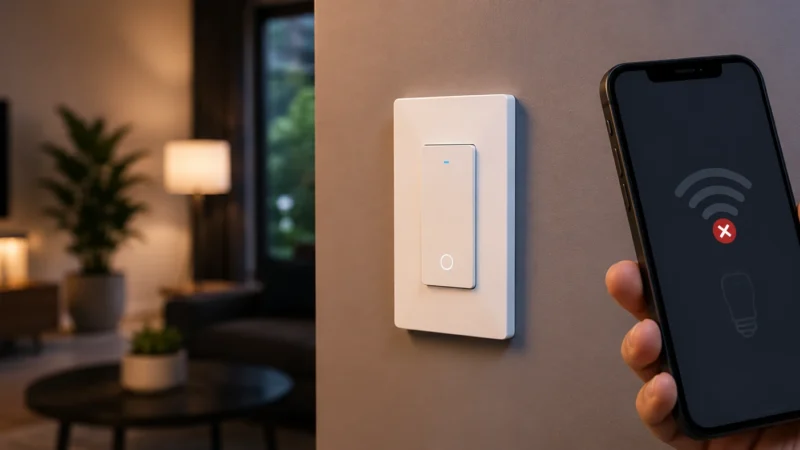
You open the Govee Home app, select your lights, enter the WiFi password, and wait — only for setup to fail. Sometimes the light still works over Bluetooth but shows a WiFi warning. Other times the Govee app cannot complete pairing at all.
If your Govee lights are not connecting to WiFi, don’t immediately reset the lights or start changing every router setting. Govee WiFi lighting has several specific requirements, and the point where setup fails usually tells you what to check.
The most common causes are 2.4GHz WiFi, weak signal, an incorrect password, Bluetooth being disabled during setup, router filtering, or old WiFi details stored after a network change.
Work through these nine checks in order.
Quick Answer
If your Govee lights won’t connect to WiFi, try these first:
- Confirm your exact Govee model actually supports WiFi.
- Use a 2.4GHz WiFi network.
- Turn on Bluetooth while adding the device.
- Move the Govee controller or light closer to the router.
- Double-check the WiFi password.
- Check MAC filtering, guest WiFi, and router isolation.
- Restart the Govee light and router.
- Test the light with another 2.4GHz hotspot.
- Remove, reset, and re-add the light only after the easier fixes fail.
Don’t assume a light that works over Bluetooth is fully connected to WiFi. Bluetooth control can continue locally even when the Govee device has failed to establish an internet connection.
Why Won’t My Govee Lights Connect to WiFi?
Many Govee lights use more than one wireless connection.
A typical setup may look like:
Phone → Bluetooth → Govee Light → 2.4GHz WiFi → Router → Govee Home
Bluetooth can help your phone discover or configure the device, while WiFi provides internet-based control, integrations, and remote access on supported models.
That explains why you can sometimes control a Govee light when standing nearby even though its WiFi connection is broken.
| What You See | Most Likely Cause | Check First |
|---|---|---|
| Govee device not found at all | Bluetooth/setup/model issue | Bluetooth + model |
| WiFi network doesn’t appear | 2.4GHz or signal issue | Router |
| Network appears but pairing fails | Password/router settings | WiFi password |
| Works over Bluetooth only | WiFi not connected | 2.4GHz connection |
| Stopped after new router | Old WiFi details | Network credentials |
| Connects to hotspot but not router | Router configuration | Router settings |
| Govee app works, Alexa doesn’t | Alexa integration | Account linking |
1. Confirm Your Govee Light Actually Supports WiFi
Before troubleshooting your router, check the exact model number.
Not every Govee lighting product supports WiFi.
Some older or simpler Govee light strips are controlled only by Bluetooth, a remote, or the physical control box.
If the product doesn’t support WiFi, it will never appear as a normal WiFi-connected device regardless of how many router settings you change.
Find the model number on:
- The controller
- Power adapter
- Product label
- Original packaging
- Govee Home device information
Then confirm whether that specific model supports WiFi.
2. Make Sure You’re Using 2.4GHz WiFi
This is the first network setting I would check if your Govee lights are not connecting to WiFi.
Govee’s current support documentation says its WiFi light strips use 2.4GHz WiFi.
If your router has separate networks such as:
HomeWiFi-2.4G
HomeWiFi-5G
use the 2.4GHz network for the Govee device.
What If My Router Uses One Name for Both Bands?
Modern routers often combine 2.4GHz and 5GHz under one SSID.
If normal setup works, there is no reason to change anything.
However, Govee’s own troubleshooting documentation currently recommends using separate 2.4GHz and 5GHz SSIDs when a dual-band router prevents its lights from pairing.
So if the device repeatedly fails, temporarily creating a clearly named 2.4GHz network can be a useful test.
For deeper router troubleshooting, see our Smart Bulb Won’t Connect to 2.4GHz WiFi guide.
3. Turn On Bluetooth During Initial Setup
Govee uses Bluetooth with many products during discovery and initial setup.
Govee’s current installation guidance for its WiFi lighting products specifically recommends enabling Bluetooth during initial pairing.
Before adding the device:
- Turn Bluetooth on.
- Stay close to the Govee controller or light.
- Allow Bluetooth or Nearby Devices permission if your phone requests it.
- Keep the Govee Home app open during setup.
If the phone can find the Govee device over Bluetooth but WiFi setup fails afterward, you have narrowed the problem down.
The device itself is being discovered correctly. Focus on WiFi rather than repeatedly reinstalling the app.
4. Move the Govee Light Closer to the Router
Weak signal is another common cause.
Govee recommends moving its WiFi lighting devices closer to the router when connection fails.
This is especially important with:
- Permanent outdoor lights
- Outdoor strip lights
- Basement lighting
- Garage lights
- Lights installed far from the router
For testing, move the controller or light temporarily closer if the product allows it.
If it connects immediately, the problem isn’t your password or Govee account — it’s coverage.
Outdoor Govee Lights Need Special Attention
A phone may show good WiFi outside while the Govee controller does not.
Phones usually have larger and more sophisticated wireless hardware.
Exterior walls, brick, concrete, metal siding, garages, and distance can all reduce the signal reaching the Govee controller.
If outdoor lights work only near the router, consider improving 2.4GHz coverage rather than repeatedly resetting the lights.
5. Verify the WiFi Password Carefully
If the Govee app can see your network but fails after you enter the password, verify the password before doing anything more complicated.
Govee specifically recommends checking for:
- An incorrect WiFi password
- An accidental space at the end
- Unexpected router restrictions
A simple test is to reconnect your phone to the same WiFi network using the password manually.
If your phone cannot connect either, you have found the problem.
Be careful with:
- Uppercase letters
- Lowercase letters
- 0 versus O
- 1 versus l
- Trailing spaces
6. Check MAC Filtering and Router Isolation
Your password can be correct while the router still refuses to let the Govee light join.
Govee specifically mentions MAC address filtering as a router setting that can interfere with connection.
Also look for settings such as:
- MAC filtering
- Access Control
- Device blocking
- AP Isolation
- Client Isolation
- Wireless Isolation
If one of these is enabled, make sure it isn’t blocking the Govee device.
Avoid Guest WiFi While Troubleshooting
Guest networks frequently isolate smart devices from phones and other equipment on your main network.
For initial troubleshooting, use your main home 2.4GHz network unless Govee specifically recommends a different IoT network for your setup.
7. Restart the Govee Device and Router
If your settings look correct, perform a clean restart.
I would use this order:
Turn off/unplug Govee light → restart router → wait for WiFi/internet → power Govee device back on → reopen Govee Home
Govee’s own WiFi troubleshooting recommends rebooting the router when connection fails.
For some strip-light troubleshooting, Govee also recommends removing the device from Govee Home and leaving it unplugged for several minutes before reconnecting.
Don’t factory-reset the product yet.
8. Test With a Different 2.4GHz Hotspot
This is one of the best diagnostic tests for a stubborn Govee connection problem.
Govee itself recommends testing troublesome lights against a phone hotspot.
If possible, use a second phone capable of creating a compatible 2.4GHz hotspot.
Try pairing the Govee light to that network.
If the Govee Light Connects to the Hotspot
The light’s WiFi hardware is probably working.
Focus on your home router:
- 2.4GHz settings
- MAC filtering
- Security mode
- Signal strength
- Band steering
- Guest isolation
If It Fails on Multiple Networks
The Govee device, controller, pairing state, or reset procedure becomes more suspicious.
This test can save a lot of time because it tells you whether to concentrate on the router or the light.
9. Remove, Reset, and Re-Add the Govee Light
If your Govee lights still won’t connect to WiFi, resetting may finally be appropriate.
But don’t assume that every Govee product uses the same reset sequence.
Govee sells:
- Light strips
- Smart bulbs
- Floor lamps
- TV backlights
- Permanent outdoor lights
- String lights
Reset procedures can differ between product families and models.
For example, Govee’s official support documentation gives a particular button sequence for certain strip lights, but that does not mean you should use the same reset procedure on every Govee lamp or bulb.
Check the instructions for your exact model inside Govee Home or Govee support.
Before Removing the Device
Take note of:
- Device name
- Room
- Scenes
- Schedules
- Automations
- Alexa or Google Home integrations
Removing and adding the device again can affect automations associated with the old device record.
Govee Light Works With Bluetooth but Not WiFi
This symptom is particularly useful.
If you turn off Bluetooth on your phone and can no longer control the light through Govee Home, the device may not actually have a working internet connection.
Govee’s own FAQ describes a red warning symbol on the WiFi indicator as one sign that the lighting device is not properly connected to the internet.
Focus on:
- 2.4GHz WiFi.
- WiFi password.
- Signal strength.
- Router filtering.
- Reconfiguring the device’s WiFi.
Don’t assume Bluetooth control means WiFi setup succeeded.
Govee Lights Not Connecting After Router Change
If the lights worked until you replaced your router, start with the network credentials.
Your Govee device may still be looking for the old:
- WiFi name
- Password
- Network configuration
If many smart devices went offline at exactly the same time, that strongly points to the router change rather than several devices failing simultaneously.
Our Changed Your Router? Why Your Smart Bulb Is Offline guide explains the migration strategy in more detail.
Govee Works in the App but Not Alexa
If Govee Home controls your lights normally, don’t keep troubleshooting WiFi.
The lights are online.
Govee’s current support guidance says Alexa requires the lighting device to have a proper internet connection. If that is working but Alexa still fails, re-linking your Govee Home account to Alexa is the next area to investigate.
For a complete diagnostic flow, use our Smart Bulb Works in App but Not Alexa guide.
Govee Lights Keep Disconnecting After Setup
A light that connects successfully and then repeatedly drops offline has a different problem from a device that cannot complete initial setup.
Check:
- 2.4GHz signal strength
- Distance from router
- Mesh access point placement
- Router stability
- Band steering
- Firmware
- Outdoor signal coverage
Govee states that supported WiFi devices should normally reconnect automatically after a temporary WiFi dropout.
If you constantly have to reset the lights, investigate the network rather than treating repeated resets as the solution.
Fast Govee WiFi Troubleshooting Table
| Govee Problem | Likely Cause | Try First |
|---|---|---|
| Device not found | Bluetooth/model issue | Check Bluetooth |
| WiFi not listed | 2.4GHz/signal | Check router |
| WiFi visible but won’t connect | Password/filtering | Verify password |
| Bluetooth works, WiFi doesn’t | WiFi setup failed | Reconnect 2.4GHz |
| Works near router only | Weak signal | Improve coverage |
| Connects to hotspot only | Router settings | Check router |
| Stopped after router change | Old credentials | Update network |
| Govee app works, Alexa fails | Alexa integration | Re-link account |
Frequently Asked Questions
Why are my Govee lights not connecting to WiFi?
If your Govee lights are not connecting to WiFi, first confirm that the model supports WiFi, then check 2.4GHz availability, Bluetooth during setup, the WiFi password, signal strength, and router filtering.
Do Govee lights need 2.4GHz WiFi?
Govee’s current support documentation says its WiFi light strips use 2.4GHz WiFi. Always check your exact model because Govee also sells Bluetooth-only products.
Why does my Govee light work on Bluetooth but not WiFi?
Bluetooth provides local communication, so the light can sometimes respond when your phone is nearby even though its WiFi connection failed. Check the WiFi status in Govee Home and reconnect the device to 2.4GHz if necessary.
Why can’t Govee find my home WiFi?
Make sure 2.4GHz is enabled, move the device closer to your router, and confirm that the network is not hidden or blocked by router access controls.
Should I separate 2.4GHz and 5GHz for Govee?
If normal setup works with a combined network, leave it alone. If pairing repeatedly fails, Govee currently recommends using separate SSIDs for 2.4GHz and 5GHz as a troubleshooting step.
Why does Govee connect to my hotspot but not my router?
That strongly suggests the device’s WiFi radio works. Check your router’s 2.4GHz configuration, MAC filtering, access controls, security settings, signal strength, and isolation features.
Will changing my router disconnect my Govee lights?
It can. If the new router has a different WiFi name or password, the Govee lights may still be trying to reach the previous network and may need their WiFi configuration updated.
Should I reset my Govee lights?
Reset only after checking WiFi, Bluetooth, signal, passwords, and router settings. Follow the instructions for your exact Govee model because reset procedures vary between products.
Final Check
When your Govee lights are not connecting to WiFi, troubleshoot the connection in this order:
Model support → 2.4GHz → Bluetooth → signal → WiFi password → router filters → restart → hotspot test → model-specific reset.
If the device works with a separate hotspot, focus on your router.
If Bluetooth works but WiFi does not, focus on the network connection rather than the light’s basic hardware.
And if Govee Home already controls the light normally, stop resetting the device — your remaining Alexa or Google Home problem is a separate integration issue.
For more smart-light, WiFi, Matter, Philips Hue, and smart-switch troubleshooting, browse the guides on LightCheckUp.
Still have questions?
Ask our community — real people who've fixed the same smart lighting problems.