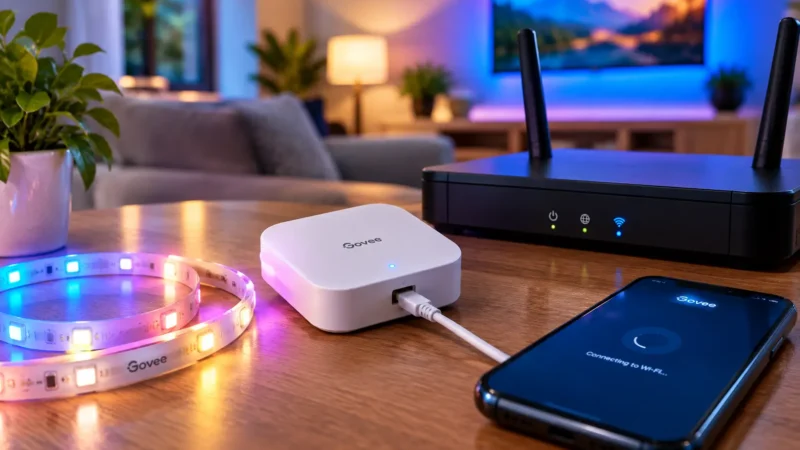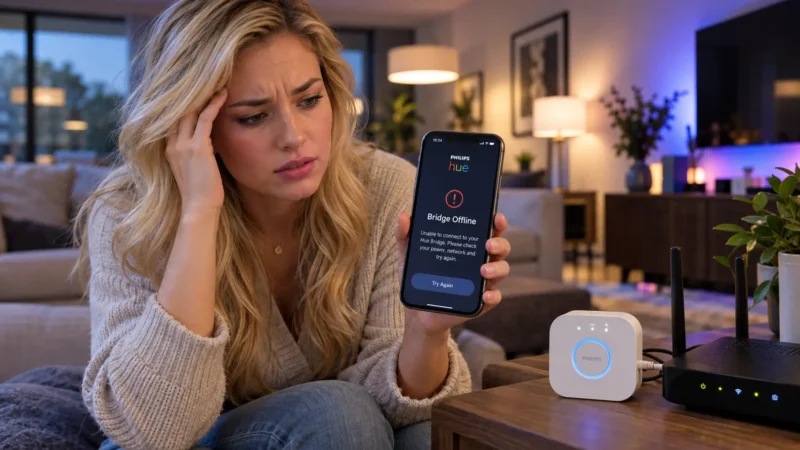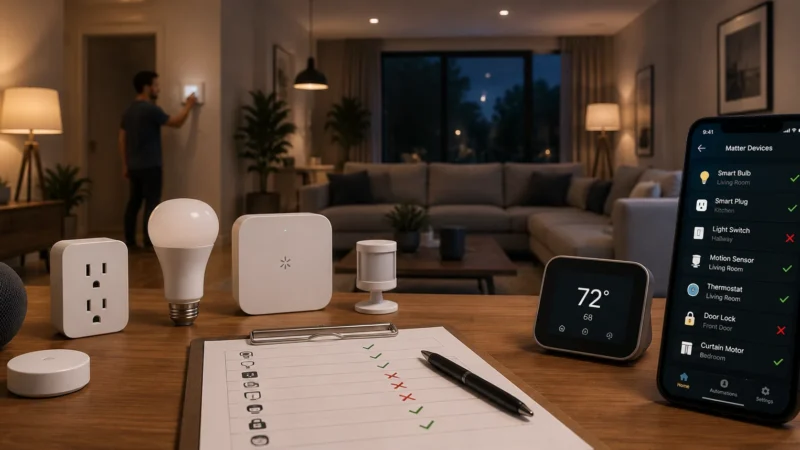
A smart switch should make everyday lighting easier. You can turn lights on from the wall, control them through an app, create schedules and connect them to Alexa or Google Home.
But when something goes wrong, it can be difficult to know where to start. The switch may work manually but appear offline in the app. It may refuse to connect to Wi-Fi, stop responding after a power outage, or fail during the initial setup.
The important thing is that not every smart switch problem is a Wi-Fi problem. Some are caused by the app, router, hub, wiring compatibility or the switch itself.
This smart switch troubleshooting guide helps you identify the likely cause and find the right solution without unnecessarily resetting the device or changing your wiring.
Start Here: What Is Your Smart Switch Doing?
Find the symptom that best matches your problem. Each situation needs a slightly different approach.
| Problem | Likely Cause | Detailed Guide |
|---|---|---|
| Smart switch won’t connect during setup | Wi-Fi, pairing mode or compatibility | Smart Switch Won’t Connect |
| Works manually but not in the app | Network, app or cloud connection | Smart Switch Works Manually but Not in the App |
| Offline after a power outage | Router, hub or failed reconnection | Smart Switch Offline After Power Outage |
| App shows the wrong ON/OFF status | Synchronization or connection issue | Check app and network connection |
| Works in its own app but not Alexa | Voice assistant integration | Check the linked account and device discovery |
| Switch cannot be installed without a neutral wire | Model-specific wiring requirement | Check switch compatibility |
How Does a Smart Switch Actually Work?
Understanding the basic connection makes troubleshooting much easier.
A smart switch has two important functions:
- Physical control: The wall button or rocker controls the connected light.
- Smart control: The switch communicates with an app, hub or smart-home platform so you can control it remotely or through automation.
Depending on the product, the communication path may look like one of these:
Wi-Fi switch: Smart Switch → Wi-Fi Router → App or Manufacturer Service
Zigbee or Z-Wave switch: Smart Switch → Smart Home Hub → App
Matter switch: Smart Switch → Wi-Fi or Thread Network → Matter Controller → Smart Home App
This explains why a switch can sometimes work perfectly from the wall while appearing offline on your phone.
The physical control and smart-home connection are not always dependent on the same communication path.
Problem 1: Smart Switch Won’t Connect During Setup
If your smart switch refuses to connect when you first install it, check compatibility before repeatedly trying to pair it.
Start with these questions:
- Does your switch support your home’s Wi-Fi frequency?
- Is the switch actually in pairing mode?
- Are you using the correct manufacturer app?
- Does the model require a compatible hub?
- Does your wiring match the manufacturer’s requirements?
Check the Wi-Fi Requirements
Many Wi-Fi smart switches support 2.4GHz networks, although the exact requirements depend on the model.
Some newer routers combine 2.4GHz and 5GHz under one Wi-Fi name. That is not automatically a problem, but certain older smart devices can have difficulty during setup.
Check the product manual before changing router settings. If the switch requires a 2.4GHz connection, make sure that band is enabled and available.
Check Pairing Mode
A switch that is not in pairing mode may never appear in the app.
Look at its indicator light and compare the flashing pattern with the manufacturer’s instructions. Some products have different setup modes, such as normal pairing and access-point pairing.
Do not assume that every smart switch uses the same button sequence.
For a complete walkthrough, see Smart Switch Won’t Connect? 7 Fixes That Actually Work.
Problem 2: Smart Switch Works Manually but Not in the App
This is one of the most useful symptoms for identifying a problem.
If pressing the physical switch turns the light on and off normally, but the app shows Offline or does not respond, the basic switching function may still be working.
The problem is more likely somewhere between the switch and the smart-home app.
Check these areas first:
- Refresh the manufacturer’s app.
- Check whether you are signed into the correct account.
- Restart the app and check for updates.
- Check the phone’s Local Network or Bluetooth permissions if the app requires them.
- Restart the switch using the manufacturer’s recommended procedure.
- Check the router, hub or bridge.
If several switches from the same system become unavailable together, investigate the shared router or hub before resetting individual devices.
Leviton also explains that some of its smart switches can continue to operate manually even when app or cloud communication is unavailable.
Read our detailed guide: Smart Switch Works Manually but Not in the App?
Problem 3: Smart Switch Offline After a Power Outage
When electricity returns after a power cut, your smart switch may not reconnect immediately.
Your router, modem, mesh system, hub and smart switch all need to recover. They may not become available at exactly the same time.
For example, the switch might restart before your router has established a stable internet connection.
Before resetting anything:
- Confirm that your electricity supply is stable.
- Check whether the router and internet are working.
- Give the smart switch some time to reconnect.
- Check whether other smart devices are online.
- Restart the affected switch if it remains unavailable.
Leviton’s support guidance confirms that its Wi-Fi devices are designed to reconnect automatically after power is restored, although the process can take some time.
If multiple devices connected to one hub are offline, check the hub before resetting each switch.
See Smart Switch Offline After Power Outage? 8 Fixes for the full recovery process.
Problem 4: Smart Switch Keeps Disconnecting From Wi-Fi
A switch that connects successfully but repeatedly goes offline needs a different diagnosis from one that cannot pair at all.
Look for patterns.
- Does the switch disconnect at certain times?
- Does it work normally when the router is nearby?
- Do other smart devices disconnect at the same time?
- Did the problem begin after installing a mesh Wi-Fi system?
- Did you recently change the router or internet provider?
Possible causes include weak signal, network congestion, router compatibility, firmware problems or an unstable hub connection.
If the switch is far from the router, test whether its connection improves when network coverage is better.
Don’t immediately disable every advanced router setting. Change one setting at a time and check whether the connection improves.
Problem 5: Smart Switch Needs a Neutral Wire
This is an important compatibility issue, especially when replacing an ordinary wall switch.
Some smart switches require a neutral wire to power their electronics. Others are designed to work without one.
There is no universal rule that every smart switch needs a neutral wire.
For example, manufacturers such as Cync offer both neutral-required and no-neutral models. The correct choice depends on the exact product and the wiring available at the installation point.
Before buying or installing a switch, check:
- Whether the model requires a neutral connection.
- Whether your switch box has the required conductors.
- Whether the product has a minimum load requirement.
- Whether it supports your lighting type.
- Whether your existing circuit is compatible.
Important: Do not identify wires by colour alone or attempt to modify mains wiring based on an online diagram. Wiring arrangements vary by country and installation. Turn off the circuit and use a qualified electrician to check compatibility and carry out installation.
For reference, see Cync’s official smart-switch wiring requirements.
Problem 6: Smart Switch Works in Its Own App but Not Alexa or Google Home
If you can control the switch from its original manufacturer’s app, the switch itself is probably connected.
In that situation, don’t start changing the switch’s Wi-Fi settings.
Focus on the connection between the manufacturer’s platform and Alexa, Google Home or another smart-home service.
Check:
- Whether the correct manufacturer account is linked.
- Whether the integration is still enabled.
- Whether the device appears more than once.
- Whether the voice assistant needs to discover devices again.
- Whether the correct home or room is selected.
If the manufacturer’s app works normally, factory-resetting the switch is unlikely to be the right first step.
Problem 7: Smart Switch Turns the Light On and Off but App Status Is Wrong
Sometimes the switch responds to physical and app commands, but the displayed status does not match the actual light.
For example, the light is on while the app continues to show OFF.
This can happen because of delayed status updates, communication problems or synchronization issues.
Try this simple check:
- Open the manufacturer’s app.
- Press the physical switch once.
- Wait a few seconds.
- Check whether the app status changes.
- Refresh the app if the status remains incorrect.
If the status updates after a delay, investigate communication stability. If it never updates, check the switch’s connection to its hub, router or cloud service.
Smart Switch or Smart Bulb: Which Should You Use?
Sometimes the problem is not a faulty device. It is choosing the wrong type of smart lighting for the room.
A smart bulb is useful when you want individual bulb control, colour changes and adjustable white light.
A smart switch is useful when you want normal wall control and smart features for an entire lighting circuit.
There is one important compatibility point: a conventional smart switch that cuts power to a smart bulb can make that bulb unavailable to its app or voice assistant.
If you want to combine smart bulbs and smart switches, make sure the products support that arrangement. Some systems offer smart-bulb modes or wireless scene controllers that avoid cutting power to the bulbs.
For more help with bulb-related issues, visit our Smart Bulb Troubleshooting Guide.
When Should You Factory-Reset a Smart Switch?
A factory reset can help when the switch has lost its configuration or needs to be added to a new account or network.
But it should not be your first step.
Before resetting, check:
- Physical power and manual operation.
- Wi-Fi or hub connection.
- Manufacturer app and account.
- Phone permissions.
- Router settings and internet connection.
- Firmware updates.
A factory reset may erase network settings, device names, schedules, room assignments and automations. The exact result depends on the manufacturer.
Only use the reset procedure documented for your exact model.
When Is a Smart Switch Problem Electrical?
Not every problem should be fixed through an app.
If the physical switch stops working, the light flickers repeatedly, or the switch becomes unusually hot, treat it as a possible electrical issue.
Stop using the affected switch and get it checked by a qualified electrician if you notice:
- Burning smells or visible discolouration.
- Crackling or sparking.
- Unusual heat from the switch plate.
- Repeated circuit-breaker trips.
- Intermittent physical operation.
- Loose or damaged wiring.
Do not open the switch or attempt electrical repairs while it is connected to mains power.
Smart Switch Troubleshooting: Quick Reference
| Symptom | What to Investigate | First Action |
|---|---|---|
| Won’t pair | Wi-Fi, pairing mode, compatibility | Check the model requirements |
| Manual works, app doesn’t | App, network or cloud | Refresh app and check connection |
| Offline after outage | Router, hub or reconnection | Wait for network recovery |
| Disconnects repeatedly | Signal, congestion or firmware | Check network stability |
| Neutral wire issue | Model and circuit compatibility | Check official specifications |
| Alexa doesn’t respond | Account or integration | Refresh device discovery |
| Wrong app status | Synchronization | Refresh and test physical control |
| Physical switch also fails | Power or electrical fault | Stop and get it inspected |
Frequently Asked Questions
Why is my smart switch not working?
A smart switch may stop working because of a lost Wi-Fi connection, app problem, hub failure, incorrect pairing, wiring incompatibility or an electrical fault. First check whether the physical switch works and whether the manufacturer’s app can still control it.
Can a smart switch work without Wi-Fi?
Many smart switches can still operate manually without Wi-Fi because the physical control can operate the internal switching mechanism. However, app control, remote access and some automations may stop working. The exact behaviour depends on the product and smart-home system.
Does a smart switch need an internet connection?
Not always for basic physical switching. Some products also support local control through a hub or local network. Remote access and cloud-dependent features generally need internet access. Check the manufacturer’s specifications for your model.
Do all smart switches need a neutral wire?
No. Some smart switches require a neutral wire, while others are specifically designed for no-neutral installations. Always check the exact model’s wiring requirements and have a qualified electrician confirm compatibility.
Why does my smart switch work manually but not remotely?
The physical switching function may still be working while the smart connection has failed. Check the app, router, hub, account and internet connection before considering a factory reset.
Why is my smart switch offline after a power outage?
The router, hub and switch may need time to restart and reconnect. Confirm that your internet connection is stable, wait a few minutes and then restart the affected switch if necessary.
Why does my smart switch only support 2.4GHz Wi-Fi?
Some smart switches use Wi-Fi hardware designed for 2.4GHz networks. Other models support different connectivity options. Check the product specifications rather than assuming all smart switches have the same Wi-Fi requirements.
Find the Problem Before Replacing the Switch
Most smart switch problems become easier to understand once you separate physical switching from smart-home connectivity.
If the wall control works but the app does not, investigate the network and app. If the switch stopped reconnecting after a power outage, check the router and hub first. If setup fails, check the model’s pairing and wiring requirements.
Use this order:
Physical operation → App → Wi-Fi or hub → Account and integration → Compatibility → Reset last.
For more smart lighting solutions, explore our Smart Bulb Troubleshooting Guide and Philips Hue Troubleshooting Guide.
The goal is not to reset everything until something works. It is to find the part that has actually failed.
Still have questions?
Ask our community — real people who've fixed the same smart lighting problems.