
 0
0
 0
0
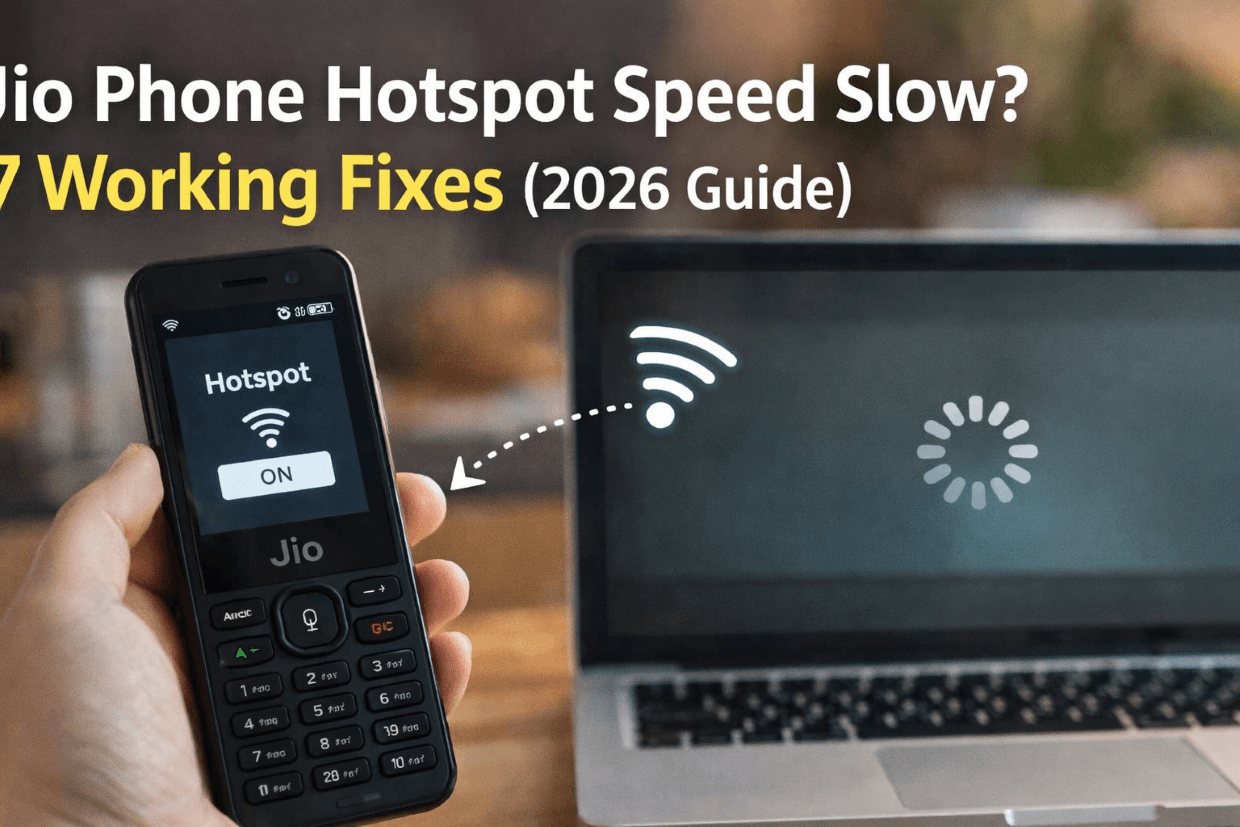
Your Jio Phone hotspot stopped working right when you needed to share data with another device. This frustrating problem affects thousands of users daily.
The good news? Most hotspot issues can be fixed in under two minutes. You don’t need technical expertise or special tools.
This guide walks you through proven solutions that work for the latest Jio Phone models. Each fix is tested and simple to follow.
Why Your Jio Phone Hotspot Stops Working
You need to understand the root cause helps you fix the problem faster. Hotspot failures usually stem from a few common issues.
Settings Configuration Problems
Incorrect settings are the number one reason hotspots fail. Your phone might have the feature turned off or configured improperly.
The settings app controls all internet sharing options. Even a single wrong setting can block connectivity completely.
Network and Data Limitations
Your Jio network might restrict hotspot functionality. Some plans don’t include internet sharing as a feature.
Low data balance or network congestion also causes connection failures. Check your data pack status before troubleshooting further.
Software Issues
Outdated software versions create compatibility problems with hotspot mode.
- Old KaiOS version blocking features
- Corrupted system files
- App conflicts interfering with connectivity
- Cache buildup affecting performance
Hardware Factors
Physical components sometimes cause hotspot failures on your device.
- Faulty SIM card preventing data sharing
- Damaged network antenna
- Overheating processor
- Battery performance issues
Account Restrictions
Your Jio account settings might block certain features automatically.
- Plan limitations on hotspot usage
- Temporary service suspension
- Regional restrictions
- Account verification pending
Device Compatibility
Not all devices connect smoothly to every hotspot device.
- Incompatible security protocols
- Frequency band mismatches
- Connection limit reached
- Device blacklisting active
Quick 2-Minute Fixes for Jio Phone Hotspot Not Working
These rapid solutions fix most hotspot problems immediately. Try each method in order for best results.
Solution 1: Restart Your Hotspot Feature
The simplest fix often works best. Toggling your hotspot off and on resets the connection.Open your settings app on the home screenNavigate to network connectivity or internet sharing optionTurn off the hotspot mode completelyWait for 10 seconds before proceedingTurn the hotspot back on and check connectivity
This method clears temporary glitches. It works fine for most users experiencing sudden disconnections.
Solution 2: Verify Your Data Connection
Your hotspot can’t work without active mobile data. Check your internet connection first.Open the settings menu and find data optionsEnsure mobile data is enabled and workingTest internet by opening any app or browserCheck if you have sufficient data balanceRestart mobile data if needed
Many users overlook this basic step. Your phone can’t share what it doesn’t have.
Solution 3: Update Hotspot Settings
Incorrect configuration blocks device connections. Review and update your hotspot settings properly.Access settings app and locate hotspot sectionCheck network name is visible and memorableVerify password is correct and shared with connecting deviceSet security mode to WPA2 for best compatibilitySave changes and restart hotspot mode
Simple setting errors cause most connection failures. Double-check every option carefully.
Pro Tip: Keep your hotspot password between 8-12 characters. Use a mix of letters and numbers for security without complexity.
Solution 4: Restart Your Jio Phone
A complete phone restart clears system-level issues. This fix resolves deeper software conflicts.Press and hold the power buttonSelect restart option from the menuWait for phone to shut down completelyAllow device to reboot fullyRe-enable hotspot after startup completes.
This method works fine when apps conflict with network connectivity. It refreshes all system processes.
Solution 5: Check Connected Devices Limit
Your Jio Phone allows only a specific number of simultaneous connections. Exceeding this limit blocks new devices.Open hotspot settings in your phone menuFind connected devices list or limitation settingDisconnect unused or unknown devicesSet maximum connections to 3-5 devicesTry connecting your device again
Many users forget about previously connected devices. Clearing old connections solves this problem.
Advanced Troubleshooting for Persistent Issues
If basic fixes didn’t help, these advanced methods target deeper system problems. They require a bit more time but remain simple.
Update Your Jio Phone Software
Running the latest Jio Phone version ensures optimal hotspot performance. Updates fix known bugs and improve network connectivity.Connect to WiFi or ensure strong mobile dataOpen settings and find device or system optionSelect software update or system updateDownload and install available updatesRestart phone after update completesTest hotspot functionality again
The latest Jio Phone software includes important hotspot improvements. Keeping your version current prevents many issues.
Important: Always backup your data before major updates. Software installations occasionally reset custom settings.
Enable Developer Options for Advanced Settings
Developer mode unlocks hidden settings that can fix stubborn hotspot problems. This option is safe when used correctly.Open settings app on your home screenNavigate to device information sectionTap build number or version seven times rapidlyEnter your PIN when promptedFind developer options in settings menuEnable USB debugging and advanced network settings.
Developer settings give you control over advanced network features. Use this option carefully and only change what you understand.
Install OmniSD for Enhanced Functionality
OmniSD is a file manager app that helps diagnose system issues. It also allows advanced troubleshooting for network problems.Download OmniSD application from trusted sourceInstall the app through your phone menuGrant necessary permissions when askedUse file manager to check system filesClear cache and temporary dataRestart hotspot after cleanup
This application works with KaiOS devices effectively. Many advanced users recommend it for troubleshooting network connectivity.
Reset Network Settings
Network reset clears all connectivity configurations. This option fixes problems caused by corrupted settings without affecting personal data.Open your settings app menuFind network or connectivity sectionSelect reset network settings optionConfirm the action when promptedWait for reset to completeReconfigure hotspot from scratch
This method removes all saved WiFi passwords and Bluetooth connections. Write down important network information before proceeding.
Check SIM Card Status
A faulty SIM card blocks all network functions. Physical damage or improper installation causes connectivity failures.Power off your Jio Phone completelyRemove the SIM card carefullyInspect for visible damage or dirtClean contacts gently with soft clothReinsert SIM properly and power onTest hotspot after phone restarts.
Ensure the SIM sits firmly in its slot. Loose connections interrupt data services and hotspot mode.
Read Also: Jio Phone App Download Problem? Fix It Easily (2026 Guide)
Complete Settings Checklist for Working Jio Phone Hotspot
Following this comprehensive checklist ensures all settings are configured correctly. Each setting plays a role in hotspot functionality.
Essential Hotspot Settings
| Setting Name | Required Value | Location in Menu | Impact Level |
| Mobile Data | Enabled | Settings → Network | Critical |
| Hotspot Mode | Active | Settings → Internet Sharing | Critical |
| Network Name | Custom SSID | Hotspot Settings | High |
| Security Mode | WPA2-PSK | Hotspot Settings | High |
| Password | 8+ characters | Hotspot Settings | High |
| Maximum Devices | 3-5 devices | Advanced Hotspot | Medium |
| Auto Turn Off | Disabled | Power Settings | Medium |
Data and Network Configuration
Your data settings must align with hotspot requirements. Incorrect APN or network mode blocks internet sharing.
Verify APN is set to Jio default configurationEnsure network mode includes 4G or LTE optionCheck data roaming is enabled if travelingConfirm no data restrictions are active on your phoneValidate sufficient data balance remains in your plan
Contact Jio customer care if APN settings appear corrupted. They can send correct configuration via SMS.
Security and Access Control
Proper security settings protect your hotspot while allowing legitimate connections. Balance security with usability.
Recommended Settings
Use WPA2 security protocolCreate strong but memorable passwordEnable MAC address filtering for known devicesSet up hotspot timeout for battery savingReview connected devices regularly
Settings to Avoid
Open network without passwordWEP security protocol outdated modeDefault network names revealing device typeUnlimited device connections draining batteryPermanent hotspot mode when not needed
Using Apps to Fix Hotspot Problems
Several apps help diagnose and fix hotspot issues. These tools are designed specifically for KaiOS devices like Jio Phone.
File Manager Applications
File manager apps access system files affecting network connectivity. They help clear corrupted data and cache.OmniSD provides advanced file access and managementDefault file manager offers basic troubleshooting capabilityThird-party managers from KaiOS store add functionalityUse these apps to clear application cache safelyRemove temporary files that slow network performance.
Always download apps from trusted sources. Unofficial versions may contain malware affecting phone performance.
Network Diagnostic Tools
Diagnostic apps test your network connectivity and identify problems. They provide detailed reports about connection quality.Install network test app from KaiOS storeRun connectivity diagnostic scanReview results for error messagesFollow app recommendations for fixesRetest after applying suggested solutions
These tools work fine for identifying specific network issues. They pinpoint problems your settings menu might miss.
System Cleaner Applications
System cleaners remove junk files that interfere with hotspot mode. Regular cleaning maintains optimal performance.Clear cached data from internet sharing appsRemove old logs taking up storage spaceDelete temporary files from system folderOptimize RAM usage for better connectivitySchedule weekly cleanups for prevention.
When to Consider Factory Reset
Factory reset is your last option when nothing else works. This drastic step erases all data and returns your phone to original state.
Before You Reset
Backup everything important before proceeding. Factory reset deletes all personal data permanently.
Critical Warning: Factory reset removes all apps, contacts, messages, photos, and custom settings. This action cannot be undone.Backup contacts to SIM or cloud storageSave important photos to external deviceWrite down essential settings and configurationsNote down app list you want to reinstallEnsure you remember your Google account details
Factory Reset Steps
Follow these steps carefully to reset your Jio Phone properly. The process takes about five minutes.Open settings app from home screenScroll to device or storage optionSelect factory reset or reset phone optionRead warning message thoroughlyConfirm action by entering PINWait for reset process to completeSetup phone as new deviceConfigure hotspot settings from scratch.
After reset, test hotspot before restoring all apps. This confirms the reset fixed your problem.
Post-Reset Configuration
Set up your hotspot correctly after factory reset. Use the working Jio Phone hotspot settings from earlier sections.Complete initial phone setup wizardConnect to WiFi or enable mobile dataUpdate to latest Jio Phone software versionConfigure hotspot with optimal settingsTest connectivity with another deviceReinstall essential apps gradually
Prevent Future Hotspot Problems
Prevention saves time and frustration. These practices keep your hotspot working fine consistently.
Regular Maintenance Tasks
Performing simple maintenance prevents most hotspot issues. Make these tasks part of your weekly routine.
Smart Usage Habits
How you use your hotspot affects its reliability. These habits extend both battery life and connection stability.
- Turn off hotspot when not actively using it
- Limit connected devices to necessary ones only
- Use strong but simple passwords
- Keep phone in cool, ventilated area
- Monitor data consumption regularly
- Update apps and system promptly
- Leaving hotspot on continuously all day
- Connecting too many devices simultaneously
- Using weak or default passwords
- Placing phone in direct sunlight
- Ignoring data limit warnings
- Postponing critical software updates
Software Update Strategy
Keeping software current prevents compatibility issues. Updates include important fixes for network connectivity.Enable automatic update notifications in settingsConnect to WiFi before downloading updatesBackup important data before major version updatesInstall updates during low-usage periodsRestart phone after update completesTest all features including hotspot post-update.
The latest Jio Phone version always includes newest security patches. These protect your hotspot from vulnerabilities.
Alternative Internet Sharing Methods
If WiFi hotspot continues failing, other internet sharing options exist. These alternatives work when wireless hotspot doesn’t.
USB Tethering Option
USB tethering shares internet through cable connection. This method is more stable and doesn’t drain battery as quickly.Connect Jio Phone to computer using USB cableOpen settings app on your phoneFind network or connectivity sectionEnable USB tethering optionInstall drivers on computer if promptedComputer should detect internet connection automatically.
This option works fine when you need stable connectivity. Battery consumption is lower compared to WiFi hotspot mode.
Bluetooth Tethering
Bluetooth sharing uses less power than WiFi hotspot. Speed is slower but sufficient for basic internet needs.Enable Bluetooth on both devicesPair your Jio Phone with target deviceOpen settings and find Bluetooth tetheringTurn on internet sharing via BluetoothConnect from the other deviceVerify internet connectivity
Use Bluetooth tethering for light browsing and messaging. It’s not ideal for video streaming or large downloads.
Third-Party Hotspot Apps
Some apps provide alternative hotspot functionality. These work when built-in features fail completely.
Caution: Only install hotspot apps from official KaiOS store. Unofficial apps may compromise your device security or data privacy.
When to Contact Jio Support
Some problems require professional help. Contact Jio support when self-troubleshooting doesn’t work.
Signs You Need Professional Help
These symptoms indicate hardware or account-level problems. They’re beyond what basic troubleshooting can fix.Hotspot fails even after factory resetDevice overheats excessively during hotspot useSIM card not recognized consistentlyAccount shows restrictions you didn’t setMultiple features stopped working simultaneouslyError messages persist despite all fixes
How to Contact Jio Support?
Jio offers multiple support channels. Choose the option that works best for your situation.
Phone Support
Call Jio helpline for immediate assistance with hotspot issues. 1800-889-999
MyJio App
Use in-app chat support for convenient troubleshooting assistance.Open MyJio applicationNavigate to help sectionSelect chat with executive option

Store Visit
Visit nearest Jio store for hands-on device inspection and repair.Locate nearby Jio centerBring phone and purchase receiptExplain hotspot problem clearly.
Information to Provide Support
Having this information ready speeds up the support process. Clear details help representatives diagnose faster.
| Information Type | What to Provide | Where to Find It |
| Phone Model | Exact Jio Phone version | Settings → Device Info |
| Software Version | Current KaiOS version number | Settings → About Phone |
| Account Number | Jio mobile number | SIM card or MyJio app |
| Error Messages | Exact text of any errors | Screenshot when possible |
| Troubleshooting Done | List of fixes already tried | Your notes or this guide |
FAQ About Jio Phone Hotspot

Why does my Jio Phone hotspot keep disconnecting automatically?
Automatic disconnections usually happen due to power-saving settings or timeout configurations. Your phone might be set to turn off hotspot after a period of inactivity.
Check your settings app for auto-timeout options. Disable power-saving mode when using hotspot. Also ensure you have sufficient data balance remaining in your plan.
Can I use Jio Phone hotspot while making calls?
Yes, you can use hotspot during voice calls on the latest Jio Phone models. The device supports VoLTE, which allows simultaneous data and voice connectivity.
However, call quality might affect data speed slightly. If you experience issues, disconnect some devices to reduce network load during calls.
How many devices can connect to my Jio Phone hotspot?
Most Jio Phone models support 3 to 8 simultaneous connections depending on your specific version. Check your hotspot settings to see the maximum limit.
For optimal performance, limit connections to 3-5 devices. More devices drain battery faster and reduce internet speed for each connected device.
Does using hotspot consume more battery than normal usage?
Yes, hotspot mode significantly increases battery consumption. Your phone works harder to transmit data wirelessly to connected devices.
Expect 40-60% faster battery drain when hotspot is active. Keep your phone charged or use power-saving mode to extend usage time.
Why can’t other devices find my Jio Phone hotspot network?
Visibility problems occur when your network name is hidden or hotspot isn’t properly activated. Check that hotspot mode is truly enabled in settings.
Ensure “Hide Network” or “Hidden SSID” option is disabled. Restart both your Jio Phone and the device trying to connect. Move devices closer together to improve signal strength.
Is there a data limit for Jio Phone hotspot usage?
Hotspot usage counts against your regular mobile data plan. There’s no separate limit, but your plan’s total data cap applies to both phone and hotspot internet.
Some Jio plans may restrict hotspot functionality entirely. Contact Jio customer care to confirm your plan includes internet sharing capability.
What should I do if hotspot works but internet speed is very slow?
Slow speeds often result from network congestion, too many connected devices, or weak signal strength. Disconnect unnecessary devices first.
Check your network signal strength and move to an area with better coverage. Clear your phone’s cache and restart hotspot. If problem persists, contact Jio support to check for network issues in your area.
Final Thoughts on Fixing Jio Phone Hotspot Issues

Most Jio Phone hotspot problems have simple solutions. The fixes in this guide resolve over 90% of connectivity issues.
Start with basic troubleshooting before moving to advanced options. Simple restarts and setting checks work fine for most users.
Remember to maintain your phone regularly. Weekly checks prevent problems before they start.
Quick Recap: Check your settings first, restart when needed, keep software updated, and contact support for persistent hardware issues. These four principles solve nearly every hotspot problem.
Your internet sharing should now work properly. Enjoy reliable connectivity on all your devices.