
 0
0
 0
0
Have you ever checked your security camera footage and found that nothing had been recorded? That moment hits hard—especially when you actually needed the footage. If your security camera not recording, you’re not alone. This issue shows up more often than you’d expect, and most of the time, it’s fixable without calling a technician.
This guide breaks down exactly why your security camera stopped recording and how you can fix it step by step—without guesswork.
Why Your Security Camera Overlooks Recording
Several small issues can stop recording completely. Here are the most common ones:
• Storage full or corrupted
• Motion detection disabled
• Power interruptions
• Firmware bugs
• Wrong recording settings
• Network connection failure (for IP cameras)
Miss even one of these, and your camera quietly stops doing its job.
Step-by-Step Fix (Do This First)
1. Check Storage Status
Your system won’t record if storage is full.
What to do:
- Open camera app or DVR/NVR settings
- Check storage usage
- Enable overwrite mode
If overwrite is OFF, recording stops when storage fills up.
2. Inspect Recording Mode Settings
Sometimes the camera is working—but not recording continuously.
Look for:
- Motion-only recording enabled
- Scheduled recording misconfigured
Switch to continuous recording for testing.
3. Test Motion Detection
Motion detection failure = no recordings.
Fix it like this:
- Increase sensitivity
- Adjust detection zone
- Remove obstacles (glass glare, shadows)
Even lighting changes can mess with detection accuracy.
4. Restart the System
Sounds basic, but it works surprisingly often.
Steps:
- Turn off camera/DVR
- Unplug power
- Wait 60 seconds
- Restart everything
This clears temporary bugs.
5. Check Power Supply
Unstable power = interrupted recording.
Signs:
- Camera turning off randomly
- Flickering IR lights
Fix by:
- Replacing adapter
- Using a stable power source
6. Verify Network Connection (For WiFi/IP Cameras)
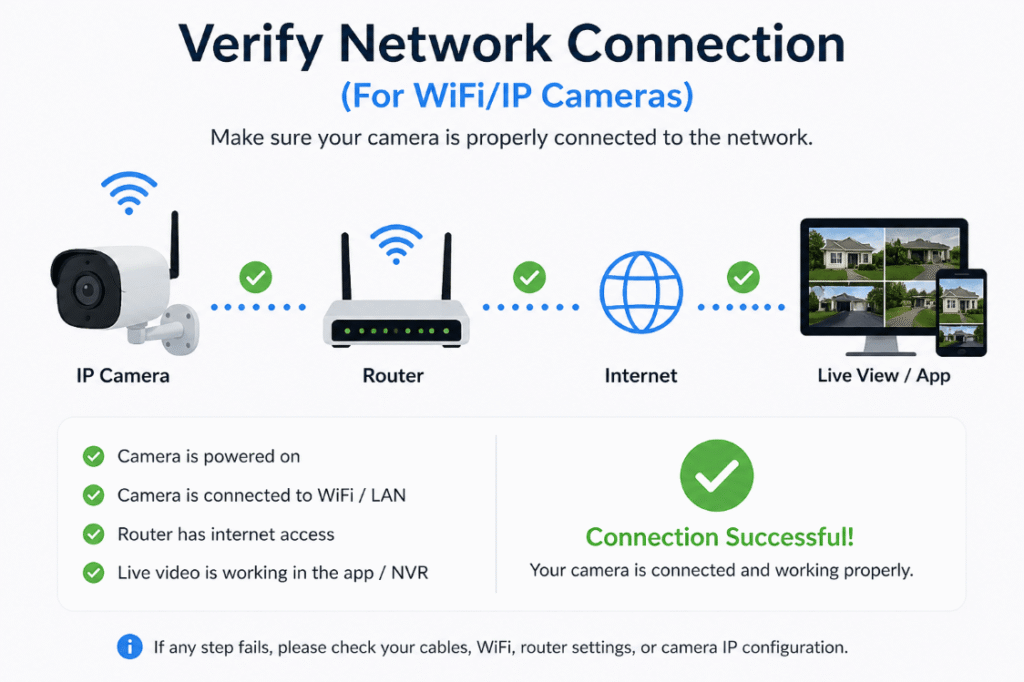
No internet = no cloud recording.
Check:
- WiFi signal strength
- Router stability
- App connectivity
Reconnect your camera to the network if needed.
7. Update Firmware
Outdated firmware can break recording functions.
Steps:
- Go to settings
- Check firmware version
- Update if available
This often fixes hidden bugs.
Read Also: AI-Powered Surveillance: How It’s Changing Security in India
Common Causes vs Fix: Fix Security Camera Not Recording
| Problem | What Happens | Fix |
|---|---|---|
| Full Storage | No new recordings | Enable overwrite / delete old files |
| Motion Detection Off | No event recording | Enable + adjust sensitivity |
| Power Issues | Replace adapter | |
| Network Failure | Reconnect WiFi | |
| Wrong Settings | Reset to default |
Advanced Fixes (If Problem Still Exists)
Reset Camera to Factory Settings
Sometimes settings get corrupted.
Do this carefully:
- Press reset button (usually 10–15 seconds)
- Reconfigure from scratch
Check Hard Drive (DVR/NVR Users)
A failing HDD silently kills recording.
Signs:
- Clicking noise
- Missing footage
- Recording errors
Replace HDD if needed.
Reinstall Camera App
App glitches can make it seem like recording stopped.
- Delete app
- Reinstall latest version
- Log in again
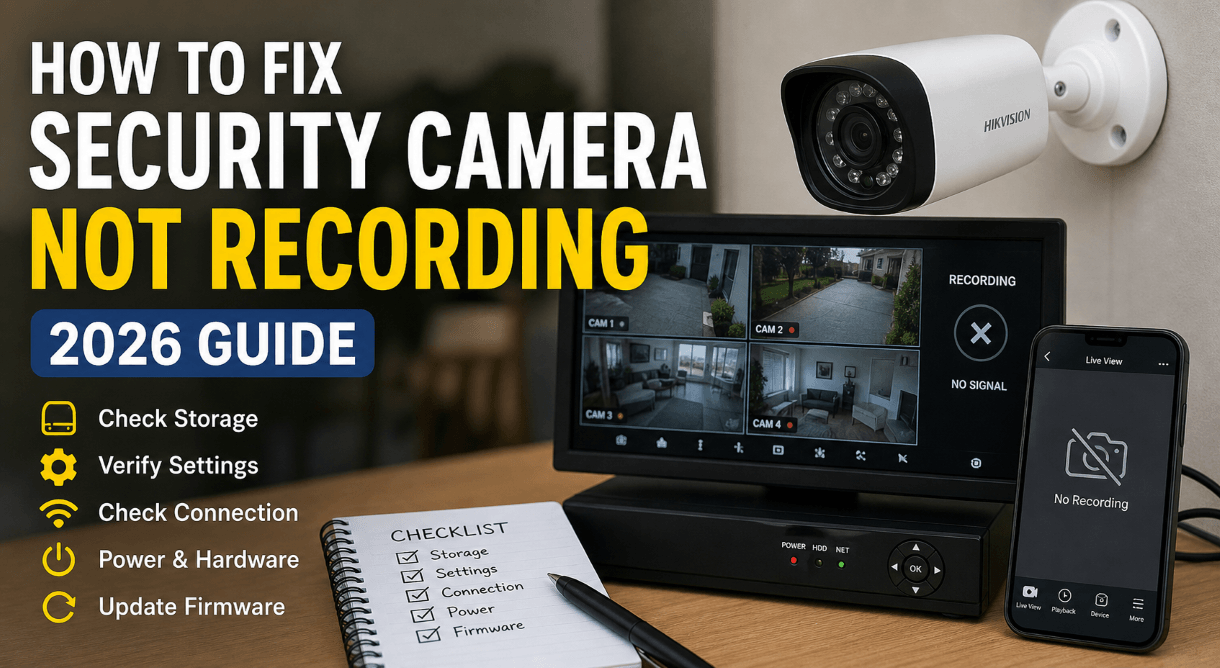
Checklist (Quick Fix Guide)
✓ Storage not full
✓ Overwrite enabled
✓ Motion detection active
✓ Proper power supply
✓ Stable internet connection
✓ Firmware updated
✓ Recording mode set correctly
Go through this once—you’ll likely fix the issue immediately.
Read Also: How to install solar CCTV camera: 67% Safer Homes (No Electric Bills!)
Pro Tips to Avoid Future Recording Issues
• Set auto overwrite ON always
• Schedule weekly system restart
• Keep firmware updated
• Use high-quality SD cards or HDDs
• Enable backup recording (cloud + local)
Most failures happen due to neglect—not hardware damage.
Final Thoughts
A security camera not recording feels like a serious failure—but in most cases, it’s just a small setting or technical glitch. Once you understand the cause, fixing it becomes straightforward.
The key is consistency. Check your system regularly instead of waiting for something to go wrong.
Read Also: How to Connect Cameras to Phone: Quick Home CCTV Setup Guide
FAQ: Fix Security Camera Not Recording
Why is my security camera not recording even though it’s on?
This usually points to a settings or storage issue—not a hardware failure.
Common reasons include:
- Recording mode set to motion-only
- Storage full with overwrite disabled
- Motion detection not triggering
First, check your recording settings and storage status. In most cases, fixing one of these restores recording instantly.
How do I fix CCTV not recording motion?
Motion recording depends on proper detection settings.
Here’s what actually works:
- Increase motion sensitivity
- Adjust detection zones
- Remove visual obstructions (like reflections or shadows)
- Ensure motion recording is enabled
If motion detection is poorly configured, your camera simply won’t record events—even if it’s working fine.
Can a full SD card stop my security camera from recording?
Yes, and this is one of the most common causes.
If overwrite mode is OFF:
- Recording stops completely when storage fills up
Fix:
- Enable loop recording (overwrite mode)
- Or manually clear old footage
Always keep overwrite ON to avoid this issue.
Why does my security camera randomly stop recording?
Random stops usually point to instability.
Possible causes:
- Power fluctuations
- Loose cables
- Firmware bugs
- Faulty storage device
A quick restart often fixes temporary glitches. If the issue repeats, check power supply and update firmware.
Does internet affect security camera recording?
It depends on the type of camera.
• Cloud-based cameras:
No internet = no recording
• Local storage cameras (SD/DVR):
Recording continues even without internet
If your system relies on cloud storage, a weak WiFi connection will stop recordings.
How do I know if my DVR/NVR is not recording?
Look for these signs:
- No recent footage available
- Timeline appears empty
- Error messages in system logs
- HDD not detected
Open your DVR/NVR settings and check storage status. A faulty hard drive is often the root cause.
Should I reset my camera if it’s not recording?
Reset only if basic fixes fail.
Do this when:
- Settings seem correct but recording still fails
- System behaves inconsistently
A factory reset clears hidden configuration issues. Just be ready to set everything up again.
How often should I check my security camera system?
Most people ignore this—and regret it later.
Best practice:
- Quick check once a week
- Full system review once a month
Make sure:
- Recording is active
- Storage is working
- Playback is accessible
Prevention beats troubleshooting every time.
What is the best recording mode for security cameras?
For maximum reliability:
• Continuous recording → Best for full coverage
• Motion recording → Saves storage but risk of missing events
A smart setup combines both:
- Continuous for critical areas
- Motion for low-priority zones
Can a faulty hard drive stop recording completely?
Absolutely. A damaged HDD can:
- Prevent saving footage
- Corrupt recordings
- Cause system errors
If your DVR/NVR shows storage errors, replacing the hard drive is often the only fix.