
 0
0
 0
0
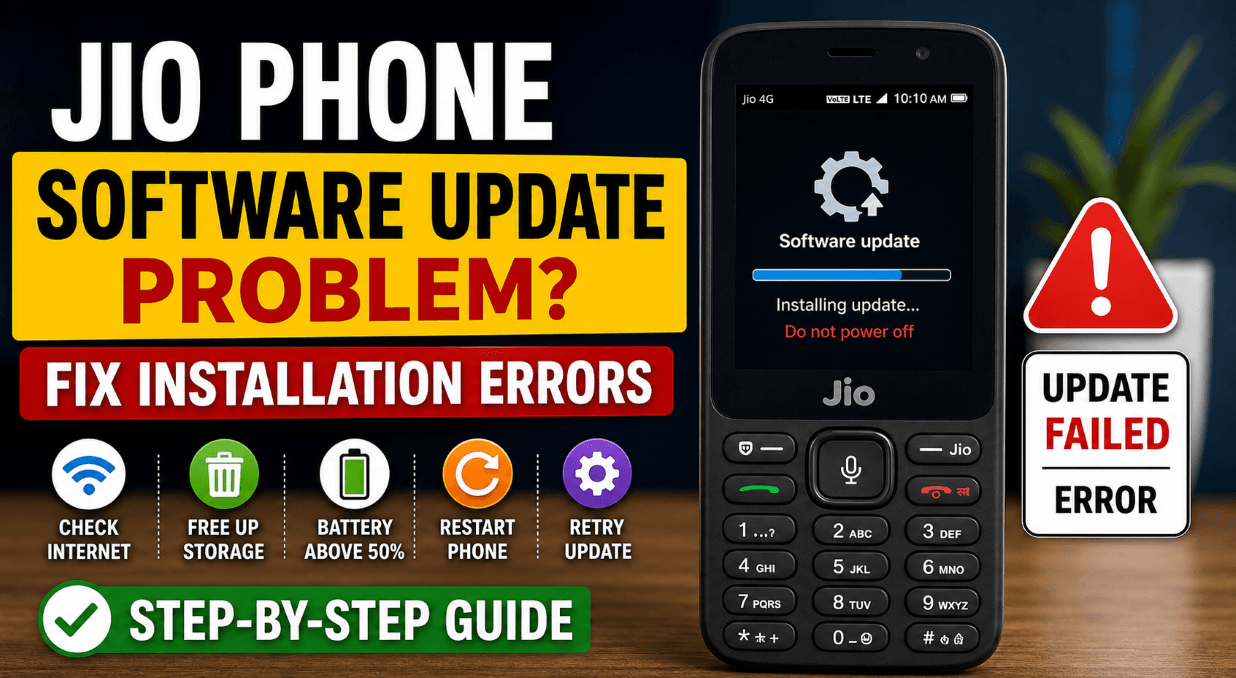
Is your Jio Phone refusing to update right when you need it most? That “update failed” message or endless loading screen can get frustrating fast. Many users face the Jio Phone software update problem, especially when storage, network, or system glitches interfere. The good news?
Most of these issues are easy to fix if you know exactly where to look. Let’s break it down step by step so you can get your phone updated without the headache.
Fix Jio Phone Software Update Problem Fast
Why Your Jio Phone Software Update Fails
Several small issues can block updates. Most people assume it’s a major bug, but that’s rarely the case.
Here are the common causes:
• Poor internet connection
• Not enough storage space
• Battery too low
• Corrupted update file
• Temporary system glitch
One weak link is enough to stop the update process completely.
Read Also: Jio True 5G vs 4G Speed Test – Is It Really Faster?
Check Internet Before Updating
A weak network is the #1 reason behind the Jio Phone software update problem.
Here’s what you should do:
✅ Switch to a strong Jio network (avoid 2G fallback)
✅ Move to an open area for better signal
✅ Restart mobile data once
Quick Tip:
Updates require stable connectivity, not just “some signal.”
Free Up Storage Space Immediately
Your phone needs space to install updates properly.
Steps to clear storage:
- Open Settings
- Go to Storage
- Delete:
- Old videos
- Unused apps
- Cached files
Minimum requirement: Keep at least 300–500 MB free
Restart Your Jio Phone (Simple but Powerful)
Sounds basic, but it works surprisingly often.
A restart clears temporary bugs that block updates.
Do this:
• Turn off the phone
• Wait 30 seconds
• Turn it back on
Try updating again right after.
Read Also: Jio 5G Not Working? 8 Real Fixes No One Talks About
Fix Jio Phone Update Stuck Problem
Sometimes the update doesn’t fail — it just freezes.
Signs:
- Stuck on “Installing…”
- Update bar not moving
- Screen frozen
Solution:
- Remove battery (if possible)
- Reinsert after 1 minute
- Restart phone
This resets the update cycle.
Check Battery Level Before Update
Low battery = automatic update failure.
Rule:
✔ Keep battery above 50%
✔ Ideally, plug in charger while updating
This avoids interruption during installation.
Reset Network Settings (Hidden Fix)
If updates keep failing, your network settings might be corrupted.
Steps:
- Go to Settings
- Select Network & Connectivity
- Reset network settings
This refreshes your connection profile completely.
Manual Update Retry Method
Sometimes retrying the update the right way fixes everything.
Follow this sequence:
- Restart phone
- Turn on data
- Go to Settings → Device → Software Update
- Check for updates again
Don’t rush — wait for full loading.
Read Also: Jio Data Slow in Day but Fast at Night? Fix Now
Quick Comparison: Causes vs Fixes
| Problem | What Happens | Fix |
|---|---|---|
| Weak Internet | Download fails | Switch to strong signal |
| Low Storage | Update not installing | Free 300–500 MB |
| Low Battery | Update stops midway | Charge above 50% |
| System Glitch | Stuck update screen | Restart phone |
Advanced Fix: Factory Reset (Last Option)
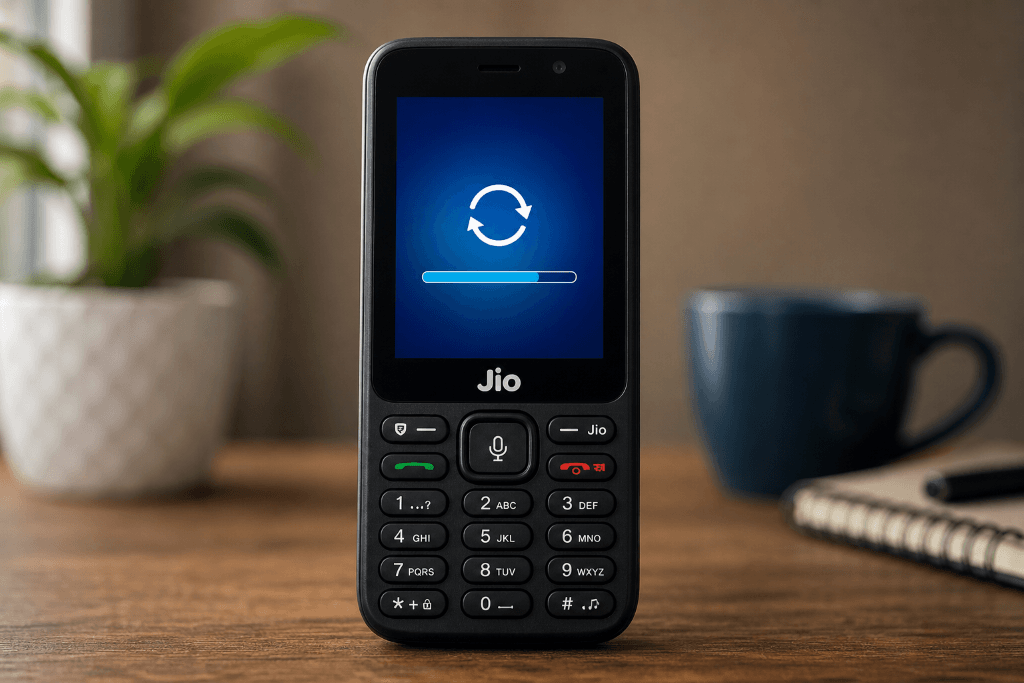
If nothing works, this is your final step.
⚠️ Warning: This will erase all data.
Steps:
- Go to Settings
- Select Device → Reset
- Choose Factory Reset
After reset, try updating again.
✅ Quick Checklist to Fix Jio Phone Software Update Problem
✓ Strong internet connection
✓ At least 300MB free space
✓ Battery above 50%
✓ Restart phone once
✓ Retry update properly
✓ Reset network if needed
Pro Tips Most Users Ignore
These small details make a big difference:
• Avoid updating during peak network hours
• Don’t press buttons while update is installing
• Keep phone cool (overheating can interrupt updates)
Read Also: Jio Phone Heating Problem? Don’t Ignore These Simple Solutions
FAQ: Jio Phone Software Update Problem
Why is my Jio Phone software update not installing?
This usually happens due to:
• Low storage space
• Weak internet connection
• Battery below 50%
• Temporary system glitch
Most users fix the Jio Phone software update problem just by freeing space and restarting the device.
How do I fix Jio Phone update failed error?
Start with the basics:
- Restart your phone
- Check internet connection
- Clear storage (at least 300MB free)
- Retry the update
If the error continues, reset network settings once.
Why is my Jio Phone stuck on update screen?
A frozen update screen usually means the installation process got interrupted.
Common reasons:
• Network drop during update
• Low battery
• Software glitch
Solution: Remove battery (if possible), restart the phone, and try updating again.
How much storage is required for Jio Phone update?
You should have at least:
✔ 300–500 MB free space
Less than that can trigger the Jio Phone software update problem, especially during installation.
Can I update Jio Phone without internet?
No — a stable internet connection is required.
Software updates are downloaded online, so without data or Wi-Fi, the update won’t even start.
Does factory reset fix Jio Phone software update problem?
Yes, in many cases.
Factory reset removes:
• Corrupted files
• System glitches
• Hidden errors blocking updates
⚠️ Important: Always back up your data before resetting.
Why does my Jio Phone update keep failing again and again?
Repeated failure usually points to one of these:
• Poor network stability
• Corrupt update file
• Internal system bug
Try updating at a different time or after restarting your phone.
How long does a Jio Phone update take?
Typically: ⏱ 5 to 15 minutes
Slow internet can increase the time.
If it takes more than 30 minutes, the update might be stuck.
Is it safe to remove battery during update?
Only if the phone is completely stuck.
Removing the battery during a normal update can damage software. Use this method only as a last resort.
Will updating Jio Phone delete my data?
No — normal updates do NOT delete data.
However: Factory reset (used as a fix) will erase everything.
Final Thoughts
The Jio Phone software update problem usually looks serious, but it’s often caused by small, fixable issues. A quick cleanup, stable internet, and proper restart solve most cases. Only move to advanced fixes if basic steps fail.