
 0
0
 0
0
Most people assume smart bulbs connect in seconds. Reality looks very different. The bulb keeps blinking, the app refuses to detect it, and JioFiber suddenly becomes the villain for no reason.
A lot of smart bulbs struggle during setup because of WiFi band settings, router compatibility, or app permissions. The good part? Most of these problems are fixable in a few minutes once you know what’s actually causing the issue.
This guide explains exactly how to Connect Smart Bulb with JioFiber WiFi, fix common pairing problems, and avoid the setup mistakes that waste the most time.
💡 Quick Summary
Everything you need to properly connect and troubleshoot your smart bulb with JioFiber WiFi.
📶 WiFi Connection Setup
Learn the complete step-by-step process to connect your smart bulb with JioFiber WiFi correctly.
⚠️ Pairing Problems Explained
Discover the most common reasons smart bulbs fail to pair and how to fix them quickly.
📡 5GHz & Dual-Band Fixes
Fix compatibility problems caused by 5GHz or dual-band WiFi settings on JioFiber routers.
⚙️ Best Settings for Stability
Optimize router and app settings for smoother connectivity and stable smart bulb performance.
🛠️ Troubleshooting That Actually Works
Practical troubleshooting tips to solve connection failures, offline issues, and app detection problems.
Connect Smart Bulb with JioFiber WiFi Step-by-Step
How to Connect Smart Bulb with JioFiber WiFi? The setup process stays almost the same for brands like Philips Hue, Wipro, Syska, Mi, and TP-Link.
Check Your JioFiber WiFi Band First
This is where most setups fail.
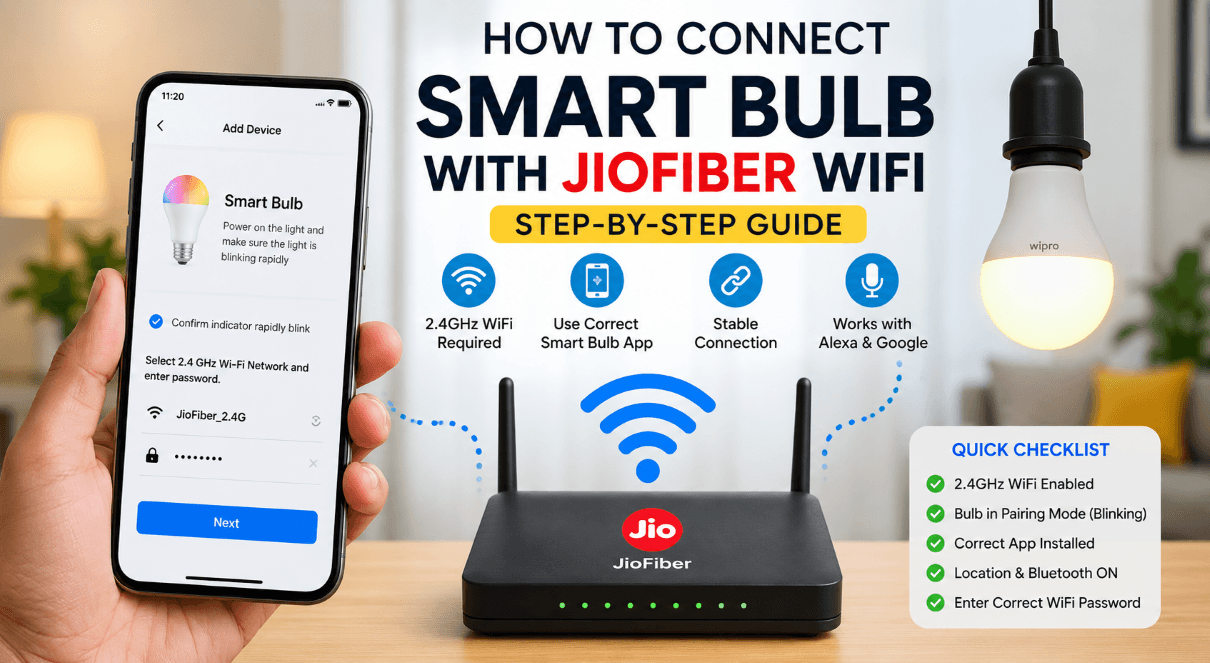
Many smart bulbs only support 2.4GHz WiFi. JioFiber routers usually combine 2.4GHz and 5GHz into one network name, which confuses some bulbs during pairing.
Open your JioFiber router settings and confirm:
✓ 2.4GHz network is enabled
✓ Mobile phone is connected to 2.4GHz
✓ Smart bulb supports your WiFi standard
✓ Bluetooth and location permissions are enabled on the app
Reset the Smart Bulb Before Setup
Old pairing data often blocks fresh connections.
Most bulbs reset with this method:
- Turn bulb ON and OFF repeatedly 5–6 times
- Wait until the bulb starts blinking rapidly
- Open the smart bulb app
- Start fresh device pairing
Different brands use slightly different reset methods, but rapid blinking usually means pairing mode is active.
Install the Correct Smart Bulb App
A lot of budget smart bulbs depend on platforms like:
- Smart Life
- Tuya Smart
- Wipro Next Smart Home
- Mi Home
Wrong apps cause endless pairing failures even when WiFi settings are correct.
How to Connect Smart Bulb with JioFiber WiFi Properly
Now comes the actual setup process.
📲 Connect Smart Bulb to JioFiber WiFi
Follow these simple steps to pair your smart bulb successfully without connection errors.
🔐 Open the Smart Bulb App
Create an account or log in to the smart bulb app.
Most apps will request:
- WiFi access
- Bluetooth permission
- Location permission
Denying these permissions often prevents the app from detecting your smart bulb properly.
💡 Add the Smart Bulb
Inside the app:
- Tap “Add Device”
- Select “Lighting” or “Smart Bulb”
- Confirm the bulb is blinking
- Enter your JioFiber WiFi password
- Wait for pairing to complete
Connection usually takes 30–90 seconds depending on signal strength and router settings.
Why Smart Bulb Fails to Connect with JioFiber
A lot of users blame the bulb. Most times, the router settings are responsible.
Common Problem Breakdown
| Problem | Cause | Fix |
|---|---|---|
| Bulb not detected | Phone connected to 5GHz | Switch phone to 2.4GHz WiFi |
| Pairing timeout | Weak signal or permissions blocked | Move closer to router and allow permissions |
| Bulb disconnects often | Router auto-switching bands | Separate 2.4GHz and 5GHz SSIDs |
| App crashes during setup | Outdated app version | Update the app |
Now here’s where things get more practical.
Separate 2.4GHz and 5GHz on JioFiber Router
This trick solves connection issues for many smart home devices.
Login to your JioFiber router admin panel and rename the WiFi bands separately.
Example:
- HomeWiFi_2.4G
- HomeWiFi_5G
Then connect your phone only to the 2.4GHz network before pairing the bulb.
Real-World Example
One common situation happens with budget smart bulbs bought online. Setup works perfectly on mobile hotspot but completely fails on JioFiber.
The reason usually comes down to dual-band steering. The router keeps pushing devices toward 5GHz while the bulb only understands 2.4GHz.
Separate network names fix this instantly in many cases.
Best Placement for Stable Smart Bulb Performance
WiFi strength matters more than people think.
A smart bulb placed too far from the router may:
- Respond slowly
- Disconnect randomly
- Fail automation schedules
- Ignore voice commands
Good signal stability becomes important when connecting through platforms like Amazon Alexa or Google Home.
⚡ Practical Tip
Poor placement can weaken WiFi signals and cause frequent smart bulb disconnections.
Avoid placing smart bulbs:
- Inside metal lamp covers
- Near microwave ovens
- Behind thick concrete walls
- In corners far from the router
Connect Smart Bulb with Voice Assistants
After connecting the smart bulb with JioFiber WiFi, voice assistant integration becomes simple.
Popular platforms include:
- Amazon Alexa
- Google Home
Typical setup process:
- Open Alexa or Google Home
- Link your smart bulb account
- Discover devices
- Assign room names
- Start voice control
Example commands:
- “Turn off bedroom light”
- “Set living room light to blue”
- “Dim light to 30%”
Read Also: Fix Jio WiFi Calling Not Working Fast
Mistakes That Cause Smart Bulb Setup Failure
A few setup habits create unnecessary problems.
Common Mistakes
- Connecting through VPN during setup
- Keeping mobile data ON while pairing
- Using unsupported enterprise WiFi security
- Standing too far from the bulb
- Forgetting bulb reset before retrying
🧠 Pro Insight
Cheap smart bulbs often use generic WiFi chips with weaker network handling capabilities. Because of this, stable router settings usually matter more than ultra-fast internet speed.
A stable 20 Mbps connection typically performs better for smart home devices than an unstable high-speed WiFi network.
Should You Upgrade the Router Settings?
Sometimes yes.
If multiple smart devices disconnect regularly, these adjustments help:
✓ Enable WPA2 security mode
✓ Disable AP isolation
✓ Update router firmware
✓ Reduce excessive connected devices
✓ Restart router weekly
Decision Guide: Which Setup Works Best?
| Setup Type | Best For | Reliability |
|---|---|---|
| Combined WiFi Bands | Normal phones and laptops | Medium for smart bulbs |
| Separate 2.4GHz and 5GHz | Smart home devices | High stability |
Read Also: Jio Fiber Smart Light Not Connecting? Here’s What Usually Fixes It
FAQ: How to Connect Smart Bulb with JioFiber WiFi
Why is my smart bulb not connecting to JioFiber WiFi?
The most common reason is 5GHz WiFi incompatibility. A large number of smart bulbs only support 2.4GHz networks. JioFiber routers often combine both bands under one WiFi name, which creates pairing problems.
Separate the WiFi bands and connect your phone to the 2.4GHz network before setup.
How do I know if my smart bulb supports 2.4GHz only?
Check:
- Product box
- User manual
- App description
- Manufacturer website
Most budget smart bulbs mention “2.4GHz WiFi required” in small text near technical specifications.
Brands like Wipro, Syska, and many Tuya-based bulbs usually depend on 2.4GHz networks.
Can smart bulbs work with 5GHz WiFi?
Some premium models can, but most affordable smart bulbs cannot.
A lot of IoT devices prefer 2.4GHz because:
- Better wall penetration
- Lower power consumption
- More stable long-range coverage
That’s why smart bulb manufacturers still prioritize 2.4GHz support.
Why does the smart bulb keep blinking?
Blinking usually means the bulb is in pairing mode.
Rapid blinking often indicates:
- Ready for setup
- Reset completed successfully
- Waiting for app connection
Slow blinking may indicate failed pairing or unstable WiFi.
How do I reset a smart bulb?
Most smart bulbs reset with this method:
- Turn the bulb ON and OFF repeatedly
- Repeat around 5–6 times
- Wait for rapid blinking
Some brands use different reset sequences, so checking the manual helps if the standard method fails.
Which app should I use for my smart bulb?
That depends on the bulb manufacturer.
Common apps include:
- Smart Life
- Tuya Smart
- Mi Home
- Wipro Next Smart Home
A wrong app often causes endless pairing failures even when the WiFi password is correct.
Why does my smart bulb disconnect frequently?
Frequent disconnections usually happen because of:
- Weak WiFi signal
- Router auto band switching
- Outdated firmware
- Too many connected devices
- Electrical fluctuations
Stable 2.4GHz WiFi generally fixes random offline issues.
Can I control smart bulbs with Alexa or Google Home?
Yes. Most smart bulbs support:
- Amazon Alexa
- Google Home
The setup process normally involves linking the bulb app account inside Alexa or Google Home.
Does internet speed affect smart bulb performance?
Not as much as people think.
Smart bulbs use very little bandwidth. Stability matters more than speed.
A stable 20 Mbps connection usually works better than unstable high-speed WiFi with signal drops.
Can I use smart bulbs without internet?
Basic ON/OFF operation through wall switches still works.
App control, automation, scheduling, and voice assistant features usually stop working without internet access.
Some advanced smart home systems support limited local control.
Why does the smart bulb connect on hotspot but not JioFiber?
This problem is extremely common.
Mobile hotspots often run only on 2.4GHz, while JioFiber routers use dual-band steering. The bulb gets confused during pairing when the router automatically switches frequencies.
Separate WiFi names for 2.4GHz and 5GHz usually solve this issue quickly.
What security mode works best for smart bulbs?
WPA2-PSK remains the safest and most compatible option for many smart devices.
Certain older bulbs struggle with:
- WPA3-only networks
- Enterprise security modes
- Advanced router isolation settings
Router compatibility matters more than raw internet speed here.
Can multiple smart bulbs connect to one JioFiber router?
Yes. Modern JioFiber routers can handle multiple smart home devices easily.
Smart setups commonly include:
- Smart bulbs
- Smart plugs
- Smart TVs
- Security cameras
- Voice assistants
Signal strength and router stability become more important as device count increases.