
 0
0
 0
0
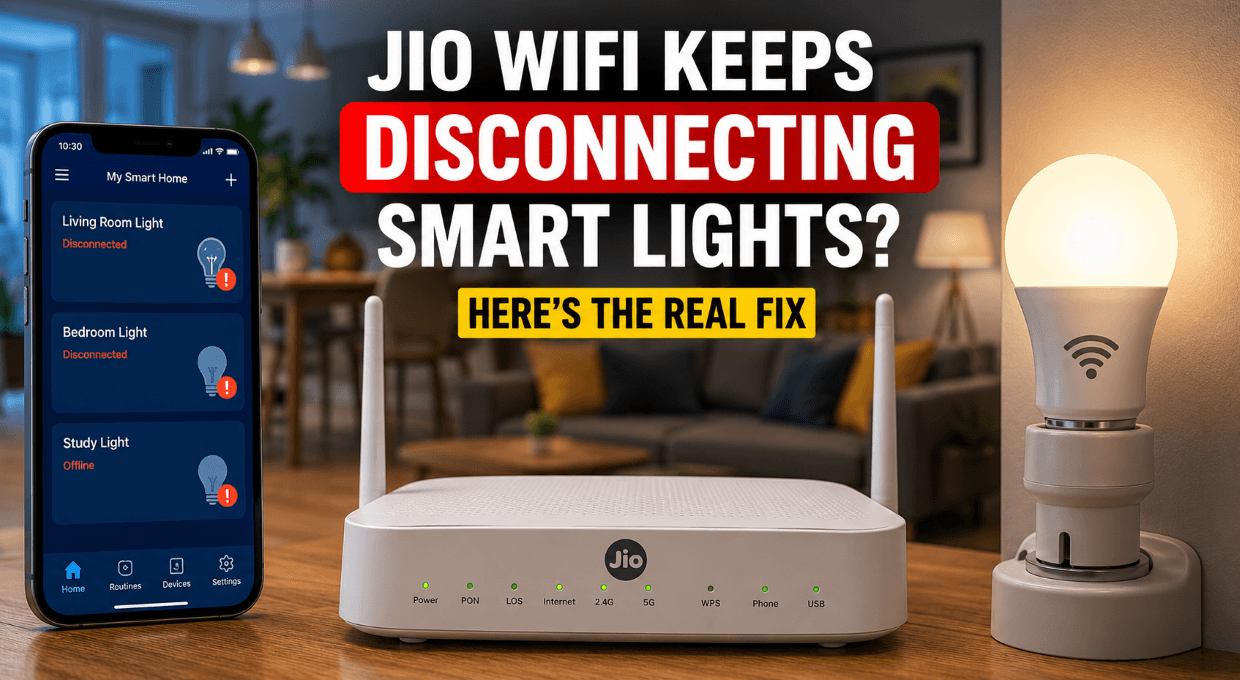
Jio WiFi keeps disconnecting smart lights in many homes, especially where multiple smart devices share the same router. The internet may look perfectly fine on phones or TVs, yet smart bulbs randomly go offline, fail to respond in apps, or disconnect after power cuts.
Most people blame the lights first, but the actual issue usually comes from Jio router settings, unstable 2.4GHz connections, or overloaded WiFi networks. A few small adjustments can stabilize the entire smart home setup without replacing your devices.
📶 Quick Summary
What this guide covers:
Why Jio WiFi keeps disconnecting smart lights and the most common causes behind unstable connections.
Who this is for:
JioFiber users struggling with unreliable smart home devices or frequent smart light disconnections.
What you’ll learn:
Router fixes, network optimization settings, and practical ways to improve smart device stability.
Why Jio WiFi Keeps Disconnecting Smart Lights
Smart bulbs depend on a constant 2.4GHz WiFi connection. Jio routers often switch devices between frequency bands automatically, and that creates confusion for many low-power smart devices.
Several users notice this pattern:
- Smart bulbs disconnect after midnight
- Alexa or Google Home says “device unavailable”
- Lights reconnect only after router restart
- Connection drops increase after adding more smart devices
A normal phone handles network switching easily. Smart lights usually cannot.
Common Reasons Behind the Problem
Dual-Band Smart Steering Causes Conflicts
Most Jio routers combine 2.4GHz and 5GHz under one WiFi name. Smart bulbs generally support only 2.4GHz.
The router tries to optimize devices automatically, but smart lights often fail during that transition.
A separate 2.4GHz network solves the issue in many homes.
Weak Signal Around Switchboards
Smart bulbs sit inside enclosed holders, metal fixtures, or corners with poor signal reach.
One room may work perfectly while another keeps disconnecting every evening.
A bedroom bulb located behind thick walls often struggles even though phones still show full WiFi bars.
Too Many Devices on the Router
Modern homes easily cross 25 connected devices:
📡 Common Smart Devices on Home WiFi
Budget ISP routers start behaving unpredictably under heavy load.
JioFiber routers handle regular browsing well, but large smart home setups expose their limitations quickly.
Automatic Channel Switching
Jio routers sometimes change WiFi channels automatically to reduce interference.
Smart bulbs hate sudden channel changes.
One minute everything works. Ten minutes later, half the devices disappear from the app.
Now here’s where things get more practical.
Fix Jio WiFi Disconnecting Smart Lights Fast
Separate 2.4GHz and 5GHz Networks
This fix solves the problem more often than anything else.
Open your Jio router settings and create:
- One WiFi name for 2.4GHz
- Another WiFi name for 5GHz
Connect all smart lights only to the 2.4GHz network.
Phones and laptops can stay on 5GHz.
Real-World Example
A user added six smart bulbs across two rooms. Random disconnects happened every day. The issue disappeared completely after splitting the WiFi bands.
That single change stabilized the entire setup.
Place the Router in a Better Location
Router placement matters more than speed tests suggest.
Bad placement examples:
- Inside TV cabinets
- Near microwave ovens
- Beside refrigerators
- Behind concrete walls
Better placement:
- Central room
- Elevated shelf
- Open area
- Away from metal objects
Smart lights use weaker antennas than phones. Signal quality drops faster for them.
Disable Smart Connect Features
⚙️ Common Jio Router Features
Many Jio routers come with automated network management features designed to improve speed and coverage.
Those features sound helpful but often break smart home reliability.
Manual control works better for IoT devices.
🧠 Pro Insight
Smart home devices prioritize connection stability over raw internet speed. In many cases, aggressive router optimizations and advanced WiFi features create more connection issues than benefits for IoT devices.
Assign Static IP Addresses
Frequent IP changes sometimes confuse smart lighting apps.
Router settings allow reserved IP addresses for devices.
Reserved IPs help:
- Faster reconnects
- Better automation reliability
- Stable Alexa or Google Home control
Large smart home setups benefit noticeably from this adjustment.
Read Also: Jio Data Slow in Day but Fast at Night? Fix Now
Best Router Settings for Smart Lights on JioFiber
| Setting | Recommended Option | Why It Helps |
|---|---|---|
| WiFi Band | 2.4GHz | Better compatibility for smart bulbs |
| Channel Width | 20MHz | Improves stability |
| Band Steering | Disabled | Prevents forced switching |
| DHCP Lease | Long Duration | Reduces reconnect problems |
| Firmware | Updated | Fixes router bugs |
Restart Order Actually Matters
Most people restart everything randomly.
🔄 Cleaner Reconnection Process
Instead of repeatedly resetting devices, follow this cleaner restart sequence:
- Turn off smart lights
- Restart the Jio router
- Wait for 3 minutes
- Turn smart lights back on
- Open the smart home app
This sequence forces a fresh connection handshake, which often restores stable communication between the router and smart devices.
Many temporary disconnect issues disappear immediately afterward.
Smart Light Brands That Often Face Jio Compatibility Issues
Certain brands struggle more with aggressive router optimization.
Common examples include:
- Cheap Tuya bulbs
- Generic WiFi LEDs
- Older Wipro smart lights
- Budget imported smart devices
Premium models generally reconnect faster after outages.
A stronger chipset makes a noticeable difference.
Decision Guide
| Setup Type | Good Choice | Not Ideal |
|---|---|---|
| Small Home Setup | Standard Jio Router | Cheap third-party extenders |
| Heavy Smart Home | Dedicated Mesh Router | ISP default settings |
| Apartment Setup | Separate 2.4GHz network | Auto band switching |
Now the bigger issue starts showing up in larger homes.
Read Also: Jio Phone Software Update Problem? Fix Installation Errors
When a New Router Makes More Sense
A stronger router becomes necessary once the smart home setup grows.
Warning signs include:
- Frequent random disconnects
- Delayed automation
- Lights responding after several seconds
- Router restart needed every few days
Mesh systems handle smart devices much better than standard ISP routers.
Reliable options usually include:
- TP-Link Deco
- ASUS AiMesh
- Google Nest WiFi
- Netgear Orbi
JioFiber internet works fine in most cases. The router becomes the weak point.
Pro Insight:
Internet speed rarely causes smart light disconnects. Network stability and signal consistency matter far more than raw Mbps.
Read Also: Jio Fiber Smart Light Not Connecting? Here’s What Usually Fixes It
Mistakes People Keep Repeating
Extenders Often Make Things Worse
Cheap WiFi extenders create duplicate networks and unstable handoffs.
Smart bulbs disconnect constantly in those setups.
A proper mesh system performs far better.
Smart Plugs and Bulbs Mixed on Weak Networks
Some homes run 15–20 IoT devices on one basic router.
Performance collapses gradually instead of instantly.
The problem feels random, which makes troubleshooting frustrating.
Ignore Firmware Updates
Older firmware versions contain bugs affecting IoT stability.
Router updates fix connection handling more often than people expect.
📌 Key Takeaways
Smart lighting systems depend on stable networking more than fast internet. Small router adjustments usually solve disconnect issues without replacing every bulb in the house. Most users notice huge improvements after separating frequency bands and disabling automatic steering features. A stronger router becomes necessary only when the smart home setup grows beyond what the standard Jio router can comfortably manage.
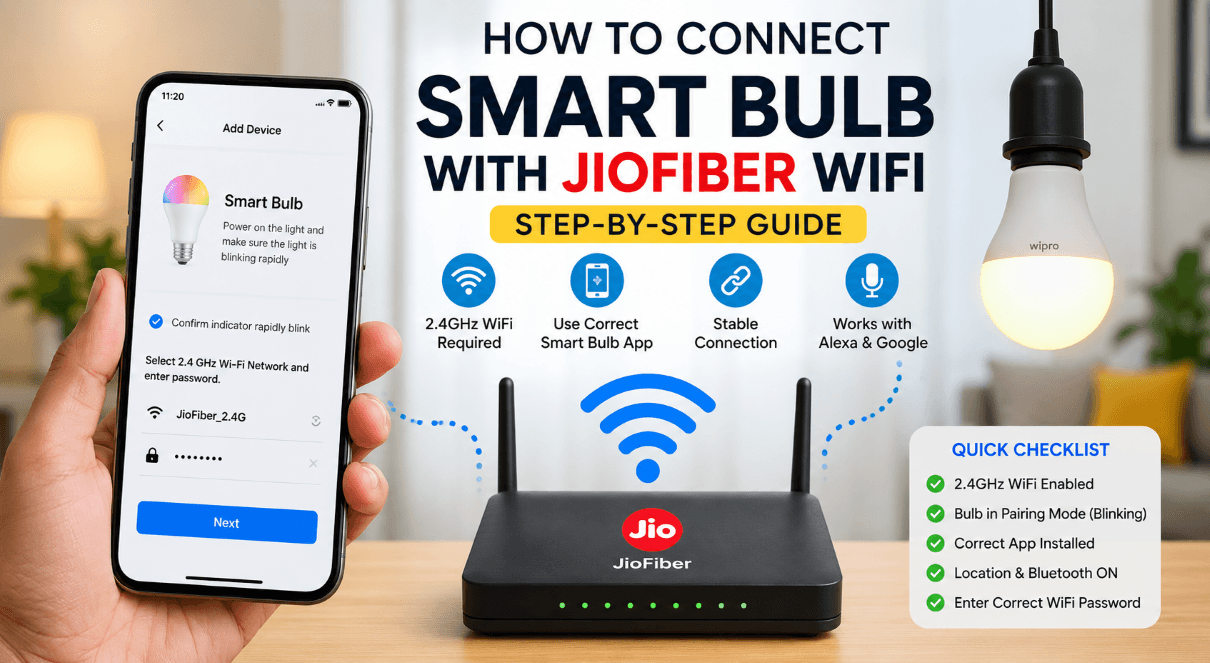
Read Also: How to Connect Smart Bulb with JioFiber WiFi
FAQ About Jio WiFi Disconnecting Smart Lights
Why do smart lights disconnect only on Jio WiFi?
Jio routers commonly use automatic band steering between 2.4GHz and 5GHz networks. Most smart bulbs support only 2.4GHz. The router keeps trying to optimize connections, and the bulbs fail during that switching process.
A separate 2.4GHz WiFi network usually fixes the issue quickly.
Does internet speed affect smart light stability?
Not much.
Smart lights use very little bandwidth. A 30 Mbps connection can handle dozens of bulbs without problems.
Signal consistency matters more than speed. Weak coverage, router overload, or unstable channels create most disconnect issues.
Why do smart lights disconnect after a power cut?
Many bulbs reconnect slowly after electricity returns. The router finishes booting first, changes channels, or assigns new IP addresses before the bulbs reconnect properly.
🔄 Manual Restart Fix
Connection issues between Jio WiFi and smart lights are often resolved with a clean restart sequence.
- Restart the router
- Wait a few minutes
- Turn smart lights back on
That process creates a cleaner reconnection.
Should smart lights stay on 2.4GHz or 5GHz?
2.4GHz works best.
Smart bulbs need stable long-range coverage rather than high speed. The 2.4GHz band penetrates walls better and maintains more reliable connections.
Most smart lights do not even support 5GHz.
Can too many smart devices overload a Jio router?
Yes.
JioFiber routers perform well for normal usage, but large smart home setups expose their limits faster.
⚠️ Common WiFi Overload Symptoms
When too many smart devices compete for bandwidth, network instability becomes more noticeable.
- Devices disappearing randomly
- Delayed automation responses
- Frequent reconnect requests
- Smart apps showing “offline” status
A dedicated mesh router handles larger IoT networks more reliably.
Why do smart lights work fine during the day but disconnect at night?
Nighttime interference becomes heavier in apartments and dense neighborhoods.
Nearby routers, Bluetooth devices, TVs, and microwaves increase wireless congestion. Auto-channel switching on Jio routers can also trigger nighttime disconnects.
Manual channel selection often improves stability.
Does changing the WiFi password disconnect smart lights permanently?
Usually no, but every smart bulb must reconnect manually afterward.
Most smart lights store old credentials internally. The app needs reconfiguration after password changes.
Large setups become frustrating during this process, especially with cheaper bulbs.
Are WiFi extenders good for smart lights?
Cheap extenders create more problems than solutions in many homes.
Smart lights struggle during network handoffs between the router and extender.
Mesh WiFi systems perform much better because they maintain smoother roaming and stronger signal management.
Which smart light brands work better with JioFiber?
More reliable options generally include:
- Philips Hue
- TP-Link Tapo
- Xiaomi Mi
Budget generic bulbs often disconnect more frequently because of weaker WiFi chips and poor firmware optimization.
How often should I restart the Jio router?
Frequent restarts usually indicate network instability or overload.
A healthy setup should run for weeks without issues.
Restarting once every couple of weeks is normal maintenance. Daily restarts point toward router limitations, overheating, or excessive connected devices.
Do firmware updates really help smart light connectivity?
Yes, surprisingly often.
Router firmware updates commonly fix:
- Device compatibility bugs
- DHCP assignment issues
- Random disconnect handling
- WiFi stability problems
Many users ignore updates for months while troubleshooting the wrong issue.
Is a mesh router worth it for smart homes?
Absolutely, especially in larger homes or apartments with many connected devices.
Mesh systems improve:
- Coverage consistency
- Device handling
- Smart home reliability
- Roaming stability
Heavy smart home users notice the difference immediately after upgrading from standard ISP routers.