
 0
0
 0
0
Your Jio Fiber Smart Light worked fine yesterday, and suddenly the app can’t detect it anymore. The light keeps blinking, pairing fails halfway, or the device shows “offline” even though Wi-Fi is working. Why Jio Fiber Smart Light Not Connecting? That combination is extremely common with smart lights connected through Jio Fiber routers.
Most of the time, the problem isn’t the bulb itself. Router frequency conflicts, app permissions, or incorrect reset timing usually break the connection.
Quick Summary
- ✔ This guide covers the most common Jio Fiber Smart Light connection problems.
- ✔ Helpful for users facing pairing failure, offline errors, or blinking light issues.
- ✔ You’ll learn practical fixes that actually work without replacing the device.
Why Your Jio Fiber Smart Light Not Connecting?
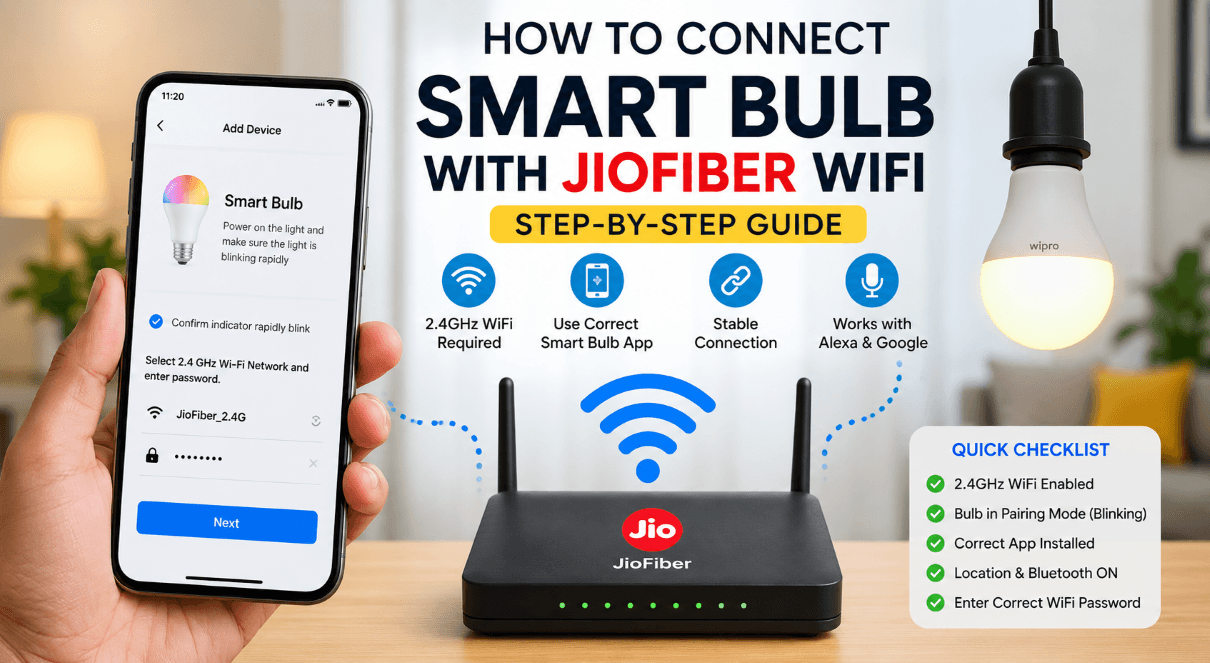
Jio Fiber smart devices mainly struggle because of network compatibility issues. Smart lights usually depend on a 2.4GHz Wi-Fi connection, while many Jio Fiber routers automatically shift devices between 2.4GHz and 5GHz bands.
That creates confusion during pairing.
Other common reasons include:
- Weak Wi-Fi signal near the light
- Smart light stuck in previous pairing mode
- App permission restrictions
- Router security settings
- Firmware glitches
- Too many connected devices
A blinking light normally means the bulb is waiting to pair again.
First Thing to Check Before Anything Else
A lot of people skip this part and waste an hour troubleshooting.
Check these basics first:
✓ Phone connected to 2.4GHz Wi-Fi
✓ Bluetooth enabled
✓ Location permission allowed for the app
✓ Smart light powered continuously during setup
✓ Jio Fiber internet working normally
✓ VPN turned off
One missing permission alone can stop pairing completely.
Restart Everything Properly
Simple restarts fix more smart light problems than people expect.
Follow this exact order:
- Turn OFF the smart light
- Restart the Jio Fiber router
- Wait 2 minutes
- Turn ON the light again
- Open the smart device app
- Try pairing again
A rushed restart usually fails because the router hasn’t fully reconnected to the network.
Reset the Smart Light Correctly
Incorrect reset timing is one of the biggest reasons pairing keeps failing.
Most Jio-compatible smart bulbs reset like this:
- Turn the light ON and OFF repeatedly
- Repeat around 5 times slowly
- The bulb should start blinking rapidly
- Open the app and reconnect
Different brands vary slightly, but rapid blinking generally means reset mode is active.
Common Reset Mistake
People flip the switch too fast.
The bulb often needs a 1-second gap between ON and OFF cycles. Random tapping usually won’t trigger pairing mode.
Separate 2.4GHz and 5GHz Wi-Fi Bands
This fix solves connection issues surprisingly often.
Many smart lights cannot properly connect when the router combines both bands under the same Wi-Fi name.
Jio Fiber Smart Light Not Connecting? How to Fix It
Open your Jio Fiber router settings and create:
- One Wi-Fi name for 2.4GHz
- Another for 5GHz
Then connect your phone only to the 2.4GHz network while setting up the smart light.
| Network Type | Best For | Smart Light Compatibility |
|---|---|---|
| 2.4GHz | Smart devices & long range | Excellent |
| 5GHz | High-speed internet | Often unsupported |
Now here’s where things get more practical.
App Detects the Light but Setup Fails
That usually points to router security restrictions.
Try these fixes:
- Disable AP Isolation if enabled
- Change WPA3 security to WPA2
- Reduce special characters in Wi-Fi password
- Move closer to the router during setup
Some smart lights fail when passwords contain unusual symbols.
Real-World Example
A user might see the bulb appear inside the app but fail at 90% during pairing. In many cases, WPA3 encryption is blocking older smart devices from completing authentication.
Switching temporarily to WPA2 often fixes the issue instantly.
Smart Light Keeps Going Offline
Intermittent disconnections normally happen because of unstable signal strength.
Things That Help
- Move the router to a central location
- Avoid metal enclosures around switches
- Reduce connected devices temporarily
- Update router firmware
- Keep the bulb within strong signal range
Walls and electrical boards can weaken Wi-Fi more than people realize.
Check for Firmware Updates
Old firmware can create compatibility issues after router updates.
Look for updates inside:
- JioHome app
- Smart Life app
- Tuya Smart app
- Brand-specific smart light apps
Many connection bugs disappear after firmware updates.
Jio Fiber Router Settings That Sometimes Cause Problems
Some default router settings can interfere with smart home devices.
Settings Worth Checking
| Setting | Recommended Option |
|---|---|
| Security Mode | WPA2 |
| Band Steering | OFF |
| Smart Connect | OFF |
| MAC Filtering | OFF |
| AP Isolation | OFF |
Pro Insight
Band steering sounds helpful, but many low-cost smart devices struggle when the router automatically switches frequencies in the background.
Smart Light Not Showing in App at All
That usually means the bulb never entered pairing mode.
Try this:
- Reset the bulb again slowly
- Confirm blinking pattern
- Delete old saved device from the app
- Reinstall the app if needed
- Pair from scratch
Some apps cache failed pairing attempts, which creates repeated connection loops.
Read Also: Jio fiber router is not working? How to reset Jio fiber router
When the Problem Is Actually the Router
A few Jio Fiber routers behave unpredictably with older smart devices.
Signs include:
- Multiple smart devices disconnecting together
- Pairing works on mobile hotspot but not Jio Fiber
- Devices reconnect randomly
Testing the bulb through a mobile hotspot is a smart diagnostic step.
If it connects there, the router settings are likely causing the issue.
Decision Guide
| Problem | Most Likely Cause | Best Fix |
|---|---|---|
| Bulb blinking but not pairing | Wrong Wi-Fi band | Use 2.4GHz only |
| Device offline repeatedly | Weak signal | Move router closer |
| Setup stops at 90% | Router security issue | Switch WPA3 to WPA2 |
| Bulb not appearing in app | Reset failed | Repeat reset slowly |
Key Takeaways
- ✔ Jio Fiber Smart Light problems usually come from 2.4GHz compatibility issues.
- ✔ Proper bulb reset timing matters more than most users think.
- ✔ WPA2 security mode works better for older smart devices.
- ✔ Mobile hotspot testing quickly identifies router-related issues.
Most connection failures get fixed without replacing the smart light. Router settings and pairing mode errors cause the majority of problems.
Read Also: How to Master Jio Fiber Proxy Settings: A Simple Guide
FAQ: Jio Fiber Smart Light Not Connecting
Why is my Jio Fiber Smart Light blinking continuously?
A continuously blinking smart light usually means the bulb is in pairing mode. Rapid blinking often indicates the device is ready to connect to Wi-Fi.
Pairing normally fails because:
- Phone connected to 5GHz instead of 2.4GHz
- Incorrect Wi-Fi password
- Router security conflict
- Reset process not completed correctly
A slow blinking pattern can also indicate unstable network communication.
Does Jio Fiber support smart lights?
Yes, Jio Fiber supports most smart lights. Problems appear when the smart bulb only supports 2.4GHz Wi-Fi and the router combines 2.4GHz and 5GHz networks under one name.
Separating both bands usually fixes the issue.
Why is my smart light not showing in the app?
That normally happens when the bulb never entered pairing mode correctly.
Try this process again:
- Turn the bulb ON and OFF slowly 5 times
- Wait for rapid blinking
- Remove old paired devices from the app
- Reconnect through 2.4GHz Wi-Fi only
A failed previous setup attempt can also prevent the app from detecting the bulb again.
Which app works best with Jio Fiber Smart Lights?
That depends on the smart bulb brand.
Common apps include:
- JioHome
- Smart Life
- Tuya Smart
- Wipro Next Smart Home
- Philips Wiz
Many low-cost smart lights actually run on the Tuya platform even when branded differently.
Why does my smart light disconnect repeatedly?
Frequent disconnections usually happen because of weak Wi-Fi coverage or router band switching.
Common causes include:
- Router placed too far away
- Electrical interference
- Too many connected devices
- Automatic switching between 2.4GHz and 5GHz
A stable 2.4GHz connection generally solves repeated offline problems.
Can I connect a smart light to 5GHz Wi-Fi?
Most smart bulbs do not support 5GHz networks.
Smart home devices are usually designed for:
- Lower power consumption
- Longer wireless range
- Stable low-bandwidth communication
That’s why 2.4GHz remains the standard for smart lights.
Why does setup fail at 90%?
This issue commonly points to router authentication problems.
Things worth checking:
✓ WPA2 security enabled
✓ Special characters removed from Wi-Fi password
✓ AP Isolation disabled
✓ Strong Wi-Fi signal available
A lot of older smart devices fail under WPA3 security mode.
How do I reset a Jio Fiber Smart Light?
Most bulbs reset through repeated power cycling.
Typical method:
- Turn the bulb ON
- Turn it OFF
- Repeat slowly around 5 times
- Wait for blinking light
Reset timing matters. Fast switching often fails.
Can too many devices affect smart light connectivity?
Yes, overcrowded networks can create smart home instability.
Symptoms include:
- Delayed response
- Random offline status
- Failed pairing
- Slow app synchronization
Entry-level routers sometimes struggle after 20–30 connected devices.
Why does the smart light connect through hotspot but not Jio Fiber?
That strongly suggests a router configuration issue.
Possible causes:
- Band steering conflict
- WPA3 encryption
- AP Isolation enabled
- MAC filtering restrictions
Hotspot testing is one of the quickest ways to isolate the real problem.
Is router firmware update necessary for smart lights?
Sometimes yes.
Router firmware updates can:
- Improve device compatibility
- Fix connection bugs
- Stabilize smart home devices
- Improve Wi-Fi management
Older firmware versions occasionally break communication with newer smart devices.
Read Also: Jio fiber vs Airtel fiber: Which Wi-Fi Fiber is best for you?
What is the best Wi-Fi setting for smart lights on Jio Fiber?
These settings usually work best:
| Setting | Recommended Value |
|---|---|
| Wi-Fi Band | 2.4GHz |
| Security Mode | WPA2 |
| Band Steering | Disabled |
| AP Isolation | Disabled |
Pro Insight:
A lot of smart home frustration comes from modern routers trying to automate everything. Simpler Wi-Fi settings often create more stable smart device connections.