
 0
0
 0
0
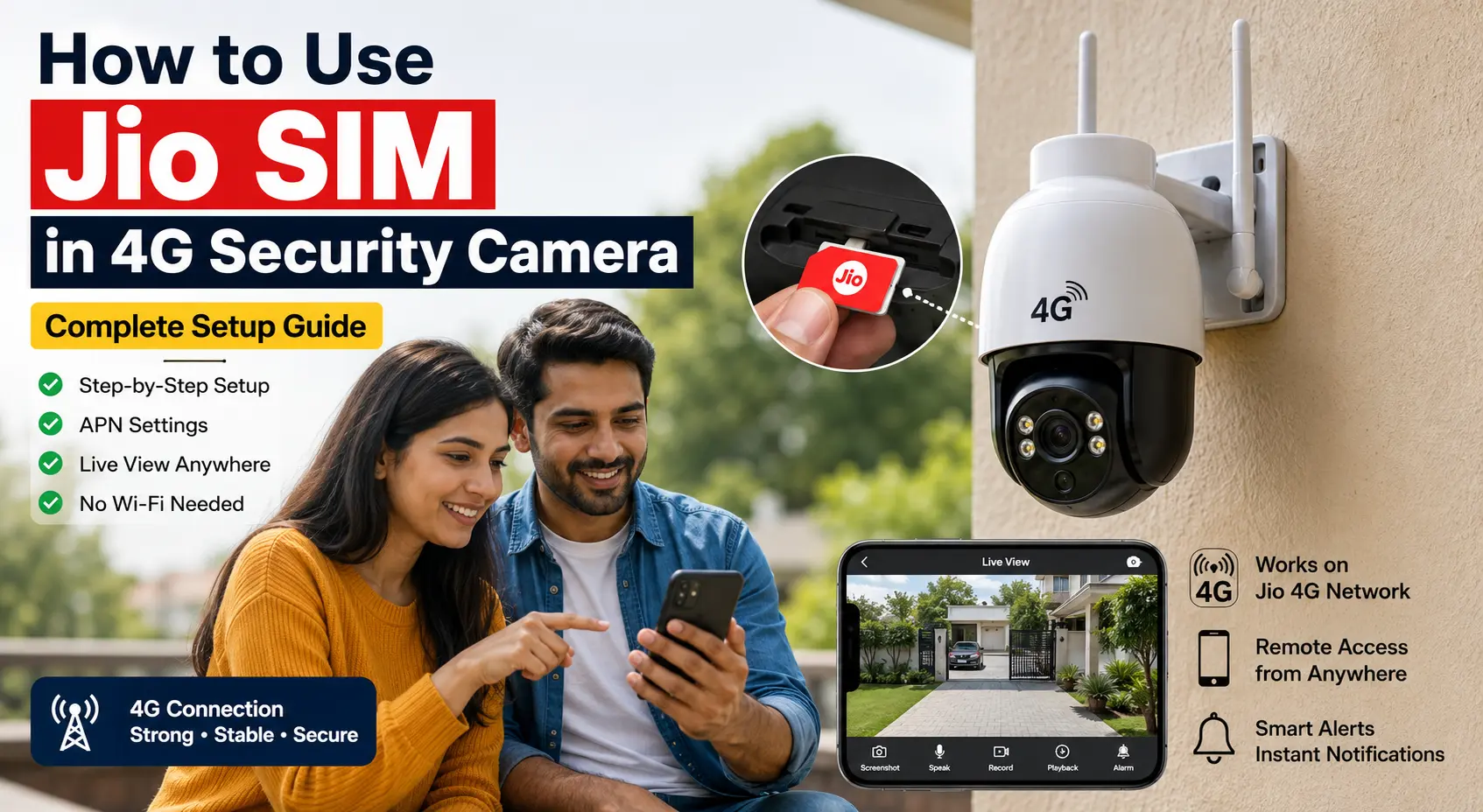
I thought setting up my outdoor surveillance would take barely five minutes. I inserted the Jio SIM, powered on the device, and expected the camera to start streaming instantly.
That didn’t happen. The live feed kept buffering, remote access failed randomly, and motion alerts arrived several minutes late.
While figuring out how to use Jio SIM in 4G security camera setups properly, I realized most connection problems come from incorrect APN settings, weak LTE support, or poor signal placement. A few small adjustments completely changed how smoothly the camera performed.
Why Many 4G Security Cameras Fail With Jio SIM
I noticed one common problem across cheap and premium cameras alike. Most cameras do not auto-detect Jio network settings correctly.
Common Problems After Inserting a Jio SIM in Security Cameras
Even after successful SIM detection, several connectivity issues may still appear.
Camera Stays Offline
The SIM may be detected, but the camera fails to establish a stable LTE data connection.
Live View Keeps Buffering
Weak LTE signals or unsupported network settings often cause continuous buffering.
No Remote Mobile Access
The camera cannot connect properly to cloud services or mobile applications.
Delayed Motion Notifications
Slow internet response may delay important motion alerts and security updates.
SIM Detected But No Internet
Some older cameras recognize the SIM card but cannot work with Jio’s LTE-only network.
Why This Happens
Jio operates mainly on 4G LTE networks. Many older security cameras still depend on traditional 2G or 3G fallback support, which Jio does not provide. As a result, compatibility issues become very common with outdated camera hardware.
How to Use Jio SIM in 4G Security Camera Properly
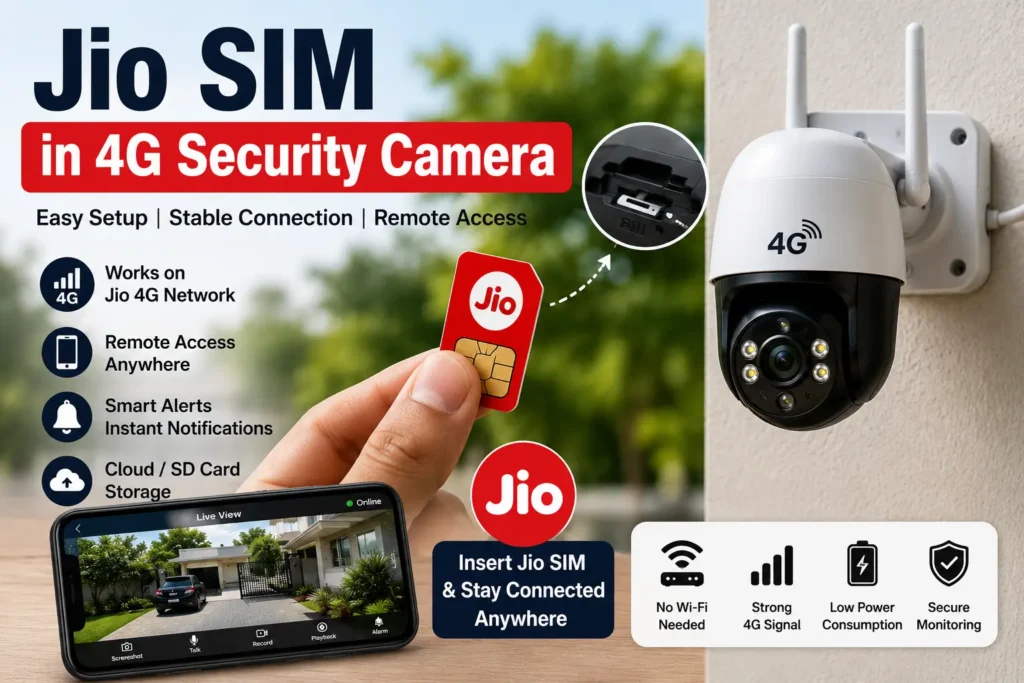
You need to follow the setup in the correct order. I skipped one activation step earlier and wasted almost two hours troubleshooting the camera.
Check Whether Your Camera Supports LTE Band Compatibility
You should first confirm the camera supports Indian 4G LTE bands.
Common LTE Bands Supported by Jio SIM Cameras
Most modern 4G security cameras rely on these LTE frequency bands for stable Jio connectivity.
LTE Band 3
One of the most widely used Jio LTE bands for urban coverage and reliable internet performance.
LTE Band 5
Commonly used for broader coverage areas and improved indoor signal penetration.
LTE Band 40
Provides high-speed 4G data performance and is heavily used by Jio across India.
Cheap imported cameras sometimes support only European bands. Those cameras may detect the SIM but fail to connect to Jio internet.
Read Also: Jio WiFi Keeps Disconnecting Smart Lights
Activate the Jio SIM Before Inserting
I learned this after testing a sealed fresh SIM directly inside the camera.
The camera never connected.
You must first activate the Jio SIM inside a smartphone.
How to Activate a Jio SIM Before Using It in a 4G Security Camera
Complete the activation process properly before inserting the SIM into your camera.
Insert SIM Into a Phone
Place the new Jio SIM inside a compatible smartphone for initial setup and activation.
Complete OTP Verification
Finish the verification process using the OTP sent during SIM activation.
Make One Voice Call
Make a quick outgoing call to fully activate network services on the SIM.
Enable Mobile Data
Turn on mobile data settings and allow the SIM to connect to the Jio LTE network.
Confirm Internet Is Working
Open a website or video to verify stable internet connectivity before moving the SIM.
Correct APN Settings for Jio SIM
This part matters more than people think.
Many cameras require manual APN setup.
Use these Jio APN details:
| Setting | Value |
|---|---|
| APN | jionet |
| Username | Leave Blank |
| Password | Leave Blank |
| Authentication | None |
I manually entered “jionet” inside the network settings panel, and the camera connected within seconds.
Read Also: How to Connect Smart Bulb with JioFiber Wifi
Best Places to Install a Jio SIM 4G Camera
Signal strength affects video quality more than camera resolution.
I tested one camera near a metal gate and another near a window. The difference in live streaming quality was massive.
You should install the camera:
✓ Near windows
✓ Higher from ground level
✓ Away from thick concrete walls
✓ Away from large metal objects
✓ Inside strong Jio network coverage areas
Weak signal causes constant reconnecting.
That issue looks like a camera fault, but network strength is usually responsible.
Read Also: Jio Data Slow in Day but Fast at Night? Fix Now
Common Problems After Installing Jio SIM in 4G Security Camera
Now here’s where things get more practical.
Camera Shows “SIM Detected” But Internet Not Working
I faced this on a farm security setup recently.
The actual issue was incorrect APN settings.
You should:
- Restart the camera
- Re-enter APN manually
- Confirm active Jio recharge plan
- Test SIM again inside smartphone
Live Video Keeps Buffering
This mostly happens because of poor LTE signal.
You can reduce the issue by:
- Lowering video resolution
- Moving camera closer to open area
- Installing external LTE antenna if supported
Motion Alerts Arrive Late
Cloud servers and unstable signal usually cause delays.
I noticed smoother alerts after switching from “continuous recording” to “motion-only recording.”
That reduced bandwidth load significantly.
Read Also: Jio Fiber Smart Light Not Connecting?
Which Jio Recharge Plan Works Best for 4G Security Camera
A normal low-data mobile plan may stop working quickly if your camera streams continuously.
I usually recommend high-data plans for remote monitoring setups.
Here’s a simple comparison:
| Usage Type | Recommended Data | Best For |
|---|---|---|
| Motion Alerts Only | 1–1.5GB/day | Small homes |
| Regular Live Viewing | 2GB/day+ | Shops & offices |
| 24/7 Streaming | Heavy usage | Remote properties |
Decision Guide: Should You Use Jio SIM in a 4G Security Camera?
| Situation | Good Choice? | Reason |
|---|---|---|
| Urban home setup | Yes | Strong LTE coverage |
| Remote village area | Depends | Signal strength matters |
| Basement installation | Not ideal | Weak LTE reception |
| Construction site monitoring | Excellent | Portable internet setup |
Pro Insight
I’ve noticed many people blame the camera brand first. In reality, unstable power supply and weak LTE signals create most connection problems in outdoor 4G cameras.
A simple power backup and stronger signal placement often improve performance dramatically.
Read Also: Jio Phone Software Update Problem? Fix Installation Errors
Mistakes That Reduce Camera Performance
A few setup mistakes quietly ruin camera reliability.
I see these repeatedly:
- Installing SIM upside down
- Ignoring APN configuration
- Buying unsupported imported cameras
- Using expired recharge plans
- Placing camera inside enclosed metal boxes
One small correction can completely stabilize the setup.
Read Also: Best APN Settings for Jio (Boost Speed Instantly)
Best Use Cases for Jio SIM Security Cameras
You’ll benefit most from this setup if Wi-Fi is unavailable.
I’ve personally seen good results in:
- Farm monitoring
- Construction sites
- Parking areas
- Small retail shops
- Temporary outdoor setups
- Warehouse security
Portable 4G cameras solve problems where broadband installation becomes difficult.
Key Takeaways
Important things to remember before using a Jio SIM in a 4G security camera.
Jio SIM works well in 4G security cameras that support proper LTE connectivity.
Manual APN configuration often solves internet connection and network detection issues.
Strong LTE signal quality directly affects live streaming performance and remote access stability.
High-data recharge plans perform better for continuous monitoring and cloud recording.
Always verify LTE band compatibility before purchasing a 4G CCTV or security camera.
A properly configured Jio SIM can make a 4G security camera surprisingly reliable. I initially thought the setup would be complicated, but the process becomes simple once the APN settings, activation steps, and signal placement are handled correctly.
Most connection problems usually come from setup mistakes rather than hardware failure. Stable internet, proper LTE support, and good camera positioning make a huge difference in long-term performance.
FAQ: How to Use Jio SIM in 4G Security Camera
Can I use any Jio SIM in a 4G security camera?
Yes, you can use a regular Jio SIM in most 4G security cameras if the camera supports LTE bands used in India. I tested both prepaid and regular data plans, and both worked properly after correct APN setup.
A fresh SIM usually needs activation inside a smartphone first.
Why is my Jio SIM not working in the security camera?
I faced this issue during my first setup because the APN was missing.
These are the most common reasons:
- Incorrect APN settings
- Unsupported LTE bands
- Inactive recharge plan
- Weak Jio signal
- SIM not activated properly
The APN should normally be:
- APN: jionet
Everything else can stay blank.
Which APN should I use for Jio SIM in 4G security camera?
You should use:
| Setting | Value |
|---|---|
| APN | jionet |
| Username | Blank |
| Password | Blank |
I manually added these settings on one outdoor camera, and the connection started immediately.
Does Jio SIM support live remote viewing in security cameras?
Yes, remote viewing works properly if the internet connection stays stable.
I regularly noticed smoother remote access after:
✓ Installing camera near stronger signal areas
✓ Lowering unnecessary video quality
✓ Keeping firmware updated
Signal strength matters more than people expect.
How much data does a 4G security camera consume with Jio SIM?
Data usage depends on recording settings and live viewing frequency.
Here’s a rough estimate:
| Camera Usage | Approximate Daily Data |
|---|---|
| Motion alerts only | 500MB–1GB |
| Regular live viewing | 1GB–3GB |
| 24/7 cloud recording | Very high usage |
I usually recommend larger daily data plans for outdoor monitoring setups.
Can I use Jio SIM in solar-powered 4G security cameras?
Yes, many solar 4G cameras support Jio SIM without issues.
I tested one farm monitoring setup powered entirely through solar backup. Stable sunlight and good LTE signal kept the camera running continuously for weeks. Power backup quality still matters a lot in remote areas.
Why does my 4G security camera keep disconnecting with Jio SIM?
This problem often comes from unstable LTE signal instead of the camera itself.
I improved connection stability after:
- Moving the camera higher
- Avoiding metal surfaces nearby
- Restarting network settings
- Switching recording mode to motion-only
One small placement adjustment can improve signal dramatically.
Is Jio SIM better than Wi-Fi for security cameras?
That depends on installation location.
Jio SIM works better for:
- Farms
- Construction sites
- Remote warehouses
- Temporary setups
Wi-Fi usually works better for homes with stable broadband internet.
Pro Insight
I noticed many users spend money replacing cameras when the real issue comes from poor signal placement. A simple network check with your smartphone near the installation area often reveals the actual problem quickly.